
Slack Download for Windows: Pick the Right Installer and Set It Up

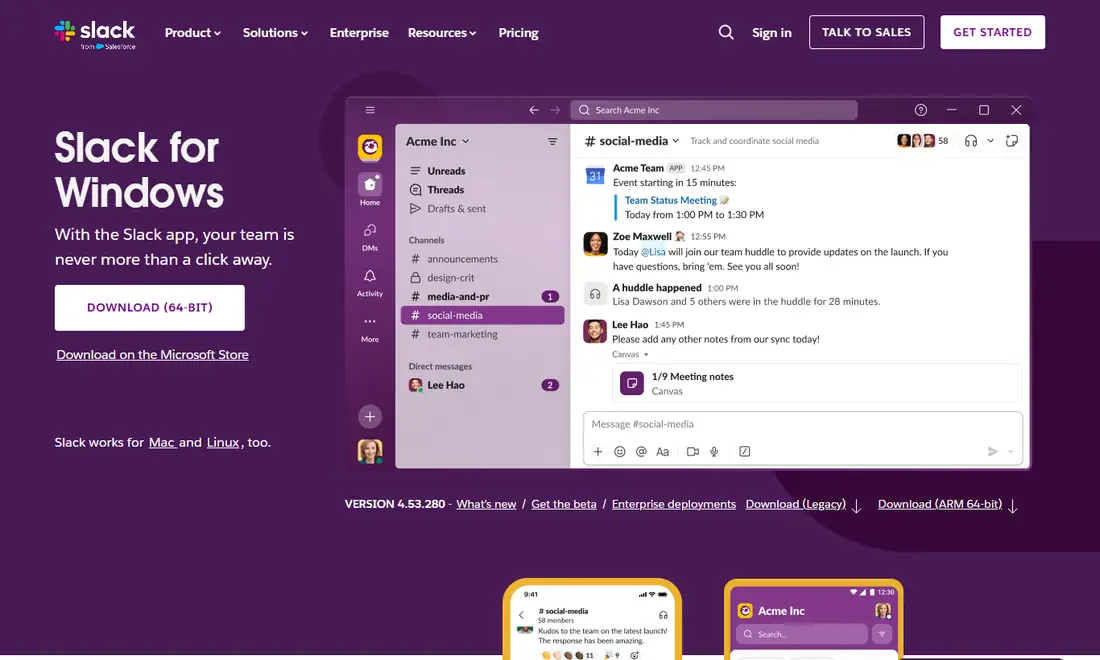
A Slack download for Windows takes a few minutes, but there are real choices hiding behind that one button. Slack's official Windows page now offers a 64-bit installer, an ARM 64-bit installer, a Legacy download and a Microsoft Store link, and IT teams get a separate MSIX package for deployment at scale. This guide explains which one to pick, how to install and sign in, how updates work, and what to do when something goes wrong. SlackDownload.com is a third-party guide, so every link below points to Slack's or Microsoft's own pages, never to a mirror.
Check Your PC Before You Download Slack
Most failed installs on Windows are not caused by the installer. They are caused by a PC that sits below Slack's published minimums. Slack revises its system requirements twice a year, in May and November, and the current Windows entry is short.
| Requirement | What Slack currently lists |
|---|---|
| Windows desktop | Windows 11 version 23H2 or above |
| Server | Windows Server 2016 |
| Desktop app version | 4.44 or above |
| Windows 10 | Not on the current supported list |
| Browsers (web app) | Chrome 137+, Firefox 139+, Edge 136+, Safari 26+ |
Requirements last checked: (Slack revises them every May and November).
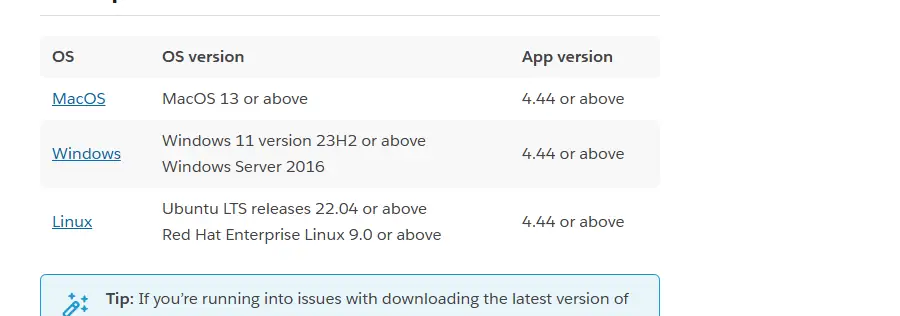
Check your Windows version and edition in the About section of Windows Settings before you start. If you are on an older Windows 11 release, install the pending feature update first; Slack's lifecycle page shows Windows 11 version 22H2 reached end of support on May 18, 2026. If the PC still runs Windows 10, read our Slack on Windows 10 support guide, because Windows 10 is not on Slack's supported list.
On a company laptop, also ask IT whether Slack is already deployed or installs are restricted.
Which Slack for Windows Download Should You Pick?
The official Slack for Windows page shows several options. They all deliver the same Slack desktop app with channels, DMs, huddles and canvases; the difference is your hardware and how you want updates handled.
| Option | Best for | How it updates |
|---|---|---|
| Download (64-bit) | Most Windows 11 PCs with Intel or AMD processors | Slack's built-in updater (Direct Download version) |
| Download (ARM 64-bit) | Windows on ARM laptops | Slack's built-in updater |
| Download (Legacy) | Only when IT or Slack support asks you to use it | Not explained on the download page |
| Microsoft Store | People who want Store-managed updates or no separate installer file | Microsoft Store |
| MSIX package (Enterprise deployments) | IT teams installing Slack at scale | Built-in auto-update, or controlled by IT |
If you are unsure whether your laptop is ARM-based, check the system type in Windows Settings before downloading. Picking the 64-bit build on an ARM device, or the reverse, is a common cause of a slow or failed first launch.
When the Microsoft Store makes sense
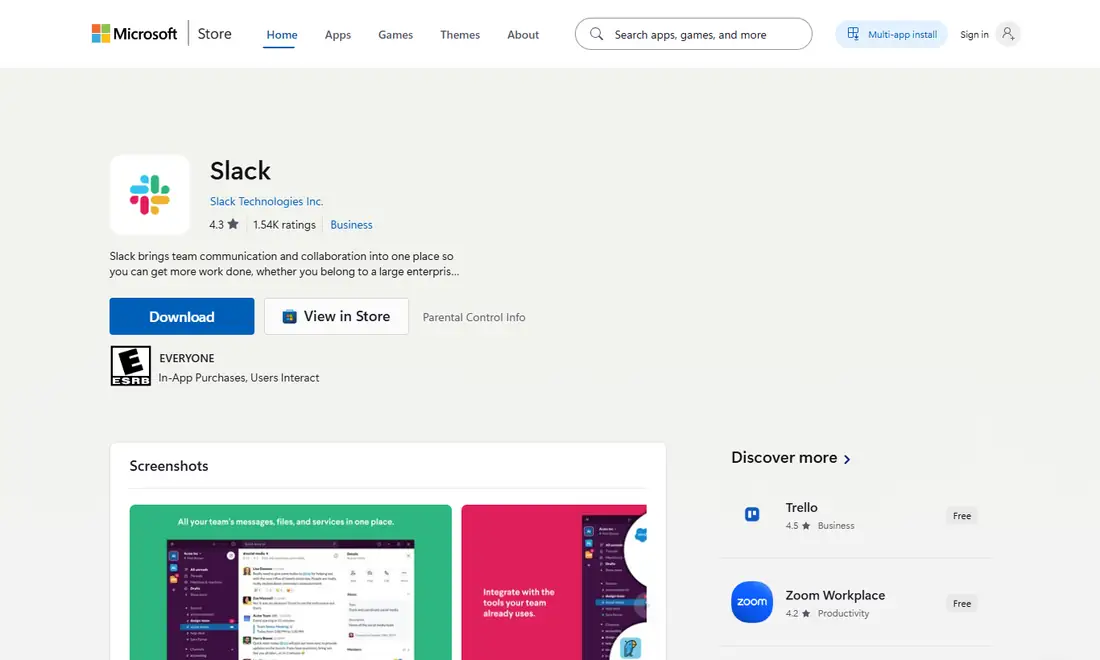
The Slack listing on the Microsoft Store is free, sits in the Business category and is published by "Slack Technologies Inc." Check that publisher name before you select Download. The Store suits personal PCs and anyone who wants one place for app updates. One caveat: Slack's lifecycle policy says that once your OS reaches end of support, Slack is no longer available to download from the Microsoft Store.
When the direct installer makes sense
Some organizations disable the Store, and some people prefer an installer they control. In that case use slack.com directly. Type the address yourself or use a trusted bookmark, and skip sponsored search ads and "download portal" sites that repackage software. Our guide to downloading Slack safely covers the warning signs.
Per-User Installs vs MSIX for IT Teams
The standard download installs Slack for the person who runs it. That suits a personal laptop, a work PC where you lack admin rights, or a quick trial. A second person on the same PC installs their own copy.
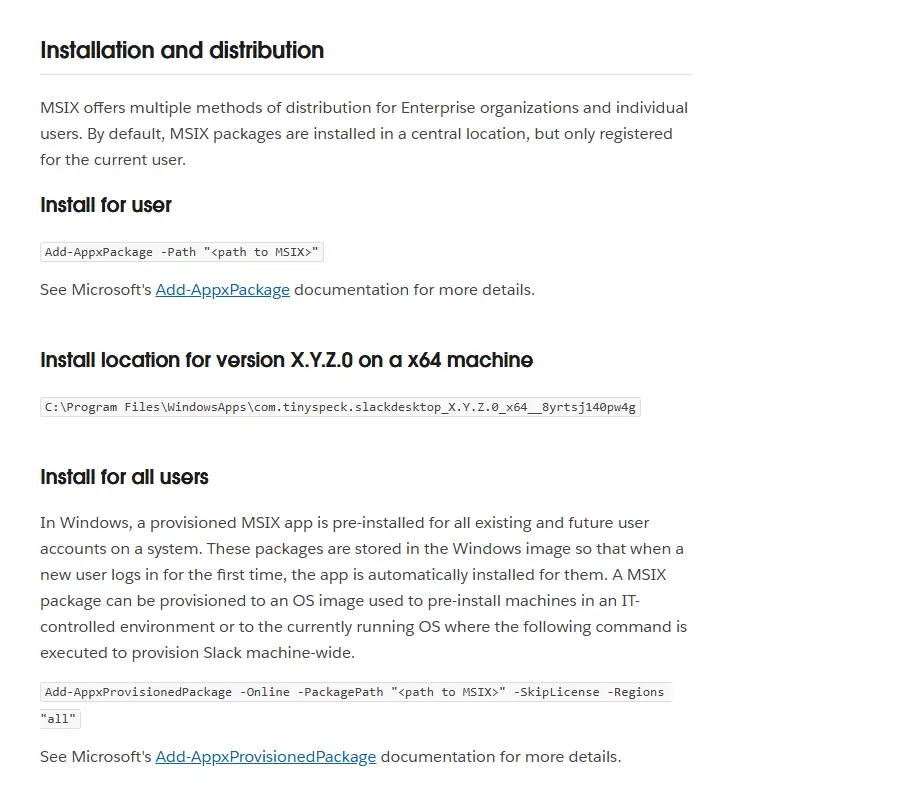
For deployment, Slack's Deploy Slack for Windows help article is clear: Slack offers an MSIX package for installing at scale. Older guides (including an earlier version of this one) mentioned MSI; the current official option is MSIX. Key points from Slack's documentation:
- The MSIX package supports ARM and 64-bit architectures and includes auto-update functionality.
- By default an MSIX package is installed in a central location but registered only for the current user, using
Add-AppxPackage. - To provision Slack for all existing and future users on a machine, Slack documents
Add-AppxProvisionedPackage. - Distribution through Microsoft Intune, Configuration Manager, DISM, App Attach, AppInstaller or PowerShell is supported, and GPO deployment is described as an alternative.
- Auto-updates can be controlled through the desktop app configuration, and AppLocker blocks packaged apps by default unless you allow them.
Slack notes the MSIX is compatible with Windows 10 and 11, but that does not put Windows 10 back on the supported list. Our Slack rollout guide for IT teams goes deeper.
How to Install Slack on Windows 11
From Slack's website
- Open slack.com/downloads/windows in your browser.
- Select Download (64-bit), or Download (ARM 64-bit) on an ARM laptop.
- Open the downloaded installer from your Downloads folder.
- If Windows shows a security prompt, read it. If anything looks wrong, delete the file and download it again from slack.com.
- Slack opens when the install finishes, ready for sign-in.
From the Microsoft Store
- Open the Microsoft Store and search for Slack.
- Confirm the publisher is Slack Technologies Inc.
- Select Download (or Get), then Open when it finishes.
Pick one source and stick with it. Installing from both gives you two Slack entries with separate update paths.
Signing In and Adding Workspaces
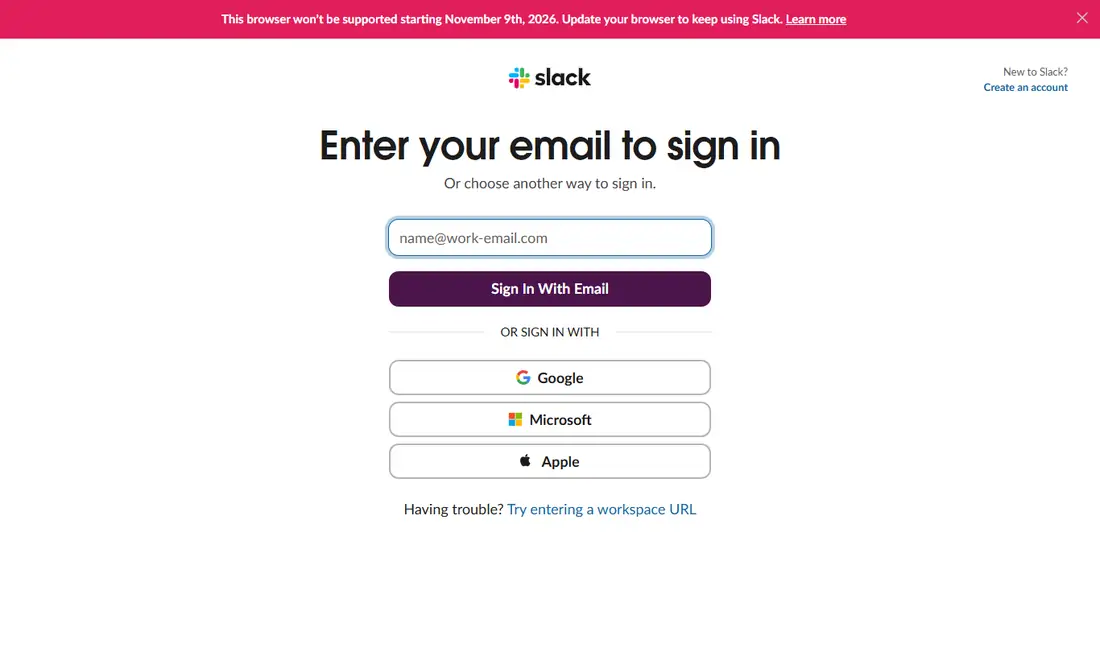
You do not need a separate account for the desktop app. Use the email address that belongs to your workspace. Slack's sign-in screen offers email sign-in plus Google, Microsoft and Apple options, and a "Try entering a workspace URL" link if you know your workspace address. If you were invited but never joined, accept the email invitation first.
The desktop app can hold several workspaces at once, which helps freelancers and anyone in a community workspace as well as a work one. Each workspace keeps its own notification settings, so tune them one by one. Our Slack notifications guide explains schedules, keywords and Do Not Disturb.
Startup and Notification Basics on Windows
Slack can start with Windows and keep running in the background after you close the window. Look in Slack's Preferences (profile picture, then Preferences) for the app's startup and window behavior, and in Windows Settings for the list of startup apps. If the two seem to disagree, the Windows setting controls whether Slack launches at sign-in.
If messages arrive but no pop-ups appear, check that Windows allows Slack notifications, that Focus or Do Not Disturb is off in both Windows and Slack, and that your notification schedule is not muting you.
Keeping the Slack Desktop App Updated
The download page showed version 4.53.280 on November 6, 2026, while the top entry in the Windows release notes was already 4.53.283. Updates matter: Slack requires app version 4.44 or above, and its lifecycle page lists desktop app 4.46.104 and below as reaching end of support on November 9, 2026. When an app version is unsupported, Slack prompts you to upgrade and you cannot access Slack until you do.
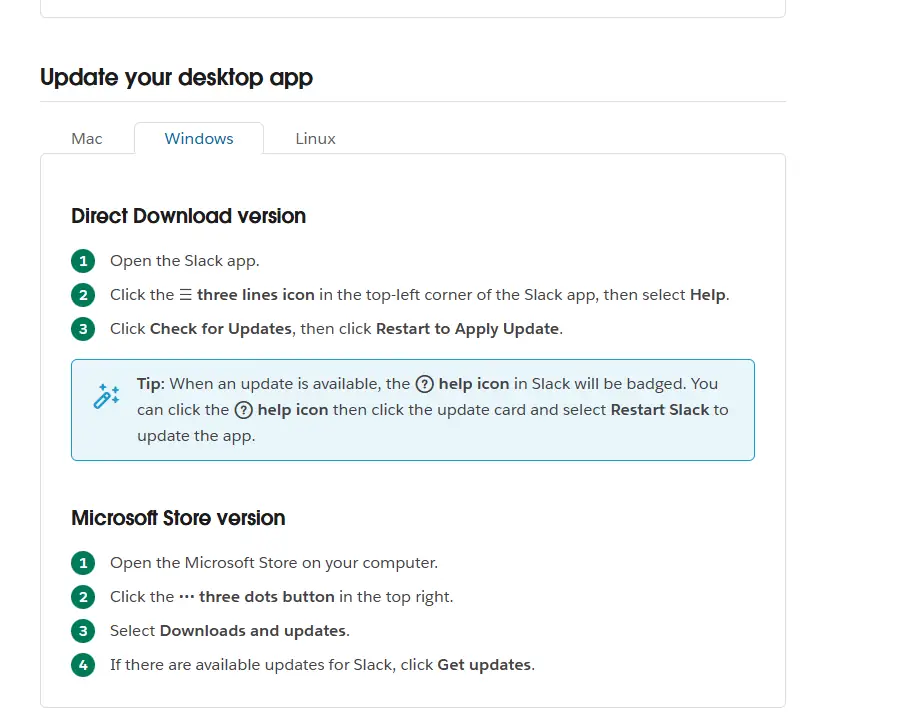
According to Slack's desktop update help article:
- Direct Download version: click the three-lines icon at the top left, select Help, then Check for Updates and Restart to Apply Update.
- Microsoft Store version: open the Store, click the three dots button, select Downloads and updates, then Get updates.
- Managed installs: if your version number starts with MSQ, your organization manages updates, so contact IT.
Troubleshooting Common Windows Install Problems
The installer will not run. Confirm the PC meets the Windows 11 23H2 minimum and that you picked the right architecture. On managed devices, request Slack through your company portal instead of fighting policy.
Two copies of Slack appear. This happens when someone installs from both the Store and the website, or a per-user copy sits beside an IT deployment. Uninstall the one your organization does not support.
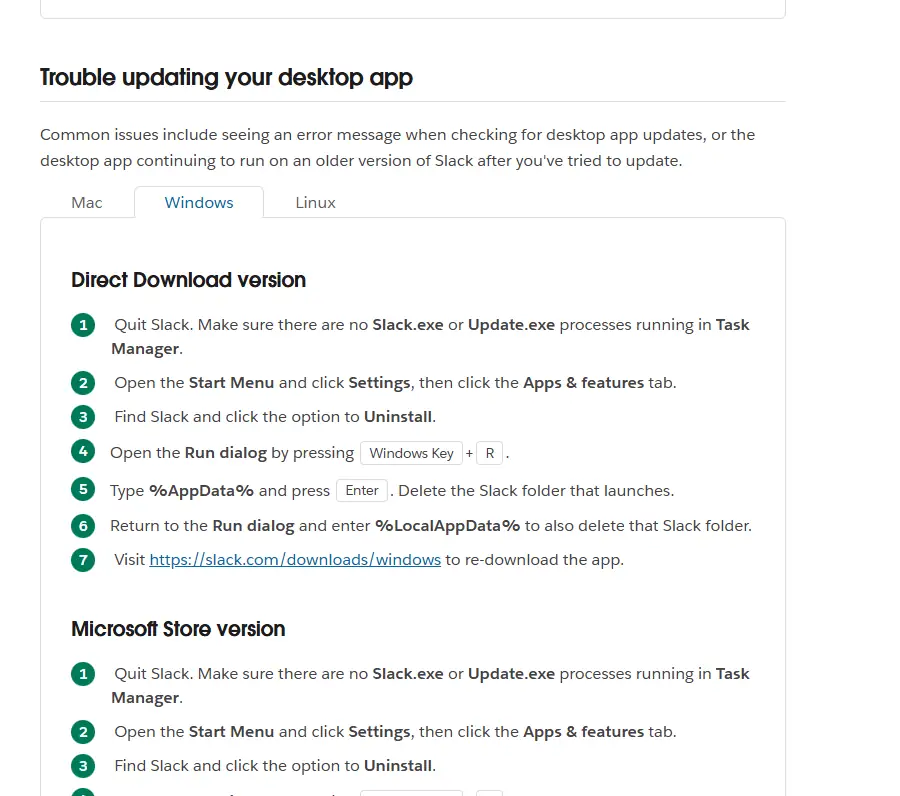
Updates fail or Slack stays on an old version. Slack's documented fix for the Direct Download version: quit Slack and make sure no Slack.exe or Update.exe processes run in Task Manager, uninstall it from Apps settings, delete the Slack folders under %AppData% and %LocalAppData%, then download again from slack.com. The Store version has a similar process with its own package folder.
Slack opens but cannot connect. Messages such as "Slack cannot connect" or a grey "Last updated" banner point to network, proxy or firewall issues rather than the install. Reinstalling does not delete your conversations, because messages live in your workspace. Our Slack troubleshooting guide walks through each error.
Is the Slack Download Safe and Free?
Yes, when it comes from slack.com or the Microsoft Store. The app is free to download; Slack's paid plans add features such as longer message history, but you never pay anyone for the installer itself. Check Slack's system requirements page each May and November, keep the app current, and your Windows install should rarely need attention.
Frequently Asked Questions
Which Slack download should I choose for Windows?
Most Windows 11 PCs with Intel or AMD processors should use Download (64-bit) from slack.com or the Microsoft Store listing. Choose Download (ARM 64-bit) on Windows on ARM laptops. IT teams installing Slack across many machines should use the MSIX package from Slack's Deploy Slack for Windows help article.
Is the Microsoft Store version better than the installer from slack.com?
Neither has extra features; both deliver the same official desktop app. The Store version updates through the Microsoft Store, while the Direct Download version updates through Slack's own Help menu. The Store suits personal PCs, and the direct installer suits devices where the Store is disabled. Pick one and avoid installing both.
Do I need administrator rights to install Slack on Windows?
The standard download installs Slack for the current user, which is why ordinary users can usually run it. Installing Slack for every user on a machine is an IT task: Slack documents provisioning its MSIX package with Add-AppxProvisionedPackage. If your work laptop blocks installs, ask your IT team for the approved method.
Does Slack offer an MSI installer for Windows?
Slack's current deployment documentation offers an MSIX package for installing Slack at scale, not an MSI. The MSIX supports ARM and 64-bit, includes auto-update, and can be distributed with PowerShell, Intune, Configuration Manager, DISM, App Attach, AppInstaller or a GPO scheduled task.
What Windows version does Slack need right now?
Slack's requirements page currently lists Windows 11 version 23H2 or above, or Windows Server 2016, with desktop app version 4.44 or above. Windows 10 is not on the supported list. Slack updates these requirements every May and November, so recheck the official page if you are reading this later.
Will reinstalling Slack on Windows delete my messages?
No. Messages, files and channels are stored in your workspace, not only on your PC. Uninstalling removes the local app and cache, and Slack's clean-reinstall steps also delete local Slack folders. Your conversations reappear once you sign in again with the same account.