
Slack Download for IT Teams: MSIX, PKG, Linux and Mobile Deployment

For one person, a Slack download is a single click. For an IT team it is a small project: Slack has to land on every laptop, stay current on every phone, and survive operating system upgrades, staff turnover and security reviews. This guide covers the decisions that matter: the Windows MSIX package and its GPO alternative, macOS PKG builds, Linux packages, mobile distribution, and how Slack's twice-yearly support lifecycle should drive your calendar. SlackDownload.com is third-party and not affiliated with Slack or Salesforce, so confirm details against Slack's admin documentation before changing production.
Questions That Shape Your Slack Deployment
- Who owns the devices? Company laptops can be fully managed; personal phones and contractor machines usually cannot.
- Do users have local admin rights? If not, you need a managed package pushed by your tooling.
- Are machines shared? Labs, kiosks and shared desks usually call for machine-wide installs.
- How tightly do you control updates? Some teams let Slack update itself; others test every release first.
- Which platforms are in scope? A Windows, macOS, Linux, iOS and Android mix means a mix of tools.
Slack Deployment Options at a Glance
| Platform | Official package for IT | Where it comes from | Update control |
|---|---|---|---|
| Windows | MSIX (ARM and 64-bit); GPO as an alternative method | Deploy Slack for Windows | Auto-update built in; AutoUpdate setting in desktop app configuration |
| macOS | PKG: Intel (x64), Apple Silicon (arm64), Universal | Deploy Slack for macOS | Installs to /Applications and updates automatically |
| Linux (beta) | .deb, .rpm, Snap | slack.com/downloads/linux, Snap Store | apt, dnf or snapd |
| iOS and iPadOS | App Store app | Apple App Store | Store updates |
| Android | Google Play app | Google Play | Store updates |
Per-User vs Machine-Wide Installs
A per-user install lives in one profile, needs no admin rights and updates itself quietly. That is low friction, but on a shared machine you can end up with several copies at different versions, and inventory tools may not see them cleanly. A machine-wide install is predictable: every profile sees the same app and your inventory picks it up. The trade-off is that updates become your job if you turn auto-update off.
| Factor | Per-user | Machine-wide |
|---|---|---|
| Admin rights | Not needed | Admin or deployment tool |
| Updates | App updates itself | Auto-update, or your schedule |
| Best fit | Personal laptops, small teams | Shared PCs, labs, regulated sites |
| Risk | Duplicate copies on shared machines | Falling behind supported versions |
Whatever you choose, avoid mixing both methods on one computer; two copies of Slack produce confusing tickets about missing notifications and the wrong version launching.
Deploying Slack on Windows With MSIX
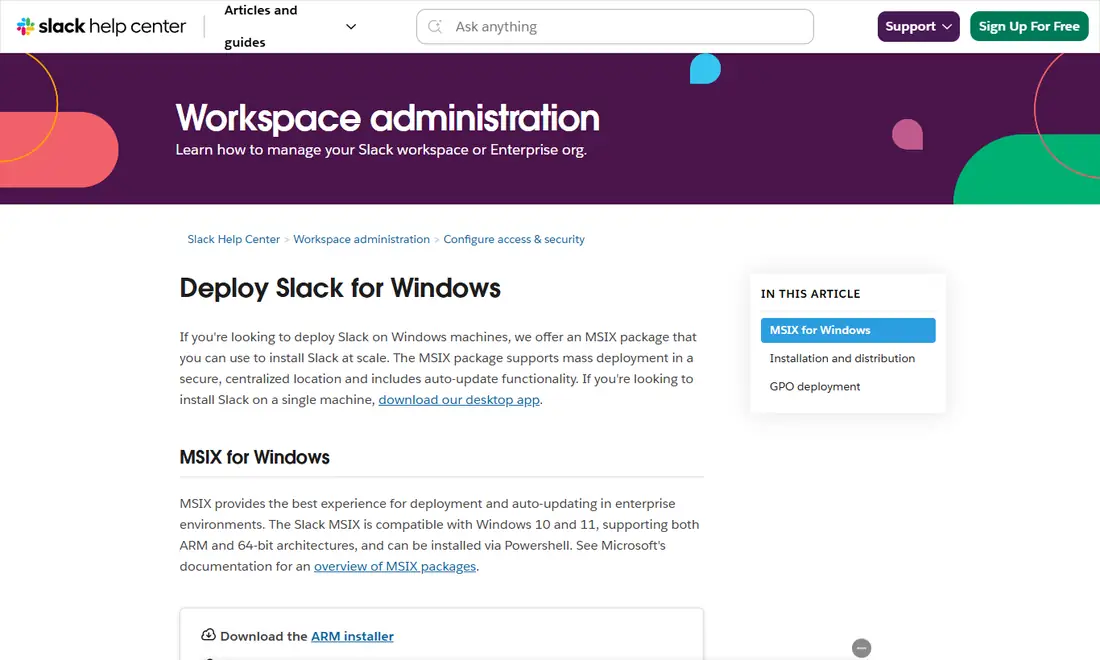
Slack's deployment article says it offers an MSIX package for installing Slack at scale, with mass deployment from a secure, centralised location and auto-update built in. Older guidance about MSI files no longer reflects that article: MSIX is the package, and GPO is the alternative method. The MSIX comes in ARM and 64-bit versions and installs through PowerShell:
- For the current user:
Add-AppxPackage -Path "<path to MSIX>". By default MSIX packages install centrally but register only for the current user. - For all users:
Add-AppxProvisionedPackage -Online -PackagePath "<path to MSIX>" -SkipLicense -Regions "all"provisions Slack so existing and future accounts get it at first sign-in. You can also provision it into an OS image.
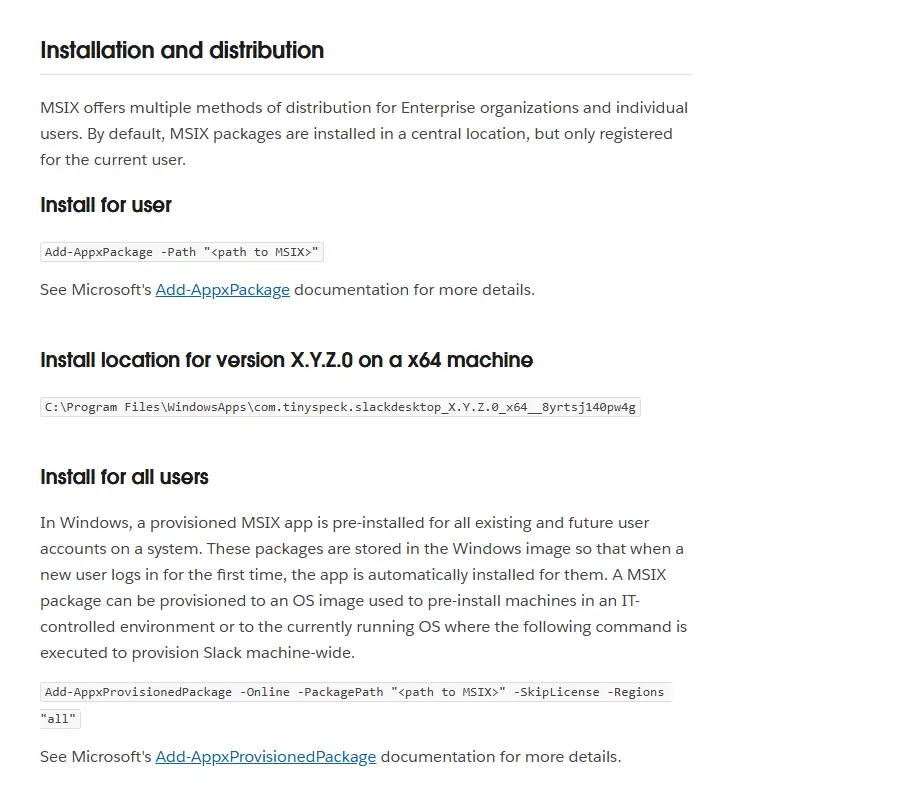
Slack also lists Microsoft Endpoint Configuration Manager, Microsoft Intune, DISM and provisioning, MSIX App Attach, AppInstaller and PowerShell as supported distribution routes. Because MSIX virtualises file and registry access, user data lives under %LOCALAPPDATA%\Packages\com.tinyspeck.slackdesktop_8yrtsj140pw4g\LocalCache\Roaming\Slack rather than the traditional %APPDATA%\slack, which matters for profile tools and backups.
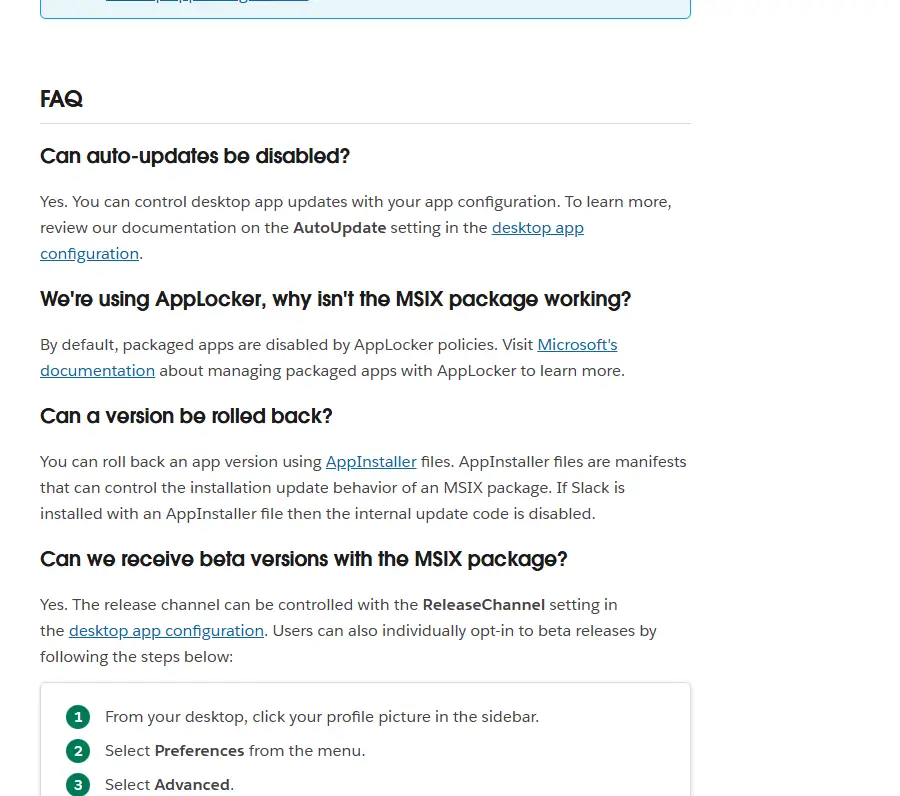
The article's FAQ answers the usual admin questions:
- Disable auto-updates: yes, with the AutoUpdate setting in the desktop app configuration.
- AppLocker: packaged apps are disabled by AppLocker policies by default, so allow them explicitly.
- Roll back a version: use AppInstaller files; when Slack is installed that way, its internal update code is disabled.
- Beta builds: control them with the ReleaseChannel setting, or let users opt in under Preferences, Advanced.
Slack's update help notes that if a user's version number is prepended by MSQ, updates are managed by the organisation, which is a handy check for the help desk.
GPO deployment as an alternative
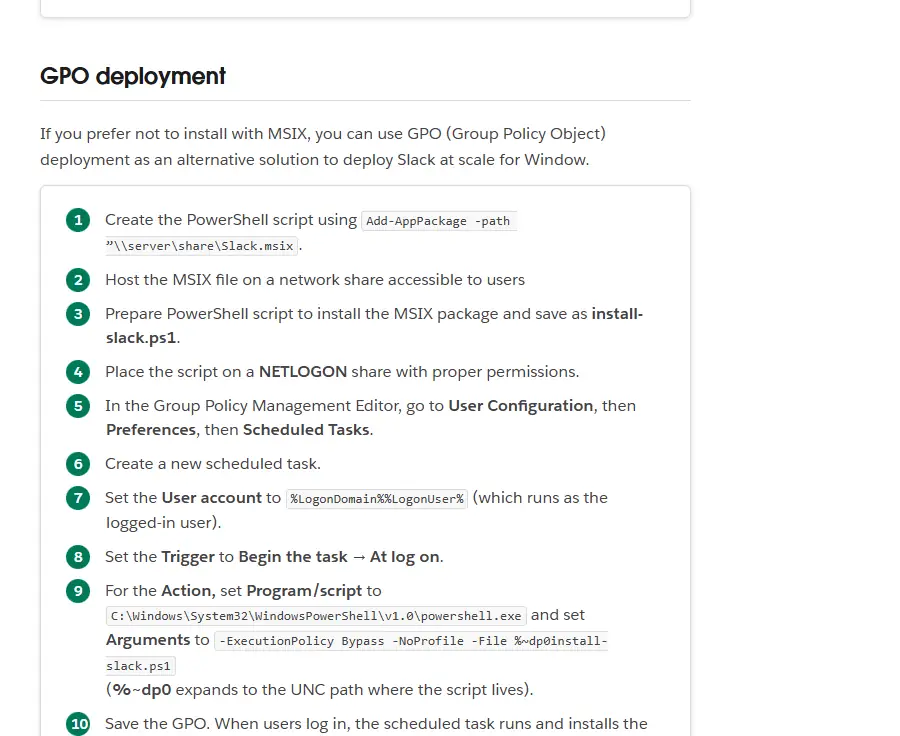
If you prefer not to install with MSIX directly, Slack describes a Group Policy route: host the MSIX on a network share, save a PowerShell script (install-slack.ps1) that runs Add-AppPackage against it, place the script on the NETLOGON share, then in Group Policy Management Editor create a scheduled task under User Configuration, Preferences, Scheduled Tasks. Set it to run as the logged-on user at log on, launching PowerShell with the script. When users sign in, the task installs Slack.
Windows version planning
Slack's requirements are Windows 11 version 23H2 or above, or Windows Server 2016. Windows 10 is not on Slack's current supported list, even though the MSIX article mentions Windows 10 compatibility. Windows 11 22H2 reached end of support on May 18, 2026, and Slack's Windows support follows Microsoft's Enterprise lifecycle, excluding LTSC/LTSB. Put remaining Windows 10 devices on your upgrade plan; our Slack on Windows 10 guide explains the stopgaps.
Deploying Slack on macOS With the PKG
Slack's macOS deployment article offers three PKG builds: Intel (x64), Apple Silicon (arm64) and Universal, which runs on both but is a much larger file. Deployed this way, Slack installs to /Applications and updates automatically. Slack also offers an RSS feed for Mac desktop app updates.
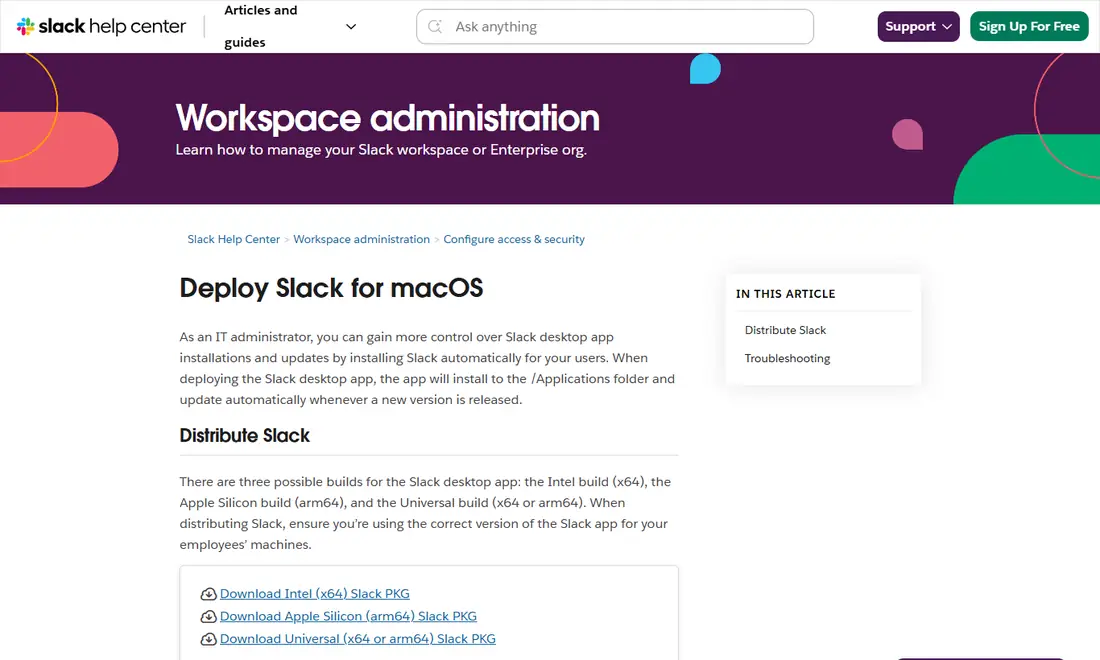
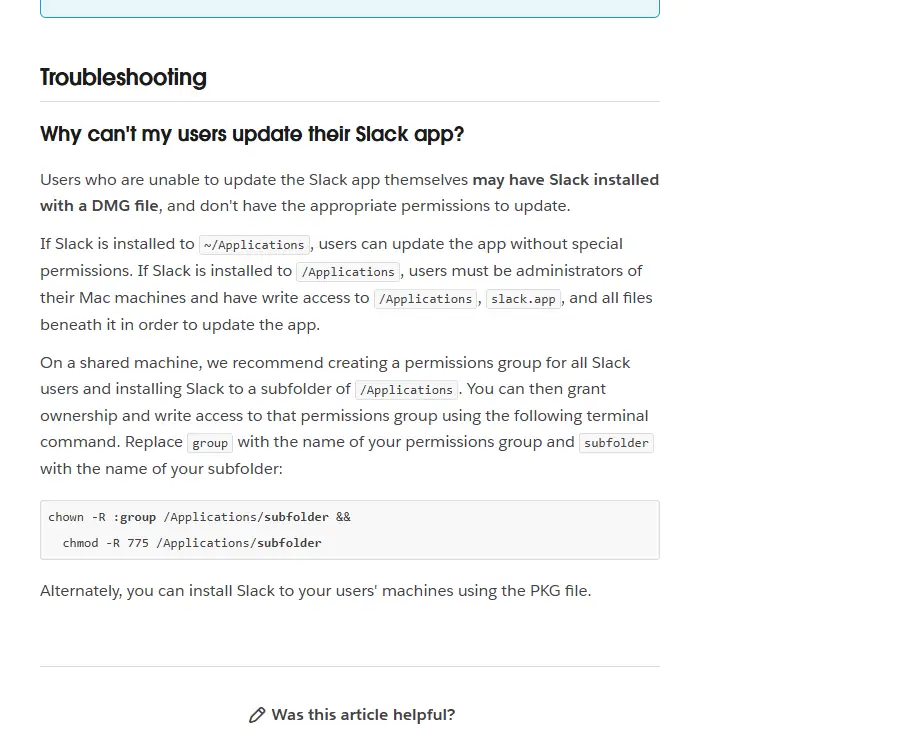
The article's troubleshooting note explains a common ticket: users who cannot update may have installed Slack from a DMG without the right permissions. Slack in ~/Applications updates without special rights; in /Applications, users need admin rights and write access. On shared Macs, Slack suggests a permissions group and a subfolder of /Applications, or simply deploying the PKG.
The Mac App Store version (Slack for Desktop) is the other official option and requires macOS 13.0 or later. Pick one source per fleet. Heads-up: Slack's support lifecycle page lists macOS 13, iOS 17 and Android 11 as reaching end of support on November 9, 2026, so check the official requirements page after that date.
Linux Desktops
Slack's Linux app is beta and supports Ubuntu LTS 22.04+ and RHEL 9.0+. Slack offers .deb and .rpm packages (4.53.276 when we checked) and a Snap; Slack advises against installing the Snap alongside other Linux packages. Deploy through your configuration management, and keep the web app in Chrome or Firefox as the fallback. Our Slack Linux distribution guide covers Fedora, Debian and Arch.
Mobile: App Stores and EMM
Distribute mobile apps only through the official stores or your management platform's link to them: Slack on the Apple App Store and Slack on Google Play, both from SLACK TECHNOLOGIES L.L.C. Slack requires iOS 17 or above, Android 11 or above, and app version 25.05.20 or above, and it supports only Android devices with Google Play Services installed by default, which matters for rugged or kiosk hardware. Never sideload Slack from APK mirrors.
For tighter control, Slack's security page mentions support for enterprise mobility management, its pricing comparison includes EMM integration, and Apple's App Store shows separate Slack for EMM and Slack for Intune apps. Check Slack's pricing page for plan availability. Our Slack iPhone and iPad guide covers the user side.
Tracking Slack's Support Lifecycle
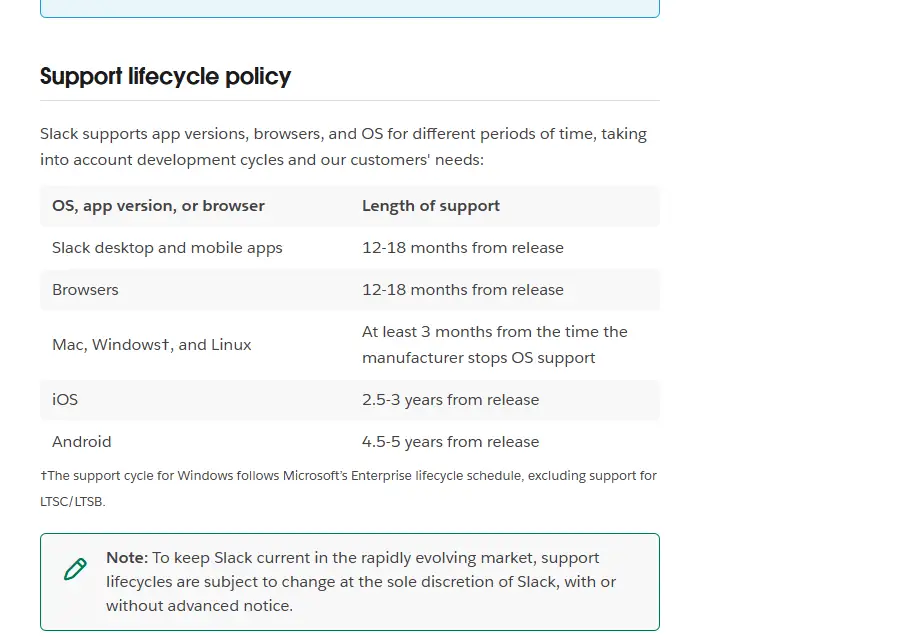
Slack updates its requirements every May and November. When an OS reaches end of support, Slack keeps working on a supported app version but stops receiving updates and is no longer offered in the App Store, Microsoft Store or Snap. When an app version reaches end of support, users are prompted to upgrade and cannot access Slack until they do.
| Platform | OS version | App version |
|---|---|---|
| Windows | Windows 11 23H2+; Windows Server 2016 | 4.44+ |
| macOS | macOS 13+ | 4.44+ |
| Linux (beta) | Ubuntu LTS 22.04+; RHEL 9.0+ | 4.44+ |
| iOS | iOS 17+ | 25.05.20+ |
| Android | Android 11+ (Google Play Services) | 25.05.20+ |
Requirements last checked: (Slack revises them every May and November).
Desktop versions 4.46.104 and below and mobile versions 25.10.50 and below are listed for end of support on November 9, 2026. Supported browsers are Chrome 137+, Firefox 139+, Safari 26+ and Edge 136+. Schedule a fleet review after each May and November update using the Slack support lifecycle page.
Rollout Checklist and Common Mistakes
- Before the pilot: inventory devices, choose per-user or machine-wide per group, connect single sign-on, and publish an internal page naming the official Slack sources.
- Pilot: include every platform and department, push through your real tooling, and verify notifications, huddles, screen sharing and the reported version.
- Rollout: deploy in waves, brief the help desk, and remove unmanaged copies so each machine has one Slack.
- After: review after each May and November update and check offboarding across desktop, web and mobile.
The classic mistakes: disabling auto-update and forgetting it, allowing duplicate installs, ignoring mobile, and letting users search the web for installers. Our Slack download safety guide shows staff how to recognise official sources.
Frequently Asked Questions
Does Slack offer an MSI installer for Windows deployment?
Slack's current Deploy Slack for Windows article describes an MSIX package, in ARM and 64-bit versions, for installing Slack at scale. If you prefer not to install with MSIX directly, the article offers GPO deployment as an alternative, which uses a logon scheduled task to install the same MSIX file. Check the article before building packages, as options can change.
Should we use per-user or machine-wide Slack installs?
Use per-user installs where people have their own laptops and you want low-touch updates. Use machine-wide provisioning for shared PCs, labs and tightly controlled environments; with MSIX, Add-AppxProvisionedPackage installs Slack for all existing and future users. Many organisations use both models, but avoid two copies of Slack on the same machine.
Can we keep running Slack on Windows 10?
Windows 10 is not on Slack's current supported list, which requires Windows 11 version 23H2 or above or Windows Server 2016. Slack's MSIX article mentions Windows 10 compatibility, but an unsupported OS stops receiving app updates. Plan to move those devices to Windows 11 and offer the web or mobile app meanwhile.
How often do Slack's system requirements change?
Slack updates its requirements twice a year, in May and November. Each update can raise the minimum app version and retire operating system and browser versions. The support lifecycle page lists macOS 13, iOS 17 and Android 11 as reaching end of support on November 9, 2026, so check the requirements page after that date.
What happens if users fall below the minimum app version?
When a desktop or mobile app version reaches end of support, Slack shows a prompt to upgrade and users cannot access Slack until they do. Desktop versions 4.46.104 and below and mobile versions 25.10.50 and below are listed for end of support on November 9, 2026, so make sure managed update schedules keep pace.
Do we need EMM to manage Slack on phones?
Not always. Company-owned phones can receive Slack from the official stores through your device management platform. Slack's pricing and security pages list EMM integration support for organisations that want tighter control, and Apple's App Store shows separate Slack for EMM and Slack for Intune apps. Confirm which plan includes EMM on Slack's pricing page.