
Slack Download for Mac: App Store, DMG and PKG Install Guide

A Slack download on a Mac is usually a five-minute job, but it still raises fair questions. Should you take the Mac App Store version or the DMG straight from Slack? Does your macOS release still qualify? This guide answers each point using Slack's own published guidance.
A quick note: SlackDownload.com is a third-party guide. We don't host installer files, and every route below points to an official source.
Slack for Mac at a Glance
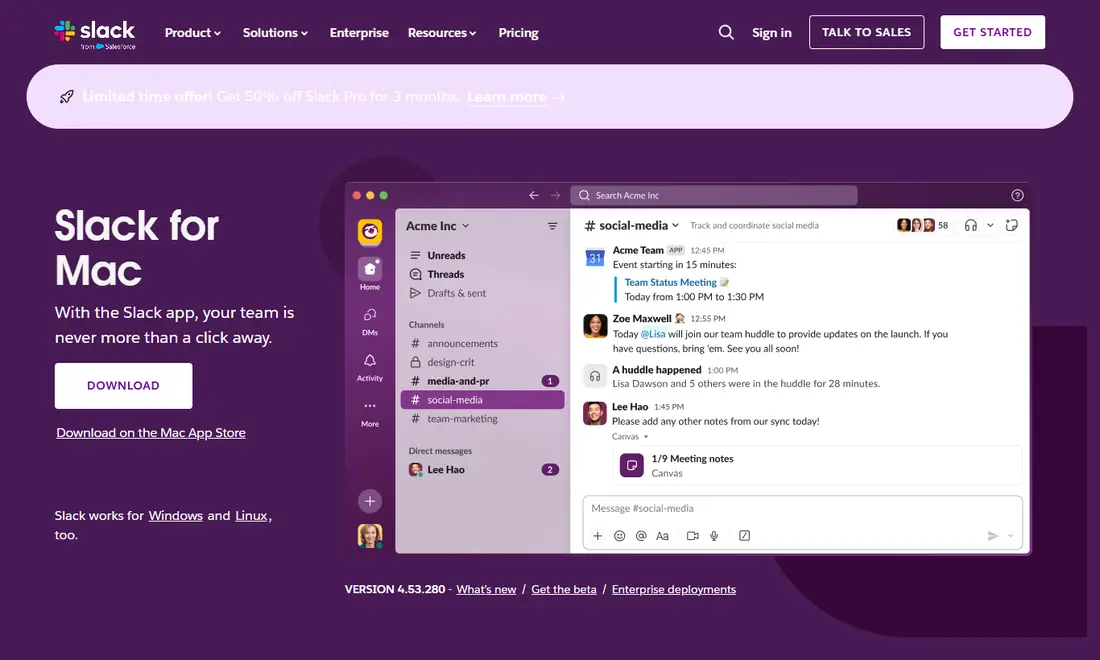
On November 6, 2026, Slack's official Slack for Mac download page showed VERSION 4.53.280, with a Download button for the direct installer and a "Download on the Mac App Store" link beside it. The Mac release notes already list a newer build, 4.53.283 (dated November 9, 2026), so the version you receive may be slightly ahead of the number printed on the page.
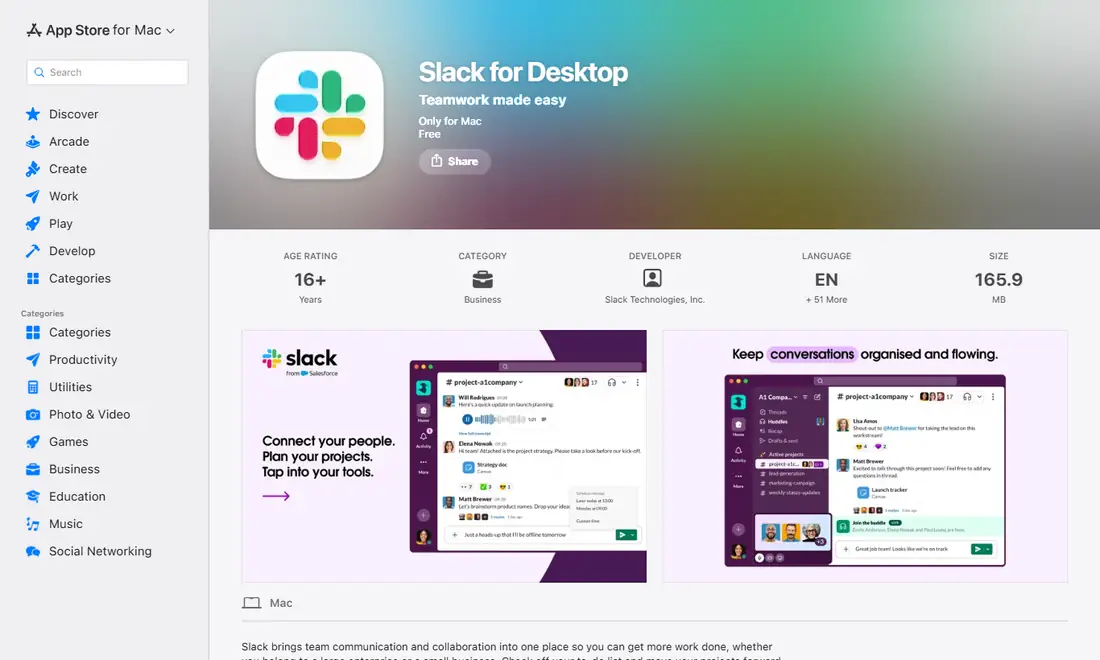
The Mac App Store listing, titled "Slack for Desktop", showed the same version, 4.53.280, a size of 165.9 MB and the line "Requires macOS 13.0 or later". The seller is listed as SLACK TECHNOLOGIES L.L.C., while the developer field reads Slack Technologies, Inc.
Mac Requirements Before You Download Slack
Slack publishes its system requirements on its help center and revises them every May and November. The current Mac rules are short:
| Item | Current official requirement | Where it comes from |
|---|---|---|
| Operating system | macOS 13 or above | Slack system requirements page |
| Desktop app version | 4.44 or above | Slack system requirements page |
| Mac App Store build | Requires macOS 13.0 or later | Mac App Store listing |
| Fallback without the app | Chrome 137+, Firefox 139+, Safari 26+ or Edge 136+ | Slack system requirements page |
Requirements last checked: (Slack revises them every May and November).
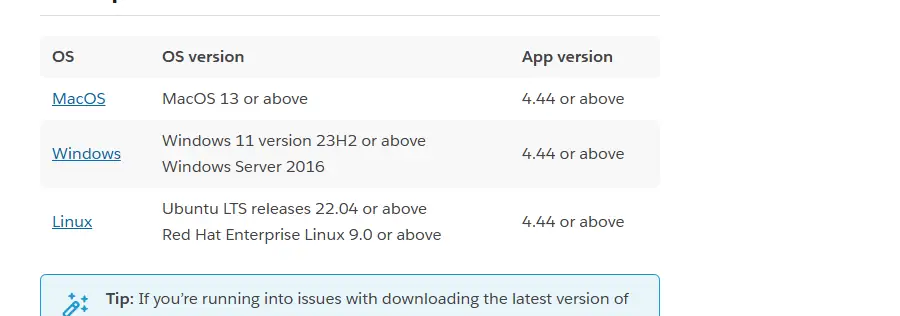
You can confirm your macOS version from About This Mac in the Apple menu. Slack's full list lives on the official system requirements for using Slack page.
Heads-up: macOS 13 end of support
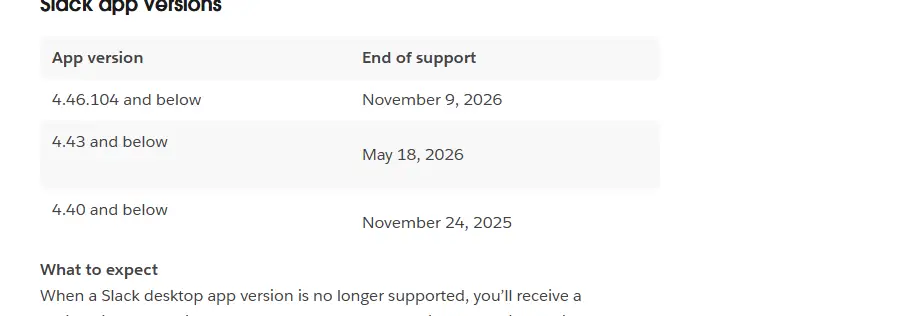
Slack's support lifecycle page lists macOS 13 as reaching end of support on November 9, 2026, alongside desktop app 4.46.104 and below. Check the official requirements page after that date. On an operating system past end of support you can still use Slack on a supported app version, but you won't receive app updates, and Slack won't be available to download from the App Store. An unsupported app version is stricter: you are prompted to upgrade and can't access Slack until you do.
If your Mac can't move beyond macOS 13, Slack in a supported browser is the practical fallback; our guide to the Slack web app covers which browsers qualify and why huddles in the browser work only in Chrome and Firefox.
Mac App Store vs DMG vs PKG: Which Slack Download Fits?
Slack offers three official ways to put the desktop app on a Mac. All install the same app; the differences are updates and control.
| Route | Best for | How updates work | Watch out for |
|---|---|---|---|
| Mac App Store ("Slack for Desktop") | Personal Macs signed in to an Apple Account | Through the App Store | Needs an Apple Account; listing requires macOS 13.0 or later |
| Direct download (DMG) from slack.com | Work Macs without an Apple Account, people who want the file in hand | Slack's built-in updater | Updating can fail without the right folder permissions |
| Enterprise PKG (Intel, Apple Silicon or Universal) | IT teams deploying to many Macs | Installs to /Applications and updates automatically | Pick the build that matches each Mac's chip |
For a personal Mac, the App Store is the least fussy option. For a managed work Mac, the DMG or the IT-deployed PKG is usually more practical. Whichever you choose, use only one: two copies of Slack in Applications quickly lead to confusion over which one is current.
How to Install Slack on a Mac
Route 1: the Mac App Store
- Open the App Store and search for Slack, or follow the "Download on the Mac App Store" link on slack.com.
- Confirm the listing is "Slack for Desktop" with seller SLACK TECHNOLOGIES L.L.C.
- Choose Get, then install and confirm with your Apple Account if asked.
- Open Slack from Launchpad or the Applications folder and sign in.
Route 2: the direct DMG download
- Go to the official Slack for Mac page via a typed address or trusted bookmark.
- Select Download and wait for the disk image to finish.
- Open the DMG from your Downloads folder and drag Slack into Applications. Don't run Slack from inside the mounted image.
- Eject the disk image, delete the downloaded file if you like, and open Slack from Applications.
The first time you open an app downloaded from the internet, macOS shows a confirmation that names the app and asks whether you want to open it. That is normal. If macOS instead warns that the app can't be verified or may harm your Mac, stop, delete that file and download Slack again from slack.com or the Mac App Store.
Signing in
When Slack opens, sign in with the email address your workspace uses. Depending on how your organisation is set up, you may receive a code by email, sign in with Google, Microsoft or Apple, or be sent to your company's single sign-on page.
Enterprise PKG Deployment for IT Admins
Slack's help article on deploying Slack for macOS offers three PKG builds: Intel (x64), Apple Silicon (arm64) and Universal (x64 or arm64). Slack notes that the Universal build works on both Intel and Apple Silicon machines, but its installation file is much larger than the other builds. When deployed this way, Slack installs to the /Applications folder and updates automatically whenever a new version is released.
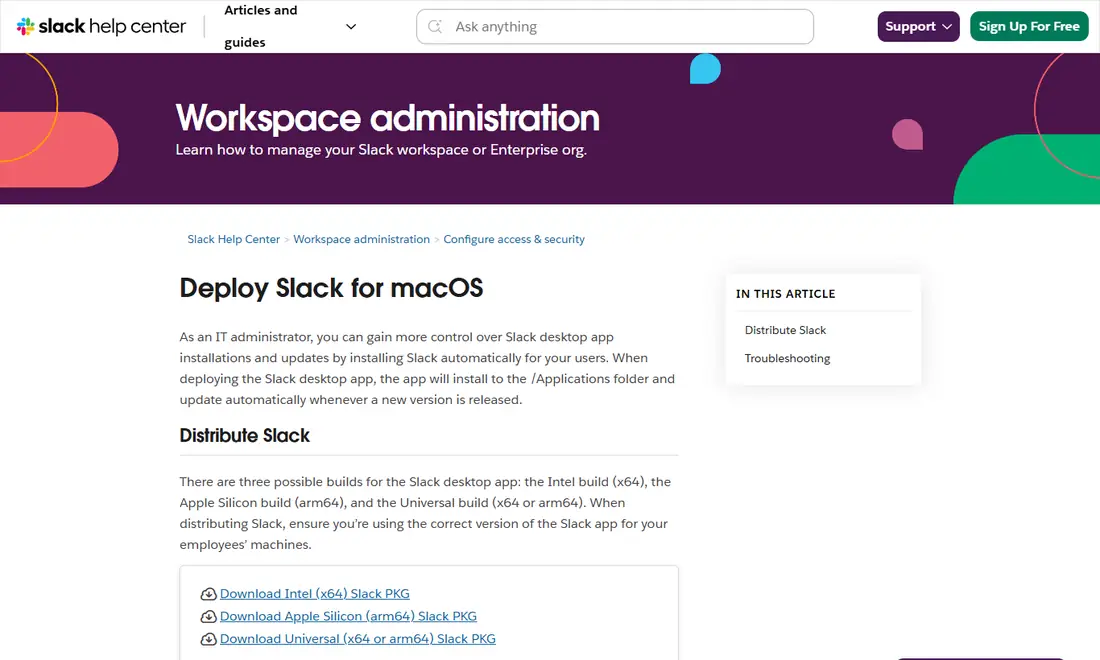
The same article explains a common support ticket. Users who can't update Slack themselves may have installed it from a DMG without the right permissions. If Slack sits in ~/Applications, users can update without special permissions; if it sits in /Applications, they must be administrators with write access to /Applications, slack.app and everything beneath it. On shared machines, Slack suggests a permissions group and a subfolder of /Applications, or simply deploying the PKG instead. Read the full Deploy Slack for macOS article, and see our Slack deployment guide for IT teams for rollout planning across Mac and Windows.
Keeping Slack for Mac Updated
Slack's help article on updating the desktop app explains that there are two versions for Mac: the Direct Download and the App Store version.
- App Store installs update through the Mac App Store, alongside your other apps.
- Direct downloads use Slack's built-in updater; Slack's Update the Slack desktop app article shows how to check your version and apply an update from inside the app. Keep the app in Applications so the updater can replace it.
- Managed Macs may have updates controlled by IT. If you can't finish an update, contact your IT team before installing a second copy.
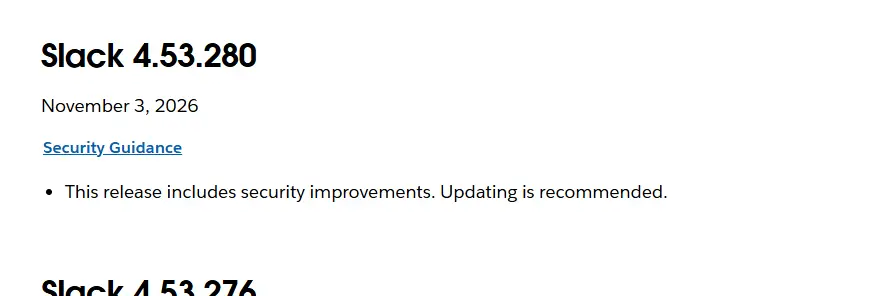
Release notes carry security guidance. The Slack 4.53.280 entry, dated November 3, 2026, says "This release includes security improvements. Updating is recommended." You can follow new entries on the official Slack for Mac release notes.
Troubleshooting a Slack Download on Mac
| Symptom | Likely cause | What to try |
|---|---|---|
| App Store says Slack is not compatible | macOS older than 13.0 | Upgrade macOS if your Mac allows it, or use Slack in a supported browser |
| Slack won't update itself | DMG install in /Applications without admin rights | Ask an admin, or have IT deploy the PKG |
| Slack asks you to upgrade before opening | App version has reached end of support | Install the latest version from slack.com or the App Store |
| Two Slack icons in Applications | Both the App Store and DMG versions installed | Quit Slack, remove one copy, keep the other |
| Strong security warning on first launch | File didn't come from an official source | Delete it and download again from slack.com |
A clean reinstall often helps: quit Slack, move it to the Trash and reinstall from an official source; your messages live in your workspace. For connection errors, notification problems and other fixes, see our Slack download troubleshooting guide.
Notifications and Settings After Install
macOS and Slack each hold a separate set of notification controls, which is why alerts can stay silent even after you allowed them. First make sure Slack is allowed to send notifications in macOS settings and that a Focus mode isn't silencing it. Then check Slack's own preferences: Slack's help center says to click your profile picture in the sidebar, select Preferences, then Notifications, where you choose between Everything or Mentions and direct messages, set channel keywords and adjust sound and appearance. Our Slack notifications guide goes further, and if you also use Slack on your phone, the Slack download guide for iPhone and iPad covers the mobile side.
Safety: Getting Slack Only From Official Sources
Slack is free to download, so there is never a reason to use a mirror site, a "cracked" build or an installer emailed by a stranger. Stick to slack.com, the Mac App Store listing from SLACK TECHNOLOGIES L.L.C., or a PKG your IT team deploys from Slack's deployment article. Treat any unexpected macOS warning on a file labelled "Slack" as a red flag, not an obstacle to bypass.
Frequently Asked Questions
Is the Slack download for Mac free?
Yes. Slack is free to download from slack.com and from the Mac App Store, where the Slack for Desktop listing is marked Free. What you can do inside Slack depends on your workspace plan: the free plan has limits such as 90 days of visible message history, while paid plans add more features.
Which macOS version does Slack require?
Slack's system requirements page currently lists macOS 13 or above with desktop app version 4.44 or above, and the Mac App Store listing says it requires macOS 13.0 or later. Slack's lifecycle page lists macOS 13 as reaching end of support on November 9, 2026, so recheck the requirements page after that date.
Does Slack run natively on Apple Silicon Macs?
Slack's macOS deployment article offers separate PKG builds for Intel (x64) and Apple Silicon (arm64), plus a Universal build that works on both but is much larger. If you install from the Mac App Store or slack.com, you simply download and install; IT teams pick the PKG that matches each Mac.
Should I install Slack from the App Store or as a DMG?
Both are official. The App Store suits personal Macs and handles updates alongside your other apps. The DMG from slack.com suits Macs without an Apple Account and updates through Slack's own updater. Pick one and avoid installing both, because duplicate copies cause confusion over which is current.
Why can't I update Slack on my Mac?
Slack's help center says this often happens when Slack was installed from a DMG into /Applications by someone without administrator rights. Installing to ~/Applications avoids the permission issue, or an administrator can fix folder access or deploy the PKG, which installs to /Applications and updates automatically.
Why does my Mac show a warning when I first open Slack?
macOS checks apps downloaded from the internet the first time they open, so a simple confirmation naming Slack is normal and you can choose to open it. If macOS says the app can't be verified or may harm your Mac, delete the file and download Slack again from slack.com or the App Store.