
Slack Web App: How to Use Slack Without a Slack Download
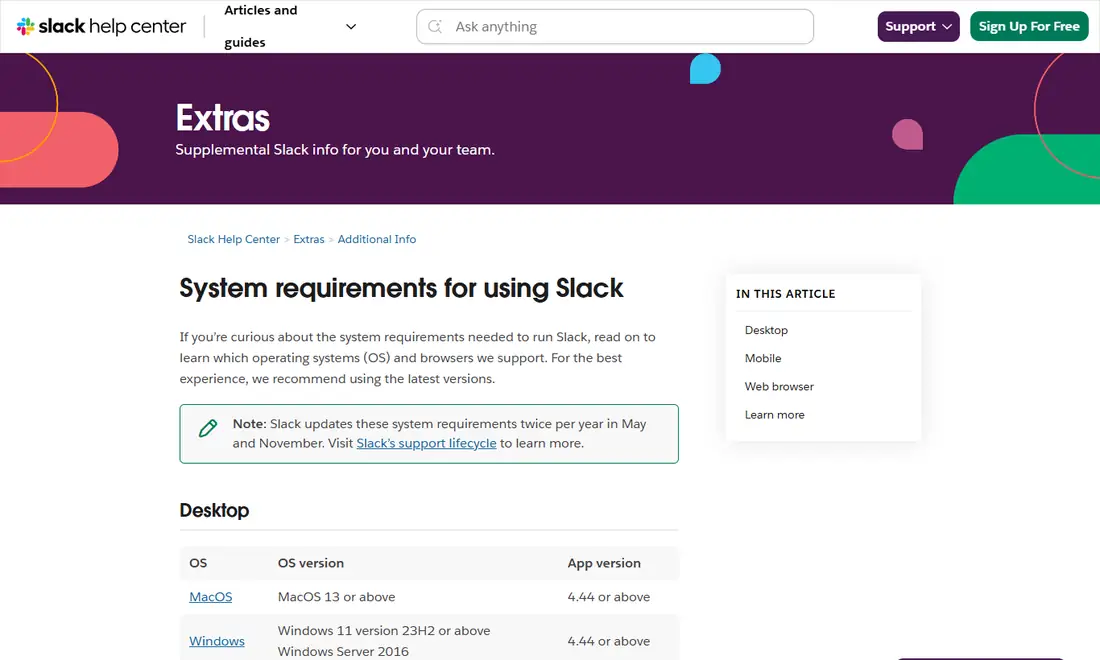
You don't always need a Slack download to use Slack. The same workspaces, channels and direct messages run in a web browser, which makes the web app the quickest way in on a shared computer, a locked-down work laptop or a device Slack's desktop app no longer supports. This guide explains how to sign in through a browser, which browsers Slack supports, what works (and what doesn't) compared with the desktop and mobile apps, and when skipping the download is the smarter choice.
SlackDownload.com is a third-party guide, not affiliated with Slack or Salesforce. Everything below is based on Slack's official help pages, checked on .
What the Slack Web App Is
The Slack web app is Slack running inside a browser tab at Slack's web address, app.slack.com. There is nothing to install: you sign in, pick a workspace and work as you would in the desktop app. Your messages, files and channels live in your workspace, not on your device, so switching between browser, desktop and phone shows the same conversations.
Because the browser does the heavy lifting, Slack treats it like any other platform with minimum requirements. If your browser falls below Slack's supported versions, you'll be blocked, just as an outdated app would be.
How to Sign In to Slack in a Browser
- Open a supported browser (Chrome, Firefox, Safari or Microsoft Edge) and make sure it's up to date.
- Go to the Slack sign-in page at slack.com/signin.
- Enter your work email and click Sign In With Email, or choose Google, Microsoft or Apple under "Or sign in with".
- If you know your workspace address, click Having trouble? Try entering a workspace URL instead.
- Follow the prompts to confirm your identity, then choose the workspace you want to open.
- Allow notifications when your browser asks, if you want alerts while the tab is open.
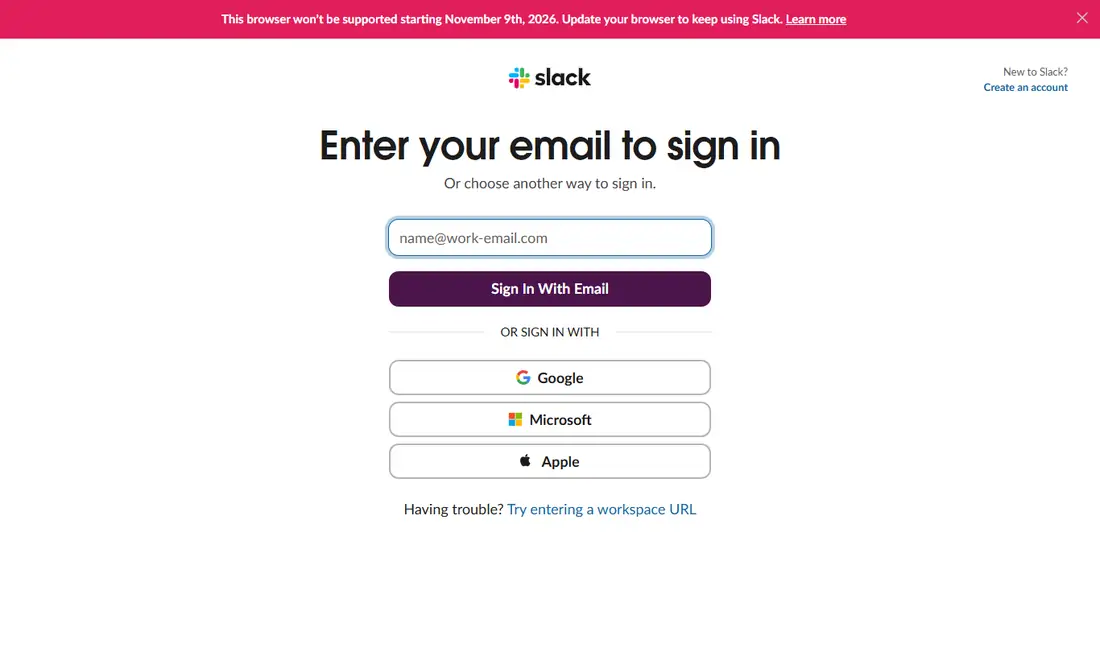
New to Slack? The same page has a Create an account link in the top-right corner, so you can create or join a workspace without installing anything first. If your company uses single sign-on, your IT team may give you a specific workspace URL to use.
Notice the red banner in the screenshot. When we captured the page, Slack warned that the browser in use "won't be supported starting November 9th, 2026". If you see that message, update your browser before that date.
Supported Browsers and Versions
Slack's system requirements page lists four supported browsers. Here is the current list, plus what each means for huddles:
| Browser | Minimum version | Huddles in the browser |
|---|---|---|
| Google Chrome | Version 137 or above | Yes (Mac, Windows, Linux) |
| Mozilla Firefox | Version 139 or above | Yes (Mac, Windows) |
| Apple Safari | Version 26 or above | No |
| Microsoft Edge | Version 136 or above | No |
Requirements last checked: (Slack revises them every May and November).
Heads-up: Slack's support lifecycle page lists Chrome 142 and below, Firefox 144 and below, and Edge 142 and below as reaching end of support on November 9, 2026 (Safari 18 and below already ended on May 18, 2026). Expect the minimums above to rise after that date; check the official Slack system requirements for the new list.
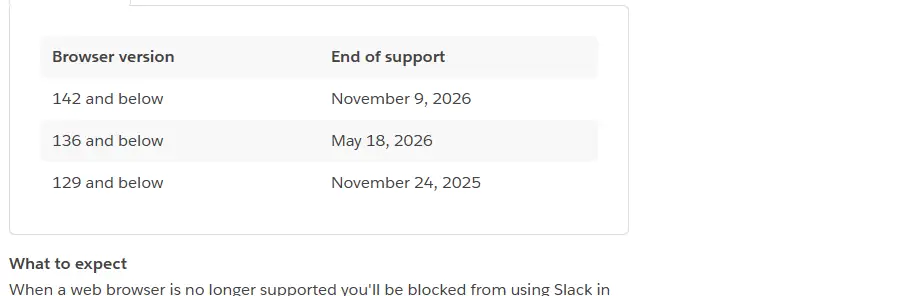
What happens when a browser drops off the list? According to the Slack support lifecycle page, you'll be blocked from using Slack in that browser, signing in, creating new workspaces and managing workspace or organization settings until you upgrade to a supported browser. Keeping automatic browser updates switched on avoids this entirely.
Huddles in the Browser: Chrome and Firefox Only
Slack states that Google Chrome and Firefox are the only browsers that support huddles. More precisely, its huddles help article lists availability on the desktop and mobile apps, Google Chrome (Mac, Windows and Linux) and Firefox (Mac and Windows). If you join from Safari or Edge, you can still message, but you'll need to switch browsers, or use the desktop or mobile app, to talk.
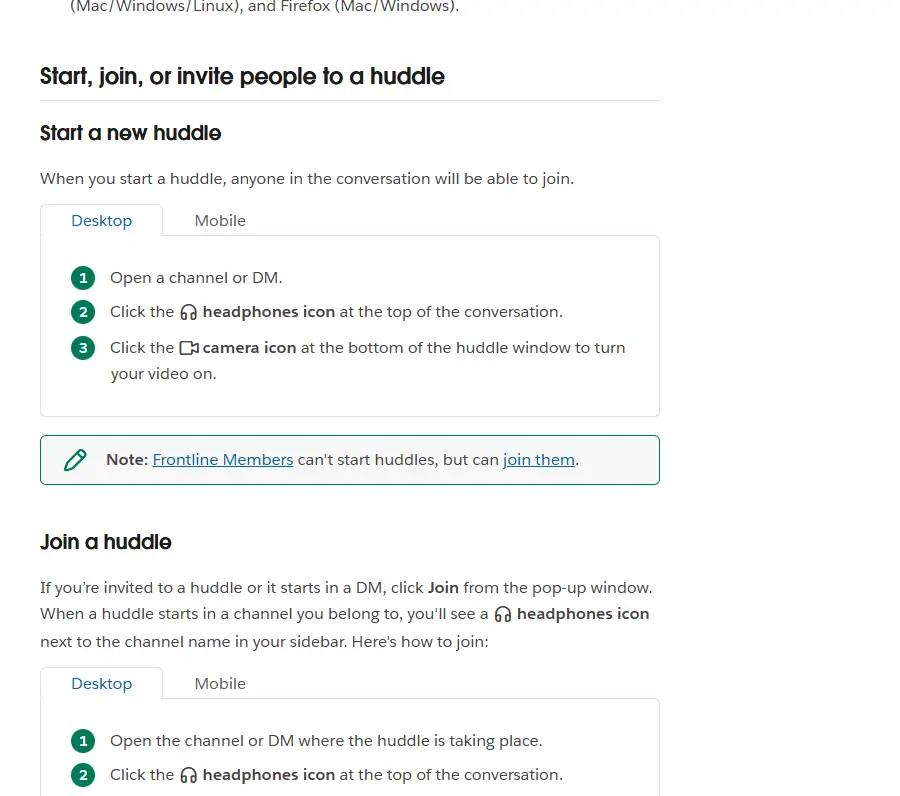
Starting a huddle in the browser works the same way as on desktop: open a channel or DM and click the headphones icon at the top of the conversation, then the camera icon to turn on video. One difference: drawing on someone's shared screen is currently supported only on the Slack desktop app for Mac and Windows. Our guide to Slack huddles and calls covers the rest.
Browser Notifications
Slack's notification preferences apply in the browser too. Click your profile picture in the sidebar, select Preferences, then Notifications. There you choose whether you're notified about Everything or Mentions and direct messages, add keywords and adjust sounds.
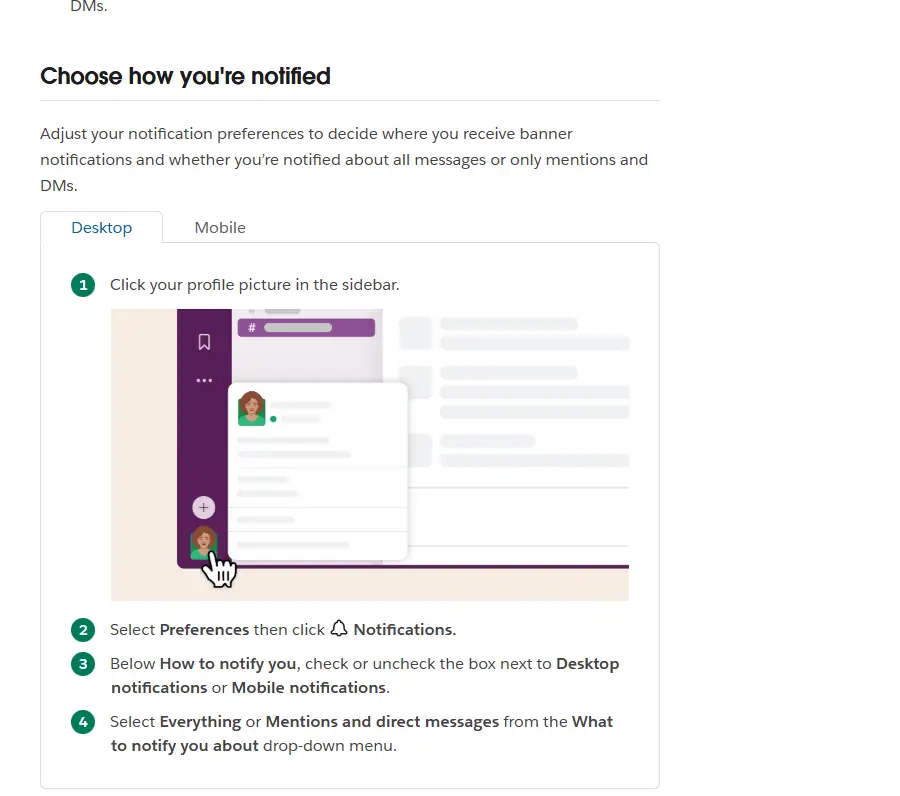
Two browser-specific points matter. First, your browser and operating system must both allow notifications from Slack; if you dismissed the browser's permission prompt, re-enable it in the browser's site settings. Second, alerts depend on Slack being open in a tab, so pinning the tab helps. If you also use a phone, remember that Slack holds mobile notifications while you're active on a computer: by default, one minute after you lock your screen or 10 minutes after Slack stops detecting cursor activity. Our Slack notifications guide explains every setting.
When the Web App Beats the Desktop App
- Shared or public computers. Nothing stays installed. Sign out when you finish and don't let the browser save your password.
- Locked-down work machines. If you can't install software, a supported browser usually still works, subject to company policy.
- Windows 10 PCs. Windows 10 is not on Slack's current supported list for the desktop app, which requires Windows 11 version 23H2 or above. An up-to-date supported browser is the dependable route; see our Slack on Windows 10 guide.
- Older Macs and Linux distributions that can't reach Slack's minimum OS versions but can still run a current browser.
- Chromebooks. ChromeOS isn't on Slack's system requirements list, so Chrome in the browser is the most straightforward option.
- Quick access. Checking one message on someone else's laptop doesn't justify an install.
Limitations to Know About
The browser covers everyday messaging well, but the desktop and mobile apps still do some things better:
- Huddles work only in Chrome and Firefox.
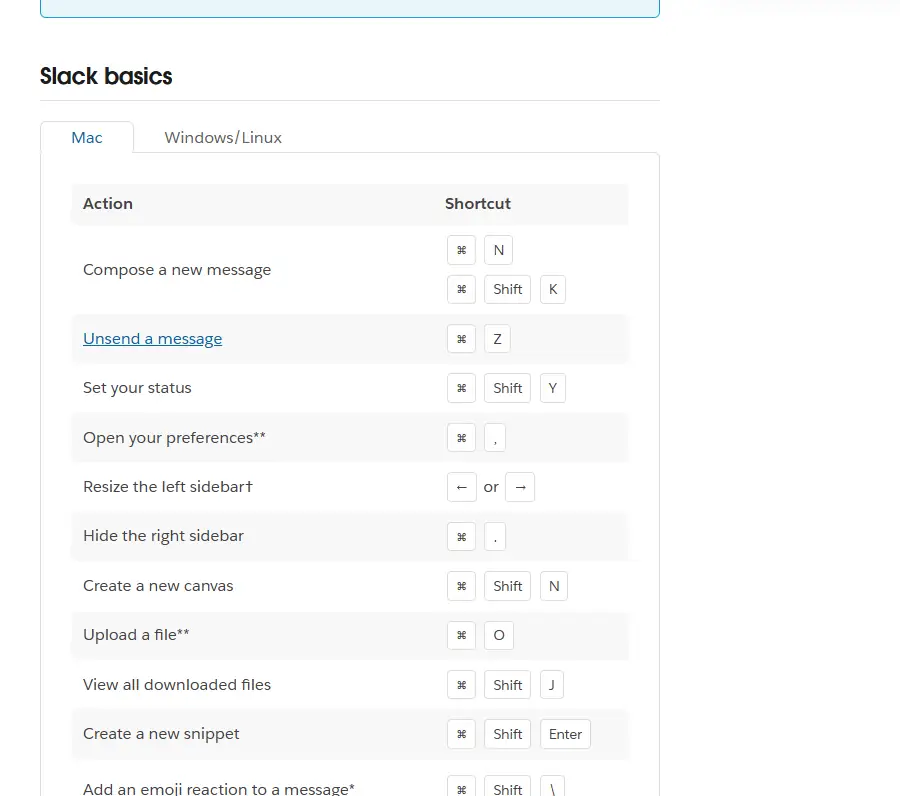
- Some keyboard shortcuts are desktop-only. Slack's shortcuts article marks them, for example opening preferences, uploading a file and quitting Slack.
- Drawing on shared screens during a huddle needs the desktop app for Mac or Windows.
- Browser versions must keep up with Slack's twice-yearly requirement changes, or you'll be blocked.
- Notifications rely on an open tab and browser permissions.
Web vs Desktop vs Mobile: Quick Comparison
| Feature | Web app | Desktop app | Mobile app |
|---|---|---|---|
| Install needed | No | Yes (slack.com or app stores) | Yes (App Store or Google Play) |
| Requirement | Chrome 137+, Firefox 139+, Safari 26+, Edge 136+ | Windows 11 23H2+, macOS 13+, Ubuntu 22.04+ / RHEL 9.0+; app 4.44+ | iOS 17+ or Android 11+; app 25.05.20+ |
| Huddles | Chrome and Firefox only | Yes | Yes |
| Drawing on shared screens | No | Mac and Windows | Not listed |
| Full keyboard shortcuts | Partial | Yes | Not applicable |
| Updates | Keep the browser current | App updates | Store updates |
| Best for | Shared, locked-down or unsupported computers | Daily work on your own computer | On the move |
For daily use on your own computer, the desktop app is still the fuller experience; on November 6, 2026, slack.com/downloads listed version 4.53.280 for Windows and Mac. The web app is the fallback that works almost anywhere.
Staying Safe When You Use Slack in a Browser
Using Slack in a browser removes the risk of a fake installer, but sign-in pages can be imitated too. Before you type your email or password, check that the address bar shows slack.com or app.slack.com, or your company's own workspace address. Be wary of links in emails or ads that promise a "Slack download" or "Slack web" page on another domain, and don't install browser extensions that claim to be required to run Slack; the web app needs nothing extra. On a shared or public computer, use a private window, decline the browser's offer to save your password, and sign out of every workspace before you leave. Slack's official security overview describes how Slack protects data on its side; protecting the device is up to you.
Fixing Common Web App Problems
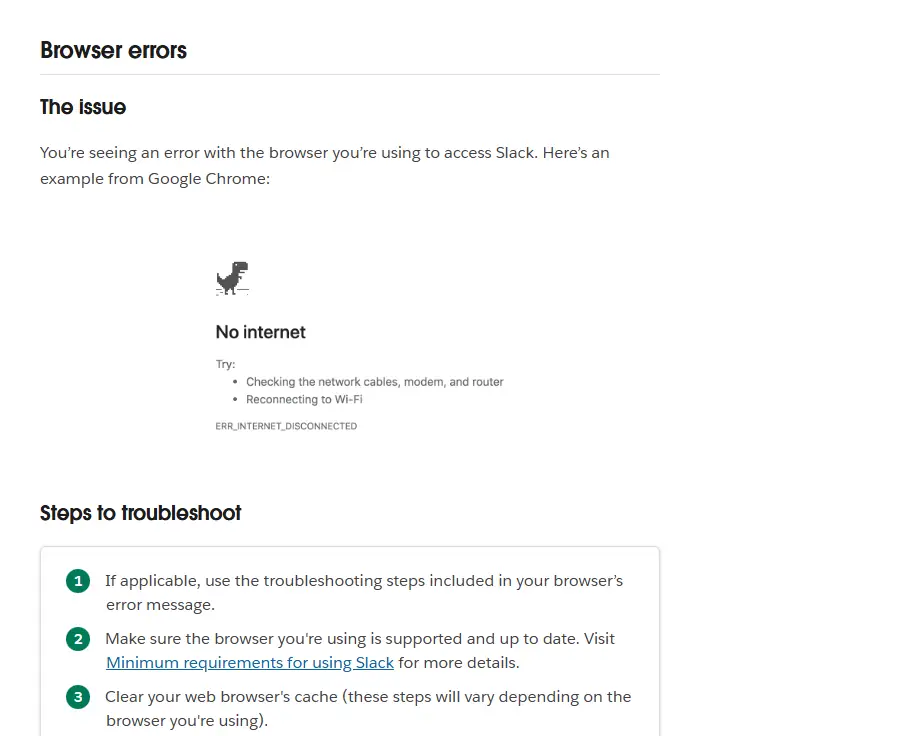
Slack's connection troubleshooting article gives these steps for browser errors:
- Follow any troubleshooting steps included in the browser's error message.
- Make sure the browser is supported and up to date.
- Clear the browser's cache.
- Open Slack in a private or Incognito window. If that works, a browser extension is probably interfering, so disable extensions.
- Contact your network administrator, then Slack support if needed.
If Slack loads but new messages stop appearing, the connection may be blocking WebSockets; your network admin can check access to wss-primary.slack.com and wss-backup.slack.com. Reloading with Ctrl+R or ⌘R fixes many one-off server errors. And on shared computers, always sign out when you're done.
Frequently Asked Questions
Can I use Slack without downloading anything?
Yes. Sign in at slack.com/signin in a supported browser and Slack runs at app.slack.com with your workspaces, channels and messages. Slack currently supports Chrome 137 or above, Firefox 139 or above, Safari 26 or above and Microsoft Edge 136 or above.
Can I join a Slack huddle from my browser?
Only in Google Chrome or Firefox. Slack's help pages list huddle support in Chrome on Mac, Windows and Linux and in Firefox on Mac and Windows. In Safari or Edge you can still message, but you'll need Chrome, Firefox, or the desktop or mobile app to join a huddle.
Does the Slack web app work on Windows 10?
Windows 10 is not on Slack's current supported list for the desktop app, which requires Windows 11 version 23H2 or above. Slack's browser requirements are based on browser versions, so an up-to-date supported browser is usually the dependable way to use Slack on an older Windows PC.
Why am I not getting Slack notifications in my browser?
Check that your browser and operating system both allow notifications from Slack, that the Slack tab is still open, and that notifications aren't paused. Then review Preferences, Notifications in Slack, where you choose Everything or Mentions and direct messages and set keywords.
What happens if my browser is too old for Slack?
Slack's lifecycle page says unsupported browsers are blocked from using Slack, signing in, creating workspaces and managing settings until you upgrade. Slack lists Chrome 142, Firefox 144 and Edge 142 and below as reaching end of support on November 9, 2026, so keep automatic updates on.
Is the web app as good as the Slack desktop app?
For everyday messaging it's very close. The desktop app adds desktop-only keyboard shortcuts, huddles regardless of browser, and drawing on shared screens on Mac and Windows. Use the web app on shared, locked-down or unsupported computers and the desktop app for daily work on your own machine.