
Slack Notifications Guide: Set Up Alerts After Your Slack Download
Once your Slack download is installed and you've signed in, notifications decide whether Slack helps you or drowns you. Get them right and you hear about the messages that matter, at the hours you choose, on the device you're actually using. This guide walks through every notification control Slack documents: your default preferences, keywords, sounds and badges, mobile timing, pausing notifications and notification schedules, plus the operating system settings that sit underneath.
SlackDownload.com is a third-party guide, not affiliated with Slack or Salesforce. Menu paths below come from Slack's official help articles, checked on ; Slack updates its interface regularly, so labels can shift.
How Slack Notifications Work
According to Slack's article on configuring notifications, you receive notifications on desktop and on mobile by default, if you've downloaded the Slack iOS or Android app. You decide whether banner notifications appear on each, and whether you're notified about Everything or only Mentions and direct messages. If you choose mentions and DMs, you can set exceptions so that certain channels or DMs still notify you about everything.
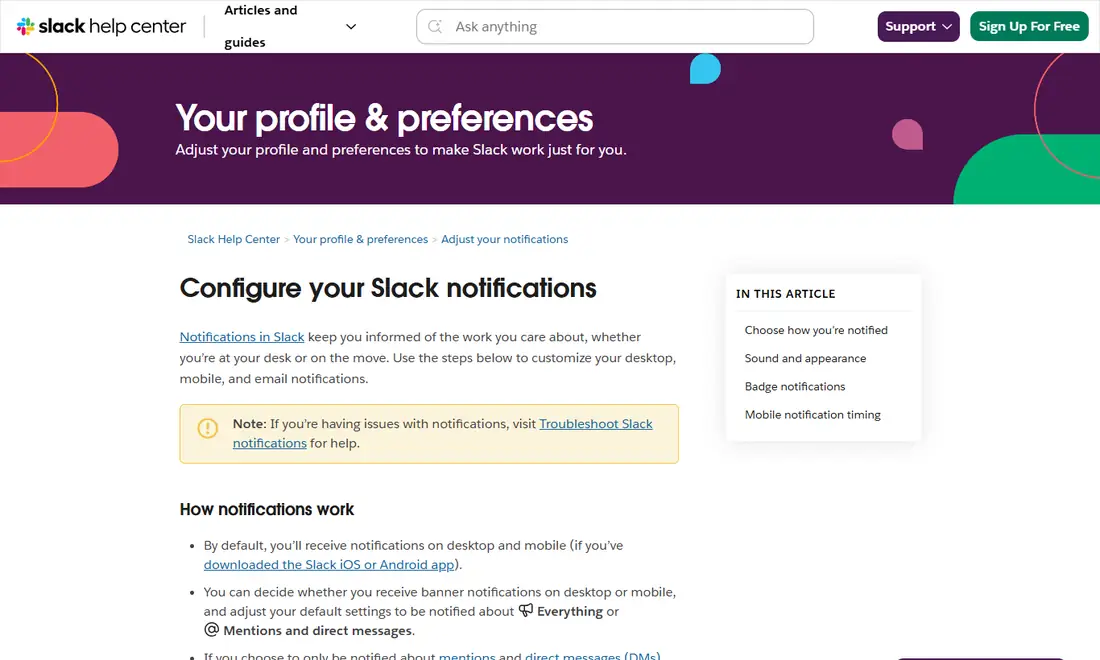
Nearly every setting lives in one place. Click your profile picture in the sidebar, select Preferences, then Notifications. The exceptions are pausing notifications, which lives under your profile picture menu, and the notification schedule, which sits under Preferences, Working hours.
Where Every Notification Control Lives
| Control | Where to find it | What it does |
|---|---|---|
| Desktop or mobile banners | Preferences, Notifications, How to notify you | Turns banner notifications on or off per device type |
| Everything vs mentions and DMs | Preferences, Notifications, What to notify you about | Sets your default notification level |
| Thread replies, VIPs, huddles | Preferences, Notifications, Also notify you about | Extra alerts and mobile overrides |
| Activity feed contents | Preferences, Notifications, What to show in Activity | Chooses what appears in the Activity badge |
| Keywords | Preferences, Notifications, Channel keywords | Alerts you when chosen words appear |
| Sounds and previews | Preferences, Notifications, Sound & appearance | Message previews, sounds, mute all |
| Mobile timing | Preferences, Notifications, When I'm not active on desktop | Controls when your phone takes over |
| Pause notifications | Profile picture, hover over Notifications | Silences everything for a set time |
| Notification schedule | Preferences, Working hours, Allow notifications | Allows notifications only on chosen days and hours |
| Quick pause | /dnd slash command | Pauses or resumes from the message box |
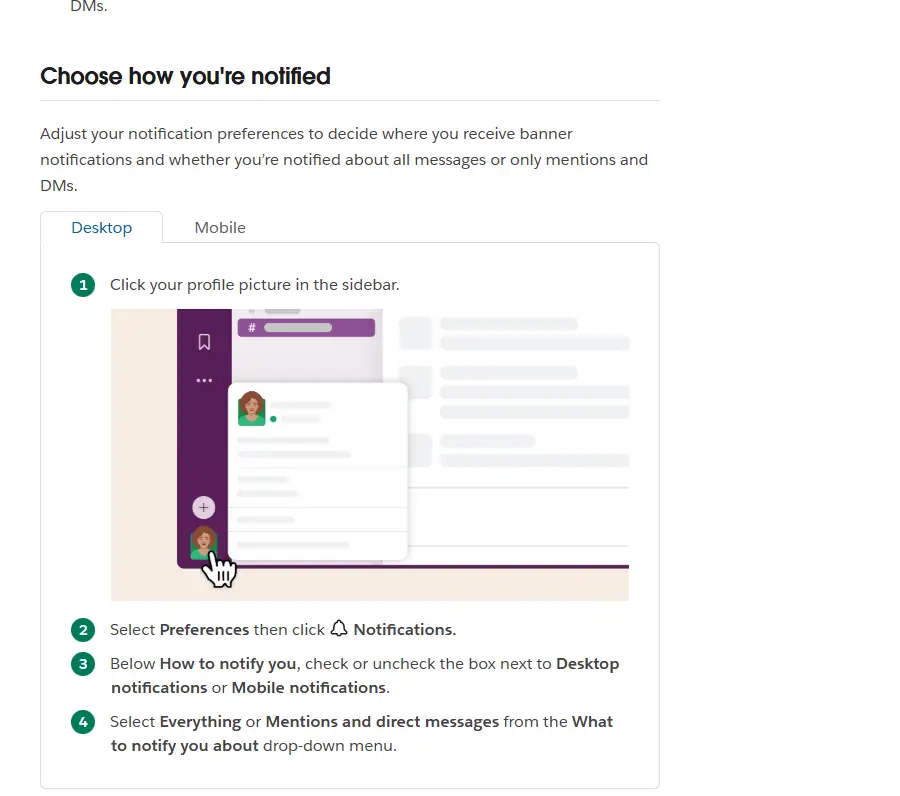
Choose How You're Notified
- Click your profile picture in the sidebar.
- Select Preferences, then Notifications.
- Below How to notify you, check or uncheck Desktop notifications or Mobile notifications.
- From the What to notify you about drop-down, pick Everything or Mentions and direct messages.
For most people in busy workspaces, Mentions and direct messages is the sensible default, with exceptions for the few channels you genuinely need to watch.
Mobile overrides and extra alerts
Below Also notify you about, you can choose whether you're notified when someone replies to a thread you follow, when a VIP messages you while notifications are paused or you're in focus mode (paid plans only), and when a huddle starts in one of your channels or DMs. The same section lets you set a different notification level for mobile, so your phone can be quieter than your computer.
Per-channel settings
Your default applies everywhere, but individual channels and DMs can be set differently, which is how the exceptions above work. A channel set to notify about all new posts can also appear in your Activity feed if you choose. Muting a channel is the opposite: it stays quiet regardless of your default. Review these first whenever one channel behaves differently from the rest.
Activity and Keyword Notifications
Activity notifications appear as a numbered badge in the sidebar. You'll always see mentions, reactions and thread replies there. Under What to show in Activity, you can also include DMs and group DMs, channels set to "All new posts", to-do reminders and suggested important unreads.
Keywords are the best way to follow a topic without following every channel. Go to Preferences, Notifications, scroll to Channel keywords and enter the words or phrases you care about, such as a product name or your team's project code. When someone uses one in a channel you've joined, you're notified and the keyword is highlighted in yellow. Slack notes that keywords are not case-sensitive, but only exact matches trigger notifications, and keywords in threads you're not following won't notify you.
Sounds, Previews and Badges
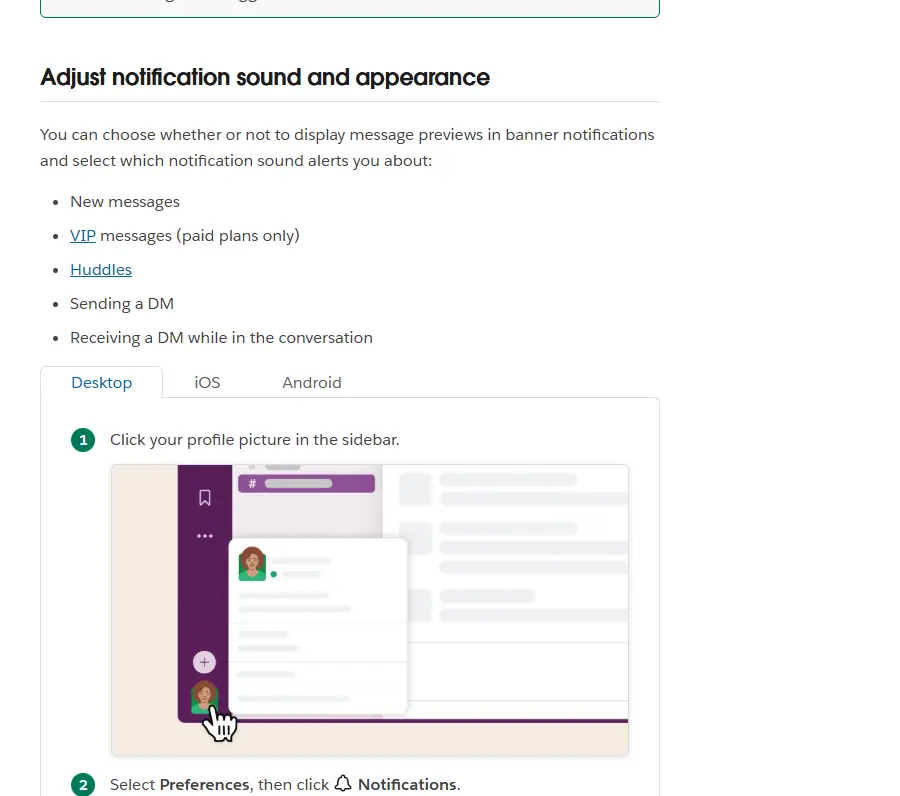
Under Sound & appearance, you can include a preview of the message in each notification or mute all sounds from Slack. Separate sound choices cover new messages, VIP messages (paid plans only), huddles, sending a DM and receiving a DM while you're in the conversation. If you work somewhere others can see your screen, turning previews off keeps message text out of pop-ups.
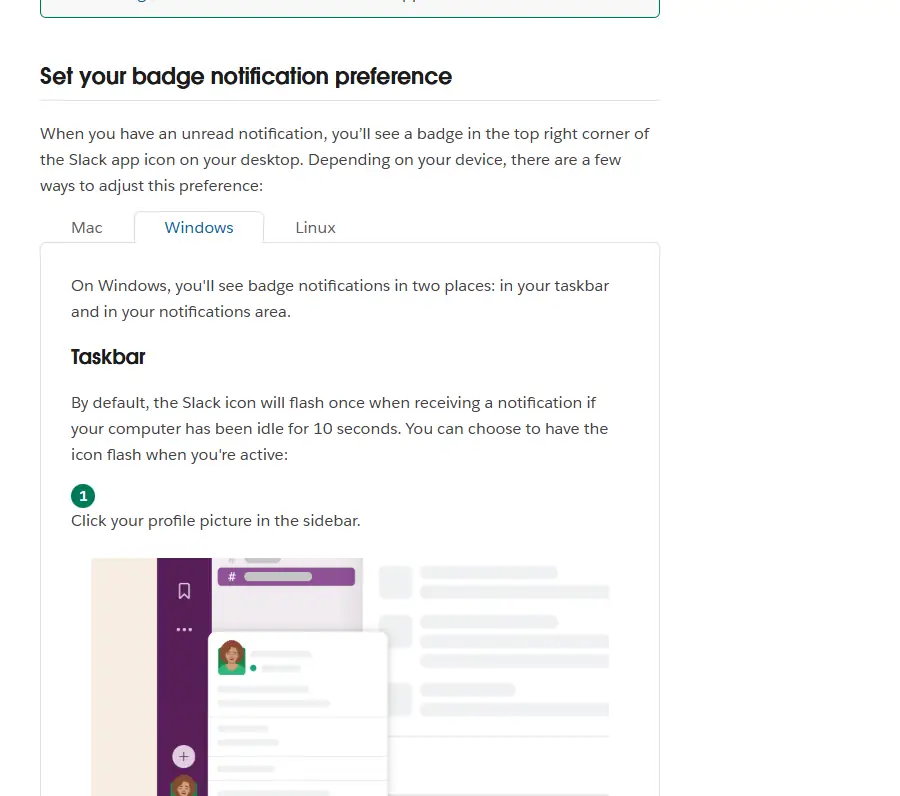
Badges show unread notifications on the Slack app icon. On Windows, Slack says the taskbar icon flashes once on a new notification if your computer has been idle for 10 seconds; set Flash window when a notification is received to Always to flash while you're active too, which also keeps the icon in the taskbar when the window is closed. Slack also keeps running in the notifications area when you close the window; to stop that, go to Preferences, Advanced, and below Other Options uncheck Leave app running in notification area when the window is closed.
Mobile Notification Timing
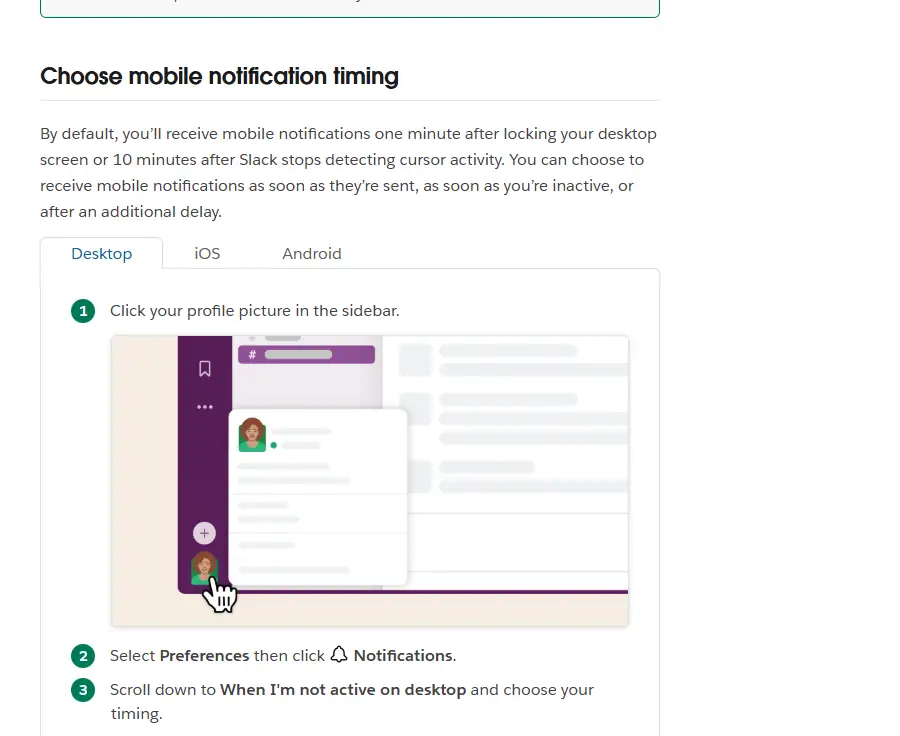
A common surprise: your phone stays silent while you're at your desk. That's by design. By default, Slack sends mobile notifications one minute after you lock your desktop screen or 10 minutes after it stops detecting cursor activity. To change it, open Preferences, Notifications, scroll to When I'm not active on desktop and choose your timing: as soon as messages are sent, as soon as you're inactive, or after an additional delay. To get alerts on desktop and phone at the same time, choose Immediately, even if I'm active.
Pause Notifications and Set a Schedule
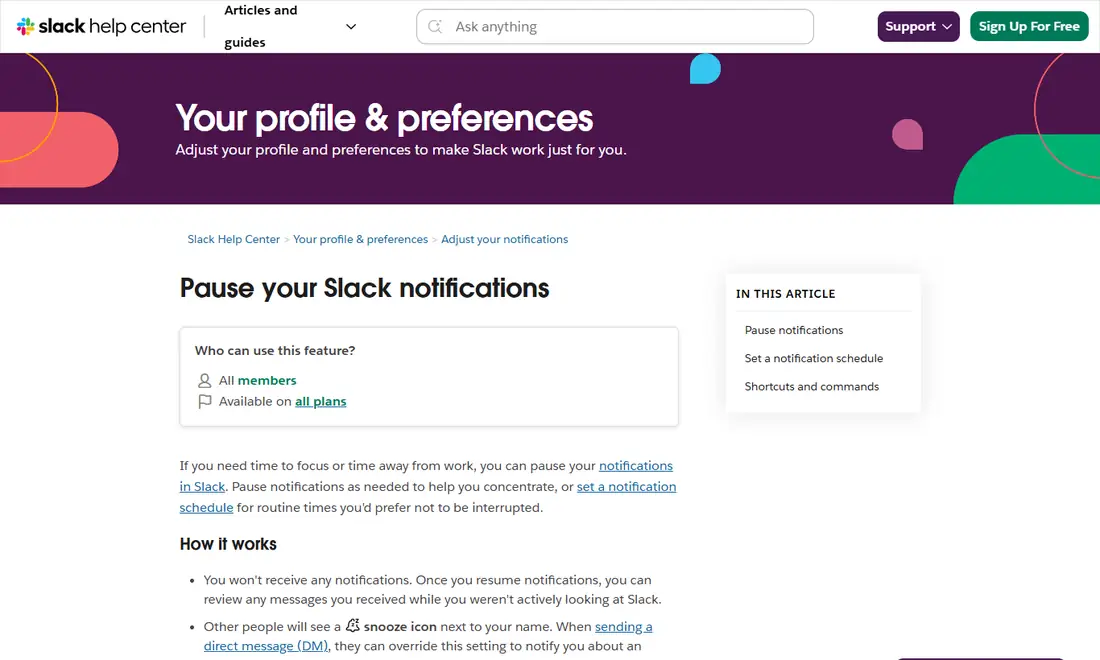
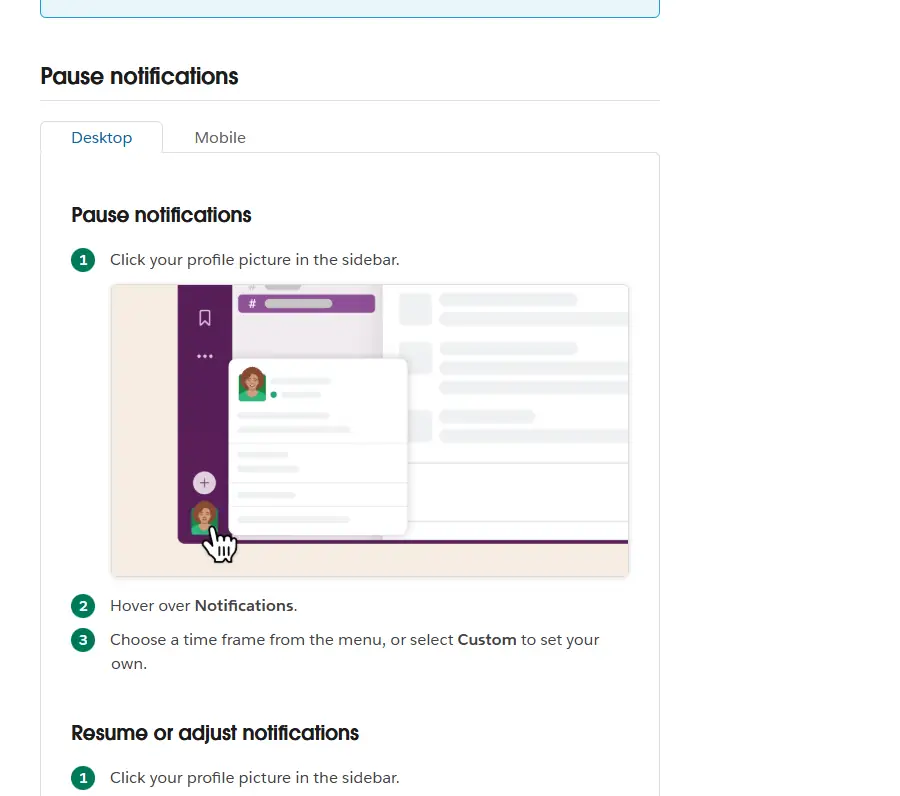
Pausing notifications, often called Do Not Disturb and still driven by the /dnd command, is available to all members on all plans. While paused, you receive no notifications; other people see a snooze icon next to your name, and when sending you a DM they can override it once per day for something urgent.
- Click your profile picture in the sidebar.
- Hover over Notifications.
- Choose a time frame, or select Custom. To end early, return here and select Resume notifications.
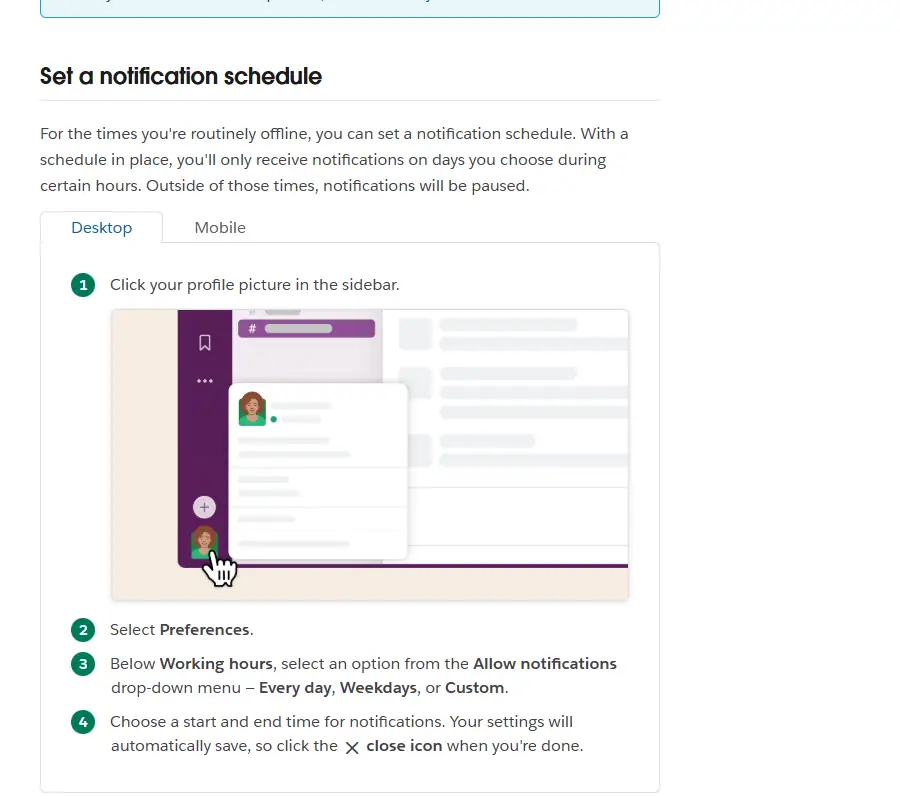
To hear from certain people even while paused, add them to your VIP list. For routine quiet hours, a schedule is better: click your profile picture, select Preferences, and below Working hours choose Every day, Weekdays or Custom from the Allow notifications menu, then set start and end times. Settings save automatically. If an owner or admin has set a default schedule, yours overrides it.
Prefer typing? The /dnd command works from any message box:
| Action | Example |
|---|---|
| Pause for a set time | /dnd for 15 mins |
| Pause until a specific time | /dnd until 5pm |
| Pause until a time of day | /dnd until tomorrow morning |
| Resume notifications | /dnd off |
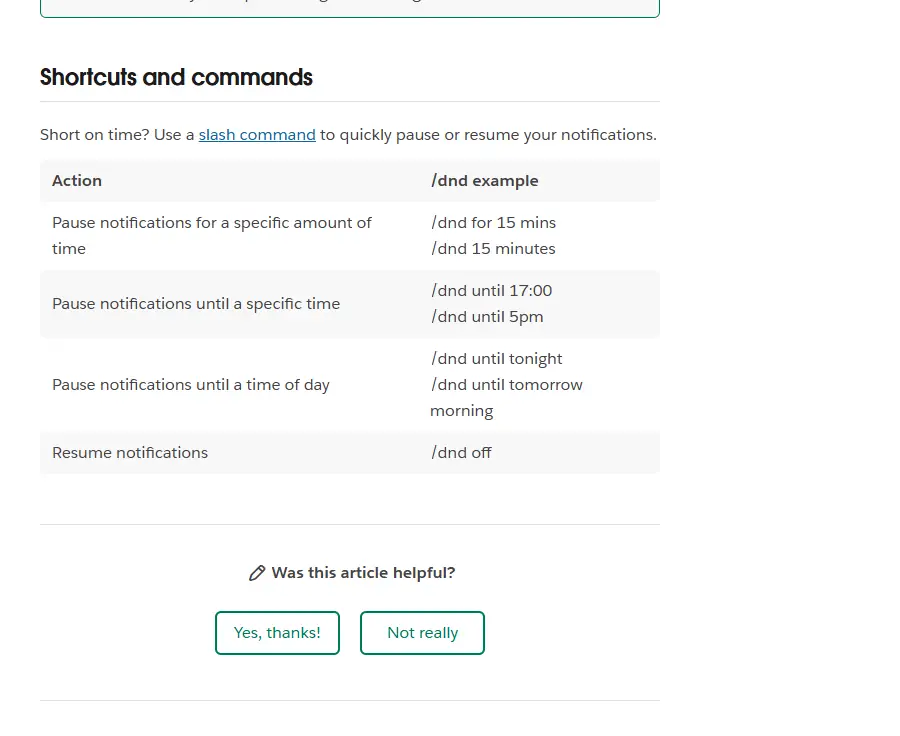
Full details are in Slack's official guide to pausing notifications.
Operating System Settings That Override Slack
Slack can only show what your device allows. If Slack's settings look right but nothing arrives, check the layer underneath:
- Windows: confirm notifications are allowed for Slack in system settings and that Focus or Do Not Disturb is off.
- macOS: check that Slack is allowed to send notifications and that no Focus mode is active.
- Android: make sure notifications are enabled for Slack in the app's settings, and check battery optimisation, which can delay alerts. See our Slack for Android guide.
- iPhone and iPad: check Slack in the notification settings and any active Focus; our Slack for iPhone and iPad guide covers installation.
- Browser: allow notifications for Slack in the browser's site settings; see our Slack web app guide.
Slack also links to a dedicated notification troubleshooting article from its help center. For install, update and connection problems, our Slack download troubleshooting guide covers the fixes.
Keep Your Slack Apps Supported
Notification features depend on a supported app. On November 6, 2026, slack.com/downloads listed desktop version 4.53.280 for Windows and Mac. Slack's current requirements:
| Platform | OS version | App version |
|---|---|---|
| Windows | Windows 11 version 23H2 or above; Windows Server 2016 (Windows 10 not listed) | 4.44 or above |
| macOS | macOS 13 or above | 4.44 or above |
| iOS | iOS 17 or above | 25.05.20 or above |
| Android | Android 11 or above | 25.05.20 or above |
Requirements last checked: (Slack revises them every May and November).
Heads-up: Slack's support lifecycle page lists macOS 13, iOS 17 and Android 11 as reaching end of support on November 9, 2026; check the official Slack system requirements after that date.
Frequently Asked Questions
How do I change Slack notifications to mentions only?
Click your profile picture in the sidebar, select Preferences, then Notifications. From the What to notify you about drop-down, choose Mentions and direct messages. You can still set exceptions so that specific channels or DMs notify you about everything.
How do I pause Slack notifications?
Click your profile picture, hover over Notifications and choose a time frame or Custom. Select Resume notifications to end early. You can also type /dnd for 15 mins or /dnd off in any message box. Others see a snooze icon and can override it once per day for urgent DMs.
Why does my phone not get Slack notifications while I'm at my computer?
By default Slack sends mobile notifications one minute after you lock your desktop screen or 10 minutes after it stops detecting cursor activity. In Preferences, Notifications, change When I'm not active on desktop, or choose Immediately, even if I'm active to get both at once.
Are Slack keyword notifications case-sensitive?
No. Slack says keywords are not case-sensitive, but only exact matches trigger a notification, and keywords in threads you're not following won't notify you. Add them under Preferences, Notifications, Channel keywords. Matches in channels you've joined are highlighted in yellow.
How do I stop Slack notifications outside working hours?
Set a notification schedule. Click your profile picture, select Preferences, and below Working hours choose Every day, Weekdays or Custom from the Allow notifications menu, then set start and end times. Outside those hours notifications are paused, and your schedule overrides any workspace default.
Can I still get messages from important people when notifications are paused?
Yes. Add them to your VIP list, and turn on VIP alerts under Also notify you about in Preferences, Notifications. Slack lists VIP notifications while paused or in focus mode as a paid-plan feature. Anyone can also override your pause once per day when sending an urgent DM.