
Slack Download Troubleshooting: Fix Install, Update and Sign-In Problems

Slack download problems usually fall into a handful of patterns, and most can be fixed in minutes. The installer does nothing. The app says your version is no longer supported. An update never finishes. Alerts don't arrive. Or the browser keeps sending you back to sign-in. This guide works through each problem in the order you are most likely to meet it, for Windows, Mac, Linux, Android and iPhone, based on Slack's own help articles.
SlackDownload.com is a third-party guide, not affiliated with Slack or Salesforce. Every fix assumes your copy came from an official source; if it didn't, remove it and read our guide to downloading Slack safely.
First, Rule Out the Obvious
- Restart the device. It clears stuck processes and half-applied updates.
- Check your connection. Slack notes that proxies, firewalls, antivirus software and VPNs can interfere.
- Check free storage and the system clock. Updates need room to unpack, and a wrong clock can break secure sign-in.
- Check Slack's status site. If Slack has an incident, waiting is the fix.
Quick Symptom Finder
| What you see | Most likely cause | Where to look |
|---|---|---|
| Installer does nothing or closes | Damaged download, security software | Installer won't open |
| Prompt to upgrade before you can continue | App version past end of support | Unsupported version prompt |
| Update fails or app stays on an old version | Leftover files, duplicate copies, managed install | Stuck updates |
| "Slack cannot connect." | Network or security device interfering | Connection errors |
| "For some reason, Slack couldn't load." | Corrupt cache, extensions, Slack-side issue | Connection errors |
| No alerts, but messages are there | OS or Slack notification settings | Notifications |
| Browser opens, then back to sign-in | Blocked hand-off, cookies, wrong workspace | Sign-in loops |
When the Slack Installer Won't Open
Windows
If the installer from Slack's Windows download page does nothing, download it again; interrupted downloads look normal but won't run. Look for a SmartScreen prompt hiding behind other windows and check whether antivirus quarantined the file. On a work computer, ask IT, since many companies block installers and deploy Slack centrally. The Microsoft Store version avoids installer files altogether.
Check your Windows version too. Slack requires Windows 11 version 23H2 or above, or Windows Server 2016. Windows 10 is not on Slack's current supported list, so upgrading or using Slack in a supported browser are the dependable options there.
Mac
The direct download is a disk image: drag Slack into Applications rather than running it from the image. If the image won't open, download it again or use the Mac App Store version. Slack requires macOS 13 or above; our Mac install guide covers both routes.
Linux
Use the .deb on Ubuntu and Debian, the .rpm on Red Hat-family systems, or the Snap. Install through your package manager so dependencies resolve; errors usually name what's missing. Slack's Linux app is beta and supports Ubuntu LTS 22.04+ and Red Hat Enterprise Linux 9.0+.
Android and iPhone
If the store's install button fails, free storage, confirm your store account and restart. Slack needs Android 11 or above (only devices with Google Play Services installed by default) or iOS 17 or above. Don't work around a block with APKs from mirror sites.
The "App Version No Longer Supported" Prompt
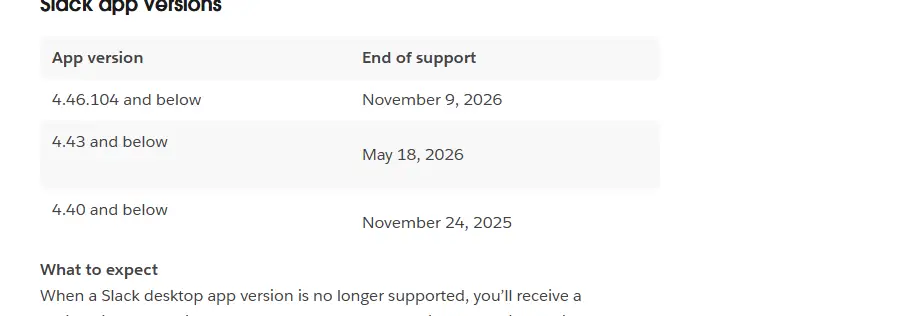
This is not a bug. Slack revises its requirements every May and November, and its support lifecycle page explains that when an app version is no longer supported, you're prompted to upgrade and can't access Slack until you do. Current minimums are desktop app 4.44 and mobile app 25.05.20.
Heads-up: Slack's lifecycle page lists desktop app 4.46.104 and below, mobile app 25.10.50 and below, and macOS 13, iOS 17 and Android 11 as reaching end of support on November 9, 2026. Check the official requirements page after that date.
Update from wherever you installed: inside the app for website downloads, the Microsoft Store or Mac App Store for store copies, a newer .deb, .rpm or Snap on Linux, and Google Play or the App Store on phones. On a managed work computer, IT controls updates.
If your operating system has reached end of support, Slack says you can keep using a supported app version but won't receive app updates, and Slack won't be downloadable from the App Store, Microsoft Store or Snap. Eventually the prompt returns with no update available; then upgrade the OS or use the web app.
Fixing Stuck or Failed Updates
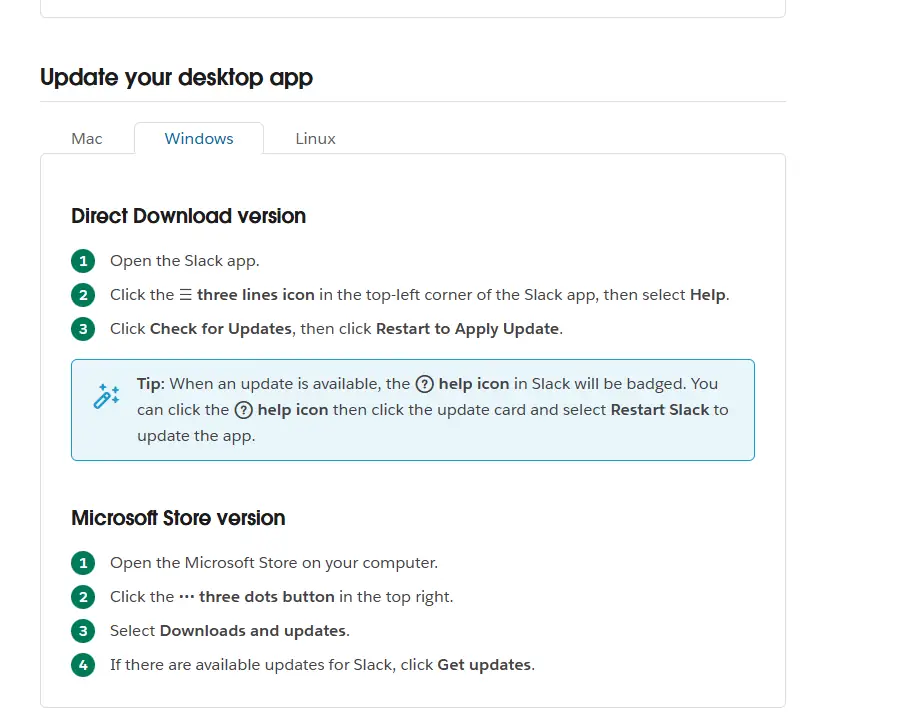
Slack's update article gives these steps for the Windows direct-download version: click the ☰ three lines icon in the top-left corner, select Help, click Check for Updates, then Restart to Apply Update. For the Microsoft Store version, open the Store, click the ••• button, select Downloads and updates, then Get updates.
Help, then About Slack shows your version. If it starts with MSQ, your organization manages updates, so ask IT. Other common causes are duplicate copies (a website copy beside a store or company copy, so the update lands on the one you don't launch), low disk space, and security software blocking the updater.
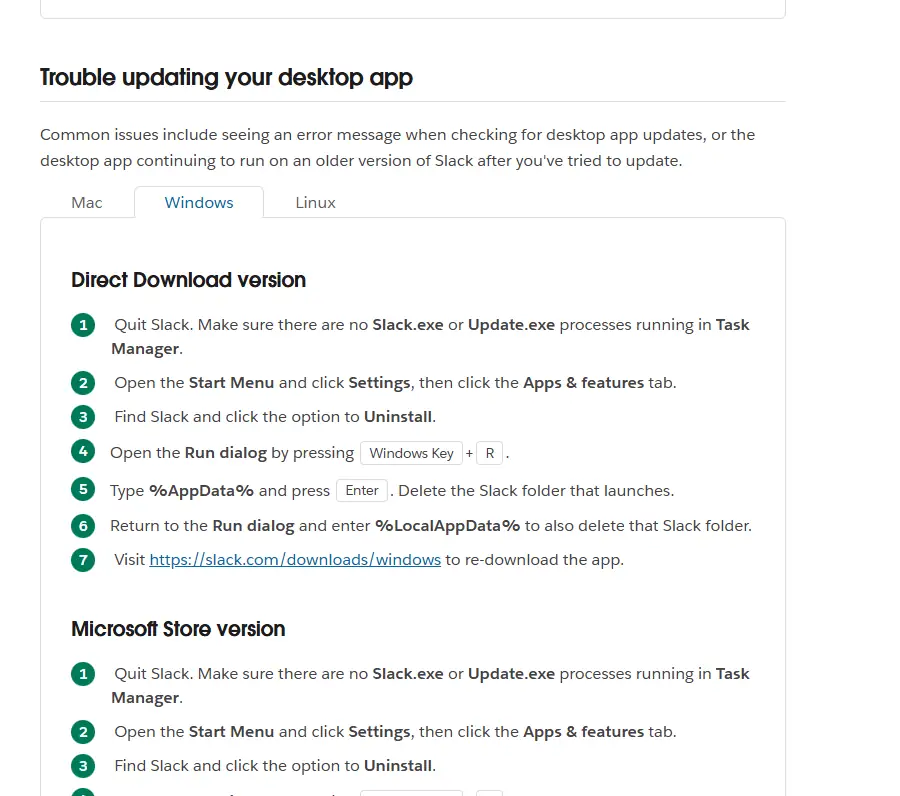
If updates still fail on Windows, Slack recommends a clean reinstall: quit Slack and confirm no Slack.exe or Update.exe processes remain in Task Manager, uninstall it from Settings, Apps & features, press Windows key + R, delete the Slack folder in %AppData% and in %LocalAppData%, then download Slack again. Store installs use a different folder, listed in the same article.
Connection and Loading Errors
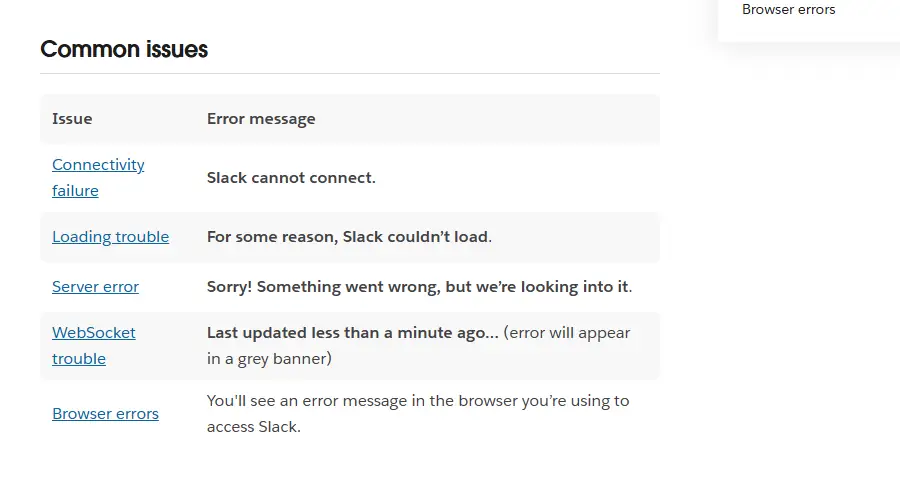
- "Slack cannot connect." Click Restart Slack, which clears the cache. If it persists, check that network and security software allow Slack, then use Download Logs to send Net Logs to Slack support.
- "For some reason, Slack couldn't load." Open Help (the top menu bar, or the ☰ icon on Windows), select Troubleshooting, then Clear Cache and Restart. Then run Slack's connection test at slack.com/help/test.
- Server error. Reload with Ctrl+R or ⌘R and check Slack's status site.
- Grey "Last updated…" banner. WebSocket trouble stops new messages arriving. Ask your network admin to allow wss-primary.slack.com, wss-backup.slack.com and wss-mobile.slack.com.
- Browser errors. Use a supported, updated browser, clear its cache, and try a private window; if that works, disable extensions.
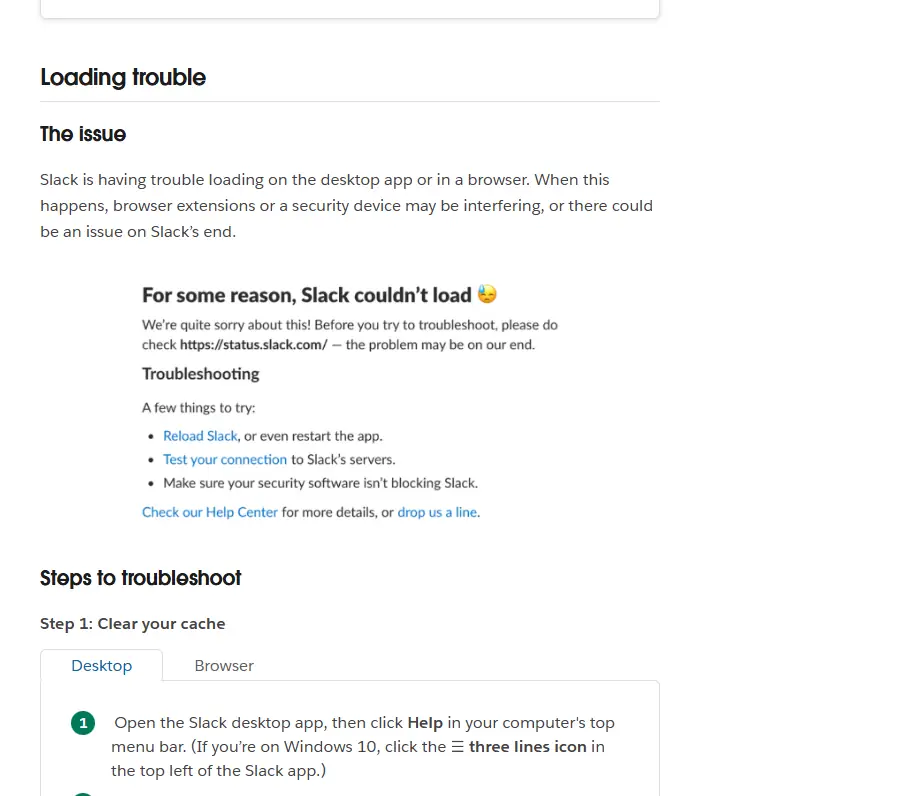
Full details are in Slack's official connection troubleshooting article.
When Notifications Are Not Arriving
Work from the outside in. First check that Windows, macOS, Android or iOS allows Slack notifications and that no Focus or Do Not Disturb mode is on; on Android, battery saving can delay alerts. Then check Slack: you may be set to Mentions and direct messages only, have notifications paused or scheduled, or have muted a channel. By default Slack sends mobile notifications one minute after you lock your desktop screen or 10 minutes after it stops detecting cursor activity, so a quiet phone at your desk can be normal. Our Slack notifications guide covers every setting.
Breaking a Sign-In Loop
If the browser keeps returning you to the sign-in screen instead of the app:
- Allow the browser to open Slack; a previously blocked prompt makes the hand-off fail silently.
- Confirm the workspace, or enter its URL from the sign-in page.
- Try another supported browser, as privacy extensions and strict cookies can break the redirect.
- Use Sign In With Email if Google, Microsoft or Apple sign-in loops, and check single sign-on with IT.
If you can sign in at the Slack sign-in page, your account is fine and the desktop hand-off is the problem. See our guide to using Slack in a browser.
Clearing the Cache and Reinstalling Cleanly
A corrupted cache causes blank screens, missing images and endless spinners. Clearing it is safe because messages live in your workspace. On desktop, use Help, Troubleshooting, Clear Cache and Restart; on Android, clear Slack's cache in the phone's app settings; on iPhone and iPad, reinstalling is the dependable reset. When nothing else works:
- Note which workspaces you'll need to sign back in to.
- Quit Slack fully, including from the system tray or menu bar.
- Uninstall it and remove any duplicate copies.
- Restart, then install the latest version from one official source.
- Sign in and test messages, notifications and calls.
On a work computer, ask IT first; company deployments can include settings a manual reinstall would lose.
Check Your Device Against Slack's Requirements
| Platform | OS version | App version |
|---|---|---|
| Windows | Windows 11 version 23H2 or above; Windows Server 2016 (Windows 10 not listed) | 4.44 or above |
| macOS | macOS 13 or above | 4.44 or above |
| Linux (beta) | Ubuntu LTS 22.04 or above; Red Hat Enterprise Linux 9.0 or above | 4.44 or above |
| iOS | iOS 17 or above | 25.05.20 or above |
| Android | Android 11 or above (Google Play Services by default) | 25.05.20 or above |
| Browsers | Chrome 137+, Firefox 139+, Safari 26+, Edge 136+ | Huddles: Chrome and Firefox only |
Requirements last checked: (Slack revises them every May and November).
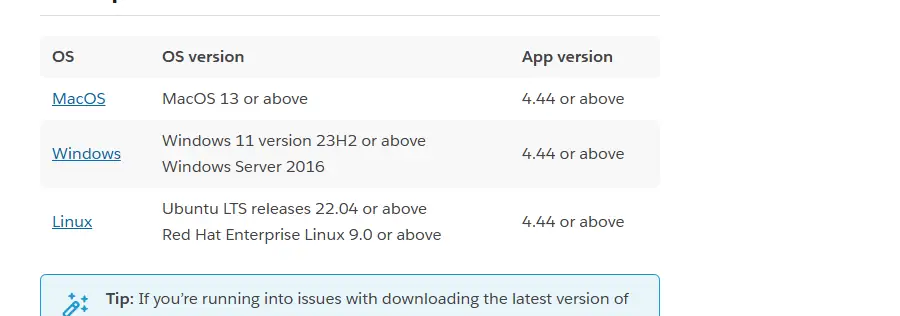
On November 6, 2026, slack.com/downloads listed version 4.53.280 for Windows and Mac and 4.53.276 for Linux. Confirm against the official Slack system requirements; if your device can't meet them, a supported browser is the best fallback.
Frequently Asked Questions
Why does my Slack installer close as soon as I open it?
The download may be incomplete, or security software may be blocking it. Download the installer again from Slack's official download page and run the saved file. On a work computer your company may block installers, so check with IT or use the Microsoft Store version if allowed.
Will clearing Slack's cache delete my messages?
No. Messages and files are stored in your workspace, so clearing the cache only removes temporary data on your device. On desktop, use Help, Troubleshooting, Clear Cache and Restart. A reinstall may sign you out, but your messages will be there when you sign back in.
Why do I keep seeing a prompt to upgrade Slack?
Your app version has reached end of support, and Slack blocks unsupported versions until you upgrade. Update from the source you installed from. If no update is offered because your operating system is too old, upgrade the OS or use Slack in a supported browser.
Why do I get Slack notifications on my computer but not my phone?
By default Slack waits before sending mobile notifications: one minute after you lock your desktop screen or 10 minutes after it stops detecting cursor activity. Change this under When I'm not active on desktop, then check your phone's notification permissions and Focus settings.
How do I stop Slack from sending me back to the sign-in screen?
Allow your browser to open the Slack app after signing in, confirm the workspace, and try Sign In With Email on slack.com/signin. If browser sign-in works, your account is fine. If your company uses single sign-on, ask IT about the loop.
Can I still use Slack on Windows 10?
Windows 10 is not on Slack's current supported list, which requires Windows 11 version 23H2 or above or Windows Server 2016. An existing install may keep working on a supported app version but won't get updates. Upgrading or using a supported browser is the dependable route.