
Slack Huddles and Calls: Download Slack and Start a Huddle
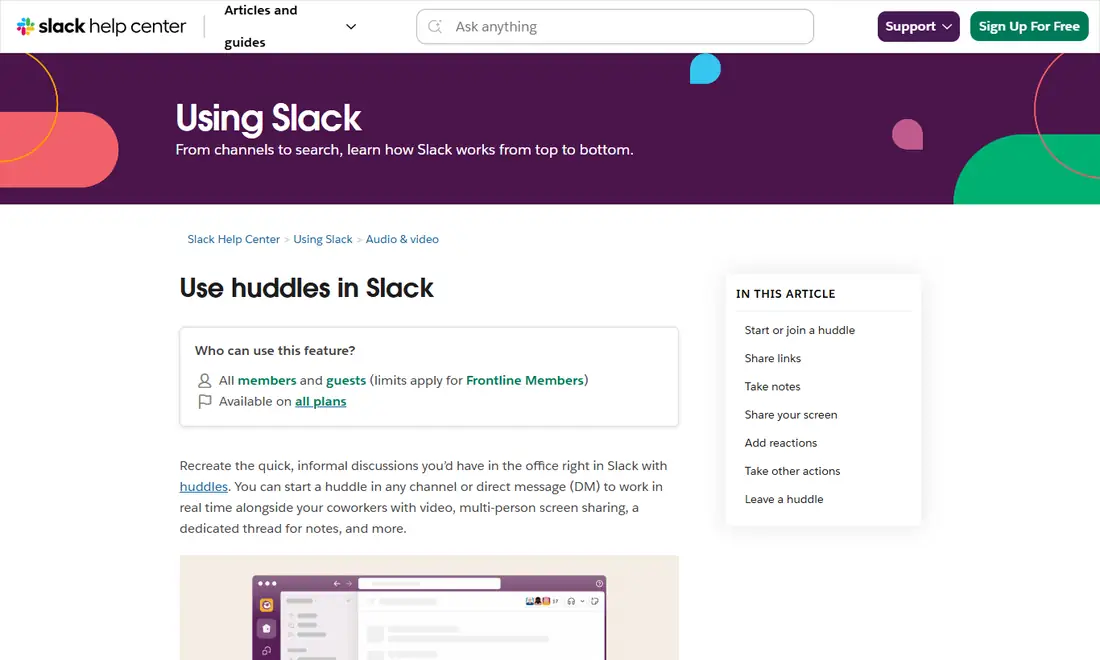
Huddles are Slack's built-in way to talk live with your team: one click turns any channel or direct message into an audio call, and from there you can add video, share screens and keep notes in the same place. Before you can join one from your desk or phone, you need a Slack download for your device or a supported browser. This guide explains where huddles work, what the free and paid plans allow, how to start and run a huddle, and how to fix the microphone, camera and screen-sharing problems that come up most often.
SlackDownload.com is a third-party guide; everything below follows Slack's own help articles as they read on November 6, 2026.
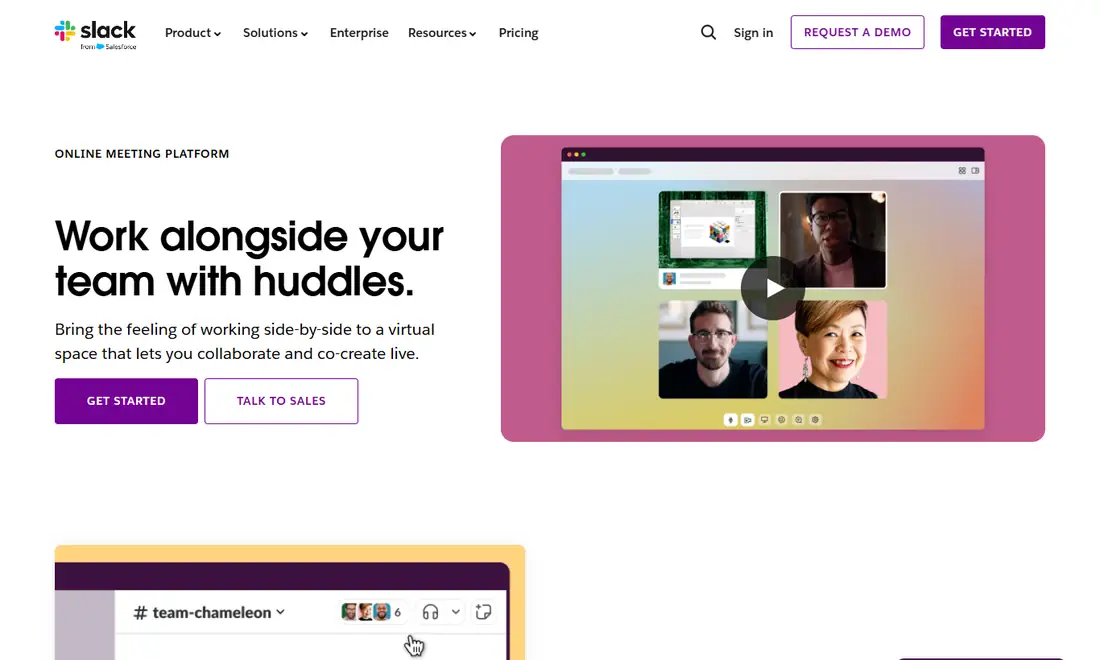
What Slack huddles are
Slack describes huddles as a way to recreate the quick, informal discussions you'd have in the office. You can start a huddle in any channel or DM, and anyone in that conversation can join. Inside a huddle you get:
- Audio first, with video one click away.
- Multi-person screen sharing.
- A dedicated thread and a canvas for notes.
- Reactions, effects, stickers and GIFs.
- Huddle links for calendar invitations or messages.
Slack's feature page adds that links, documents and messages shared during a huddle are saved automatically once it ends, so you can jump back to them later.
Where huddles work: desktop app, mobile app and browser
According to Slack's huddles help article, huddles are available on the Slack desktop and mobile apps, Google Chrome (Mac, Windows and Linux) and Firefox (Mac and Windows). Slack's system requirements page repeats the browser rule: Chrome and Firefox are the only browsers that support huddles.
| Where you use Slack | Huddles? | Notes |
|---|---|---|
| Desktop app (Windows, Mac, Linux) | Yes | Fullest experience; drawing on shared screens is supported on the Mac and Windows desktop apps |
| Mobile app (iPhone, iPad, Android) | Yes | Start and join from a channel or DM; the help article has separate mobile steps |
| Google Chrome | Yes | Mac, Windows and Linux |
| Firefox | Yes | Mac and Windows |
| Safari, Microsoft Edge | No | Supported for Slack in the browser, but not for huddles |
For daily huddles, use the desktop app from Slack's official downloads page (see our Slack download guide for Windows), or read our guide to using Slack in a web browser.
Version and system requirements
On November 6, 2026, slack.com showed desktop version 4.53.280 for Windows and Mac. Your device also has to meet Slack's current minimums:
| Platform | OS version | App version |
|---|---|---|
| Windows | Windows 11 version 23H2 or above; Windows Server 2016 | 4.44 or above |
| macOS | macOS 13 or above | 4.44 or above |
| Linux (beta) | Ubuntu LTS 22.04 or above; Red Hat Enterprise Linux 9.0 or above | 4.44 or above |
| iOS | iOS 17 or above | 25.05.20 or above |
| Android | Android 11 or above (Google Play Services required) | 25.05.20 or above |
| Browsers | Chrome 137+, Firefox 139+, Safari 26+, Edge 136+ | Huddles: Chrome and Firefox only |
Requirements last checked: (Slack revises them every May and November).
Windows 10 is not on Slack's current supported list. Also note that Slack's support lifecycle page lists macOS 13, iOS 17 and Android 11 (plus desktop app 4.46.104 and below) as reaching end of support on November 9, 2026 — check the official system requirements page after that date.
Free vs paid plans: who can join a huddle
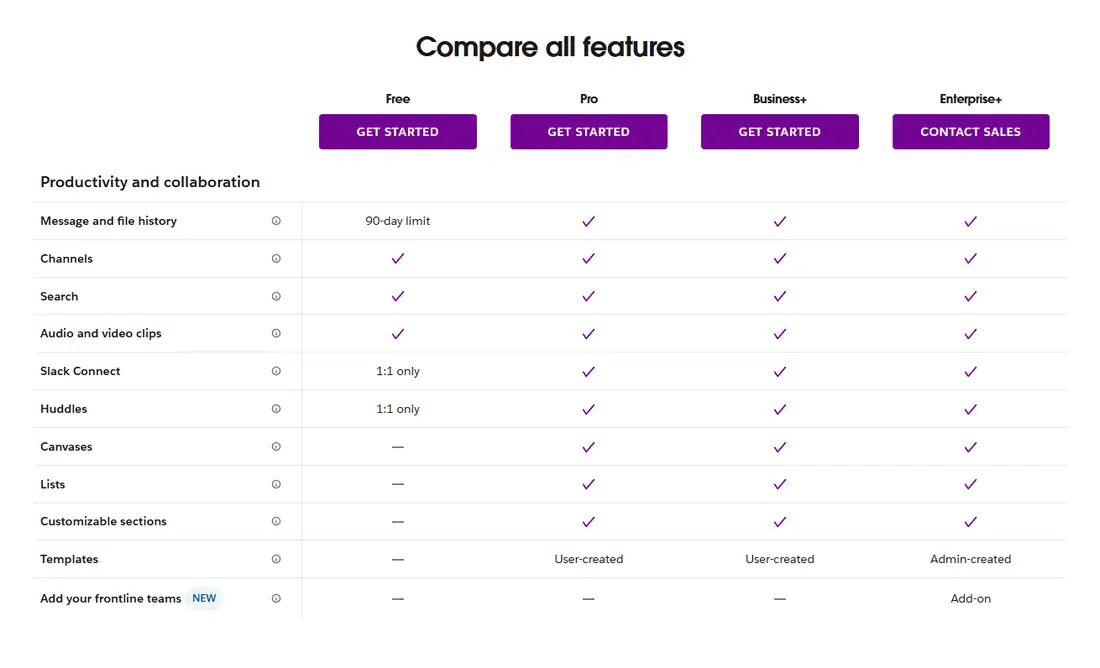
Huddles are available on all Slack plans, but group size depends on what you pay. Slack's pricing page lists huddles as "1:1 only" on the free plan, and the huddles help article spells it out: free-plan huddles have a maximum of two participants.
| Plan | Huddle size | Video | AI huddle notes |
|---|---|---|---|
| Free | 2 participants (1:1) | Yes | Not listed for Free |
| Pro | Up to 50 participants | Up to 25 with video at a time | Included |
| Business+ | Up to 50 participants | Up to 25 with video at a time | Included |
| Enterprise+ | Up to 50 participants | Up to 25 with video at a time | Included |
The AI column follows the "Feature availability by plan" table in Slack's AI guide, which lists huddle notes for Pro, Business+ and Enterprise+. One more limit applies to people rather than plans: Frontline Members can join huddles but can't start them. For prices and the rest of the plan differences, see our breakdown of Slack pricing plans or Slack's pricing page.
How to start a huddle
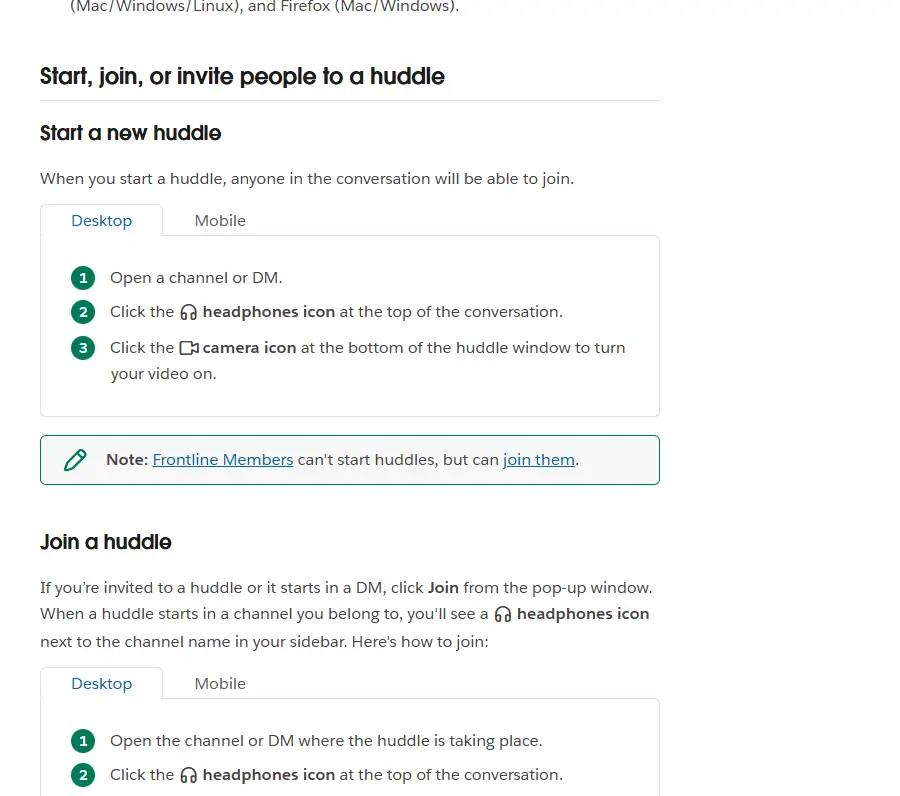
These are the desktop steps from Slack's help article. The mobile app uses the same headphones icon in the conversation.
- Open the channel or DM where you want to talk.
- Click the headphones icon at the top of the conversation. The huddle starts and anyone in that conversation can join.
- To turn on video, click the camera icon at the bottom of the huddle window.
- To bring in someone else, click the Invite people icon, choose people or search for their names, then click Send Invite.
- When you're finished, click Leave. The huddle ends automatically when the last person leaves.
On a Mac, Slack's shortcut list includes ⌘ Shift H to start, join, leave or end a huddle and ⌘ Shift Space to toggle mute. Our Slack keyboard shortcuts guide covers the rest.
Joining, inviting and sharing huddle links
If you're invited to a huddle, or one starts in a DM, click Join in the pop-up window. When a huddle starts in a channel you belong to, a headphones icon appears next to the channel name in your sidebar; open the channel and click the headphones icon to join.
You can invite people who aren't in the channel or DM; they won't see the conversation's messages or the huddle thread.
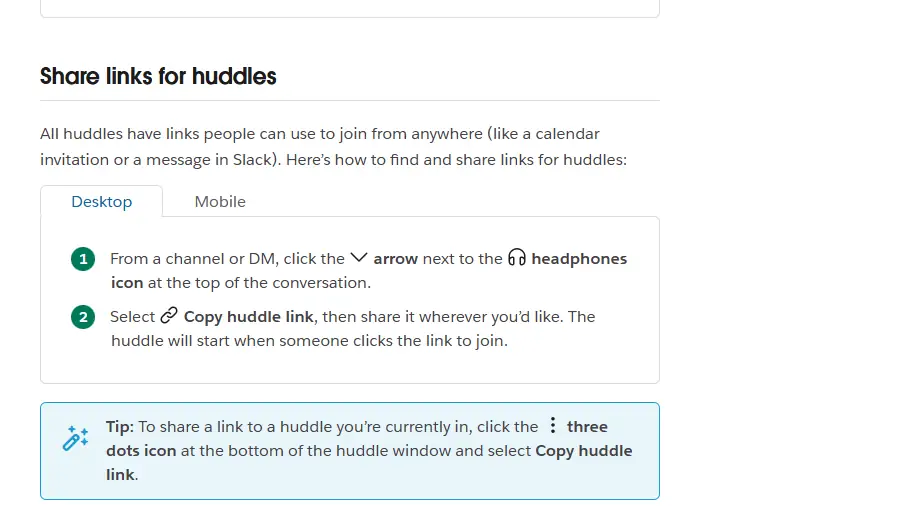
Every huddle also has a link. From a channel or DM, click the arrow next to the headphones icon and select Copy huddle link; the huddle starts when someone clicks it. If someone opens a link to a huddle in a private channel or DM they don't belong to, they can click Request Access, and anyone in the huddle can approve them.
Screen sharing in a huddle
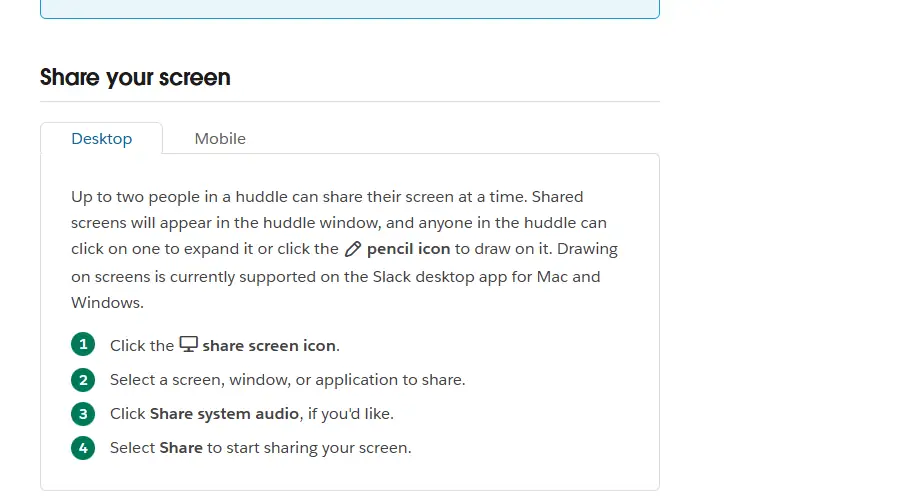
Up to two people in a huddle can share their screen at once. Shared screens appear in the huddle window, where anyone can click one to expand it or use the pencil icon to draw on it; drawing is currently supported on the desktop app for Mac and Windows. To share:
- Click the share screen icon.
- Select a screen, window or application.
- Click Share system audio if you want others to hear your computer's sound.
- Select Share.
Huddle notes: thread, canvas and AI notes
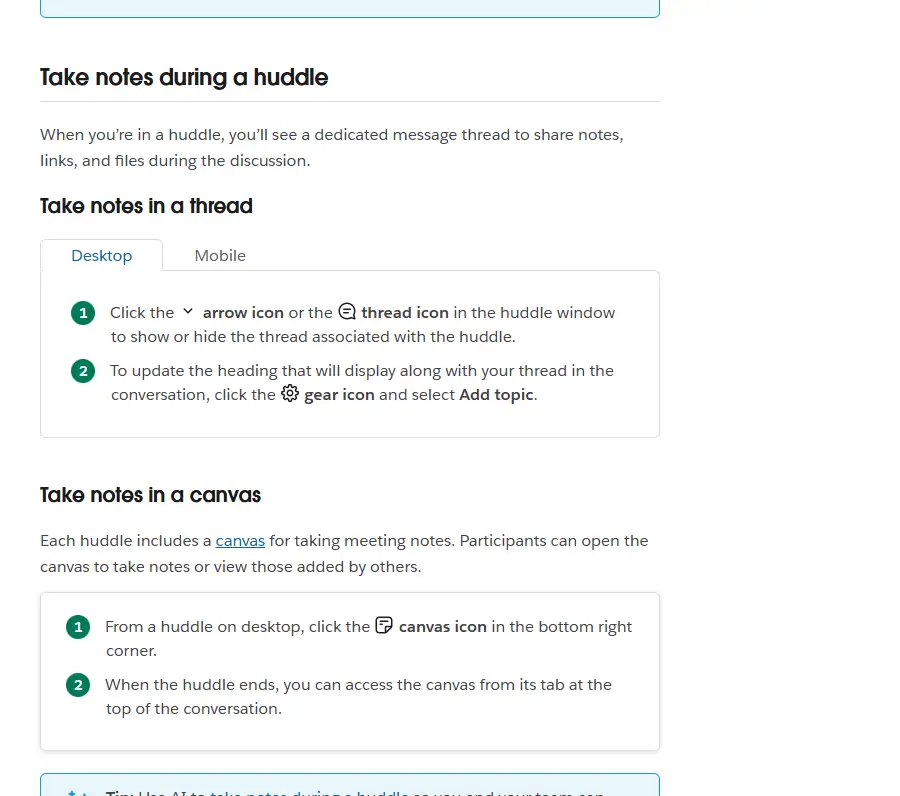
Each huddle has a dedicated thread for notes, links and files; click the thread icon in the huddle window to show or hide it.
Each huddle also includes a canvas for meeting notes. On desktop, click the canvas icon in the bottom-right corner; after the huddle ends, the canvas stays available from its tab at the top of the conversation. Note that Slack's pricing table lists canvases for paid plans, not Free.
On paid plans, AI can take notes for you. Slack's feature page says key takeaways, action items and who said what are organized when the huddle ends. Tell participants when AI notes are on.
Reactions, captions and other huddle controls
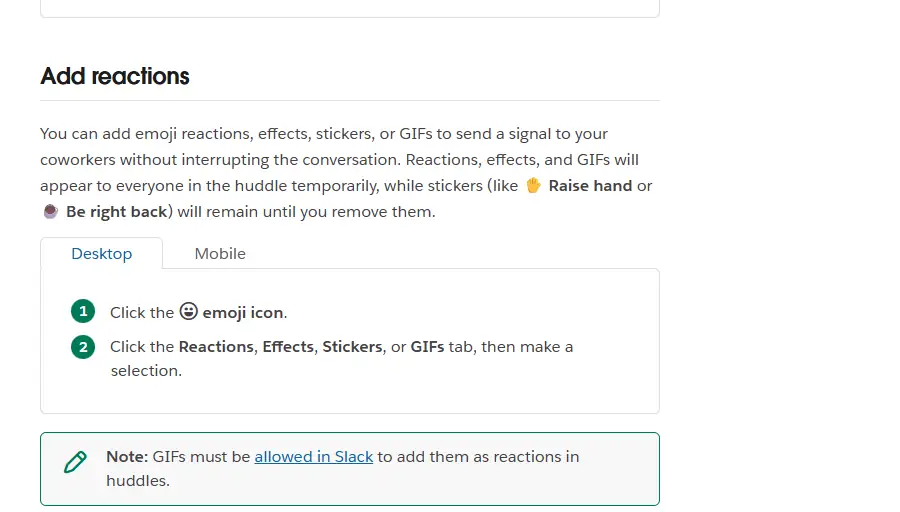
Click the emoji icon, then choose the Reactions, Effects, Stickers or GIFs tab. Reactions, effects and GIFs appear briefly to everyone, while stickers such as Raise hand or Be right back stay until you remove them. GIFs must be allowed in your workspace to use them in huddles.
The three dots or gear icon opens more options: add a topic, choose a huddle theme, play music, turn on live captions (English only, not saved afterwards), change your background, manage video and microphone settings, and preview your video.
Troubleshooting microphone, camera and screen-share problems
Most huddle problems come down to permissions or the wrong device. Work through these checks:
- Check operating system permissions. Windows, macOS and mobile systems can block apps from the microphone, camera and screen recording. In your device's privacy settings, allow Slack (or your browser). You may need to quit and reopen Slack afterwards.
- Pick the right devices. Open video and microphone settings from the huddle menu and choose the headset or webcam you expect.
- Close other camera apps. Another video app can hold the webcam.
- In the browser, allow the site. Use Chrome or Firefox and allow microphone and camera access in the browser's site settings.
- Update Slack. Unsupported app versions must be upgraded before you can use Slack again.
- Rule out the network. If audio drops or the huddle won't connect, follow our Slack troubleshooting guide for connection fixes.
Safety and good huddle habits
Only install Slack from slack.com or the official app stores; the publisher should read "SLACK TECHNOLOGIES L.L.C." on the App Store and Google Play, or "Slack Technologies Inc." on the Microsoft Store. Double-check who you invite, and close confidential windows before sharing your screen. For the full feature overview, see Slack's huddles feature page and the official huddles help article.
Frequently Asked Questions
Are Slack huddles free?
Yes, huddles are available on every Slack plan, including Free. On the free plan a huddle can have a maximum of two participants, so it works for one-to-one calls only. Paid plans allow up to 50 participants, with up to 25 people using video at the same time, according to Slack's huddles help article.
Can I use Slack huddles in a web browser?
Only in Google Chrome and Firefox. Slack's help article lists Chrome on Mac, Windows and Linux and Firefox on Mac and Windows. Safari and Microsoft Edge can open Slack in the browser but do not support huddles, so install the desktop app if you rely on huddles every day.
How many people can share their screen in a huddle?
Up to two people can share their screens at the same time. Shared screens appear in the huddle window, and others can click one to expand it. Drawing on a shared screen with the pencil icon is currently supported in the Slack desktop app for Mac and Windows.
Why can't others hear me in a Slack huddle?
Check that your operating system allows Slack, or your browser, to use the microphone, then open the huddle's video and microphone settings from the gear or three dots menu and choose the right input device. Make sure you are not muted, and quit and reopen Slack after changing a permission.
Where do huddle notes go after the call?
Each huddle has a dedicated thread for notes, links and files, plus a canvas for meeting notes that stays available from a tab at the top of the conversation after the huddle ends. On Pro, Business+ and Enterprise+ plans, AI can also take huddle notes with key takeaways and action items.
Can Frontline Members start a huddle?
No. Slack's help center says Frontline Members can join huddles but cannot start them. Members and guests can otherwise use huddles on all plans. If someone needs to start calls regularly, a workspace owner or admin should review that person's account type and the plan's participant limits.