
Slack Keyboard Shortcuts: Work Faster After Your Slack Download
Keyboard shortcuts are the quickest way to get more out of Slack once the app is installed. If you haven't completed your Slack download yet, start there: several shortcuts only work in the desktop app, not in a browser. This guide collects the shortcuts from Slack's official keyboard shortcuts article, grouped the same way Slack groups them, with notes on which ones are desktop-only and tips for actually remembering them. SlackDownload.com is a third-party guide; every shortcut below comes from Slack's help center as it read on November 6, 2026.
Before you start: how Slack's shortcut list works
Three rules from Slack's article apply to everything below:
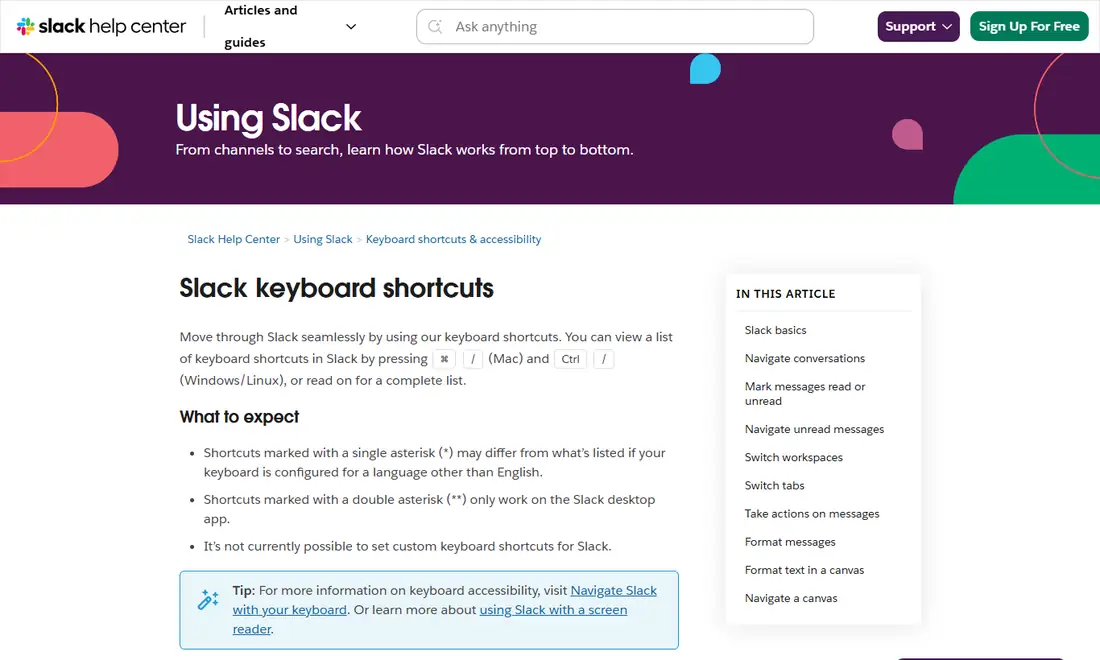
- The full list is built in. Press
⌘ /on a Mac orCtrl /on Windows and Linux to open the shortcut list inside Slack. - Some shortcuts are desktop-only. Slack marks them with a double asterisk; we label them "desktop app only". If you use Slack in a browser, these won't work — one more reason to install the app from Slack's official downloads page.
- Keyboard layout matters, and you can't remap. Shortcuts marked with a single asterisk may differ if your keyboard is set to a language other than English, and Slack does not currently let you set custom shortcuts.
Mac vs Windows/Linux keys
Slack's article shows each group in two tabs, Mac and Windows/Linux. The tables in this guide reproduce the Mac tab, captured on November 6, 2026. The Windows/Linux tab covers the same groups; the pairs below are the ones Slack confirms in text for both platforms. For any other shortcut on Windows or Linux, press Ctrl / in the app to see the exact keys for your system.
| Action | Mac | Windows/Linux | Where Slack says so |
|---|---|---|---|
| Open the keyboard shortcuts list | ⌘ / | Ctrl / | Keyboard shortcuts article |
| Reload Slack | ⌘ R | Ctrl R | Connection troubleshooting article |
| Search in the current conversation | ⌘ F | Ctrl F | Windows and Linux release notes |
| Toggle full screen | Ctrl ⌘ F | Ctrl Shift F | Windows and Linux release notes |
| Mark current conversation as read | Esc | Esc | Shortcuts article; Windows release notes |
| Mark all messages as read | Shift Esc | Shift Esc | Shortcuts article; Windows release notes |
| One-key actions on a focused message | E, T, F, P, A, U, M, R, Delete | Same keys | Listed without platform tabs |
Slack basics
These are the everyday shortcuts: composing, searching, uploading and huddles.
| Action | Mac shortcut |
|---|---|
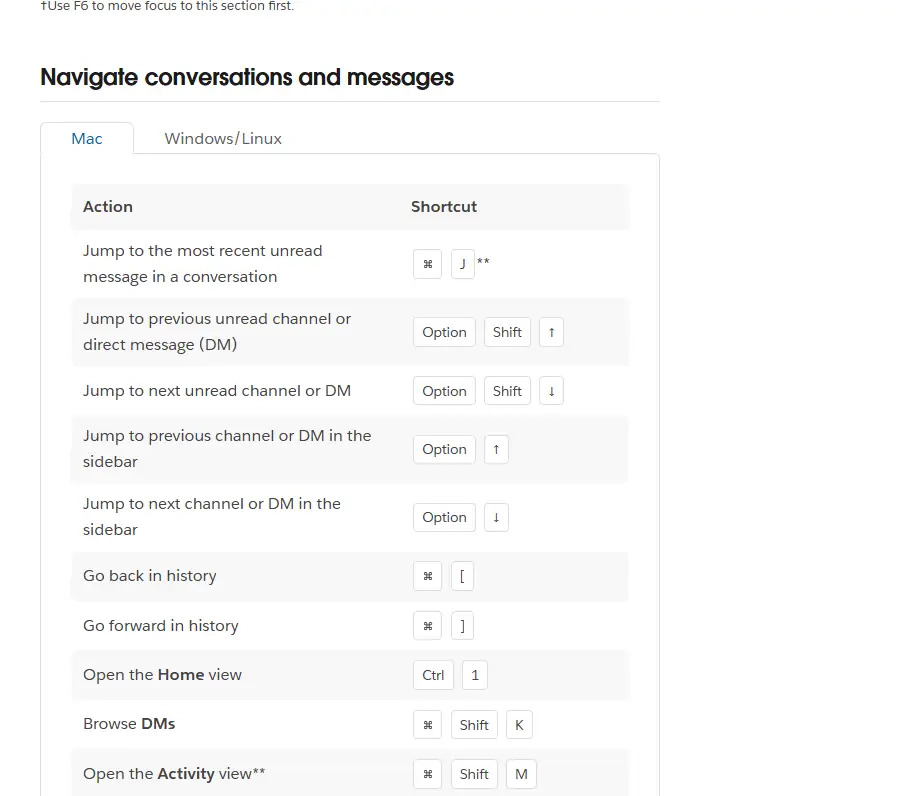
| Compose a new message | ⌘ N or ⌘ Shift K |
| Unsend a message | ⌘ Z |
| Set your status | ⌘ Shift Y |
| Open your preferences (desktop app only) | ⌘ , |
| Resize the left sidebar (press F6 to focus it first) | ← or → |
| Hide the right sidebar | ⌘ . |
| Create a new canvas | ⌘ Shift N |
| Upload a file (desktop app only) | ⌘ O |
| View all downloaded files | ⌘ Shift J |
| Create a new snippet | ⌘ Shift Enter |
| Add an emoji reaction to a message (may vary by keyboard) | ⌘ Shift \ |
| Start a search | ⌘ G |
| Search in the current conversation | ⌘ F |
| Start, join, leave or end a huddle | ⌘ Shift H |
| Toggle mute on a huddle | ⌘ Shift Space |
| Open Help | F1 |
| Toggle full screen view | Ctrl ⌘ F |
| Close window / reopen last closed window | ⌘ W / ⌘ Shift W |
| Open the People view | ⌘ Shift E |
| Quit Slack (desktop app only) | ⌘ Q |
The two huddle shortcuts are worth learning first if you take a lot of calls: one key combination starts or leaves a huddle and another mutes you. Our guide to Slack huddles and calls covers the rest of the huddle controls.
Navigate conversations and messages
| Action | Mac shortcut |
|---|---|
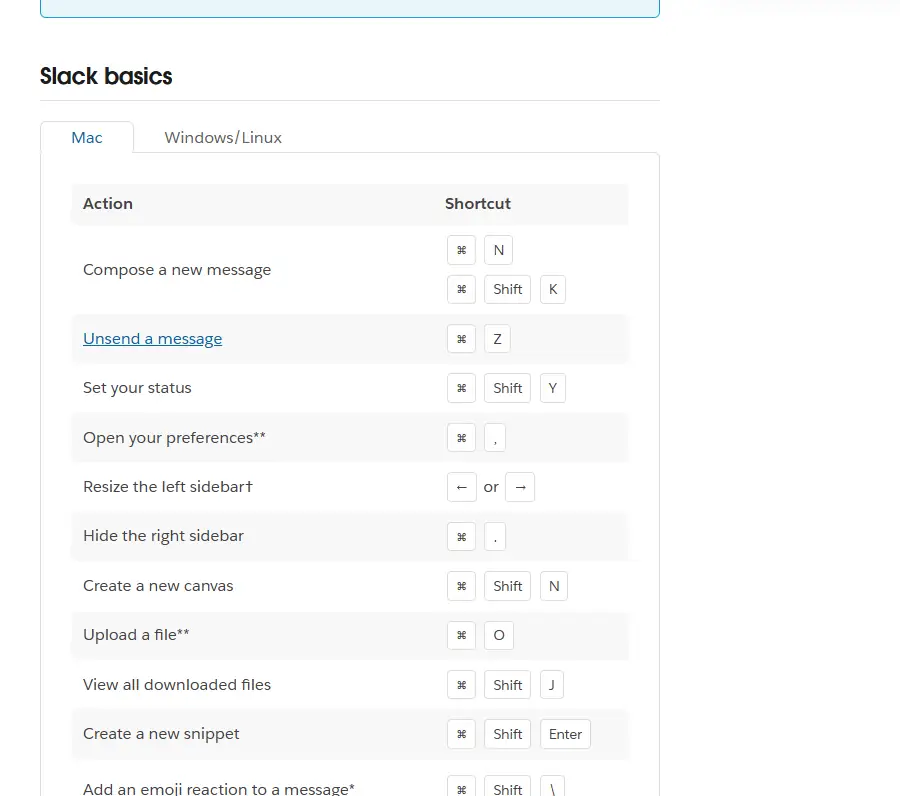
| Jump to the most recent unread message in a conversation (desktop app only) | ⌘ J |
| Jump to previous / next unread channel or DM | Option Shift ↑ / Option Shift ↓ |
| Jump to previous / next channel or DM in the sidebar | Option ↑ / Option ↓ |
| Go back / forward in history | ⌘ [ / ⌘ ] |
| Open the Home view | Ctrl 1 |
| Browse DMs | ⌘ Shift K |
| Open the Activity view (desktop app only) | ⌘ Shift M |
| Open the More view | Ctrl 0 |
| Open the Threads view (desktop app only) | ⌘ Shift T |
| Browse channels (desktop app only) | ⌘ Shift L |
| Open conversation details | ⌘ Shift I |
| Move focus to the next / previous section | F6 / Shift F6 |
| Expand or collapse all sidebar sections | Option Click |
Catch up: read, unread and the All unreads view
Slack has two related groups here. The first marks messages read or unread anywhere:
| Action | Mac shortcut |
|---|---|
| Mark all messages in current conversation as read | Esc |
| Mark all messages as read | Shift Esc |
| Mark a message as unread | Option Click |
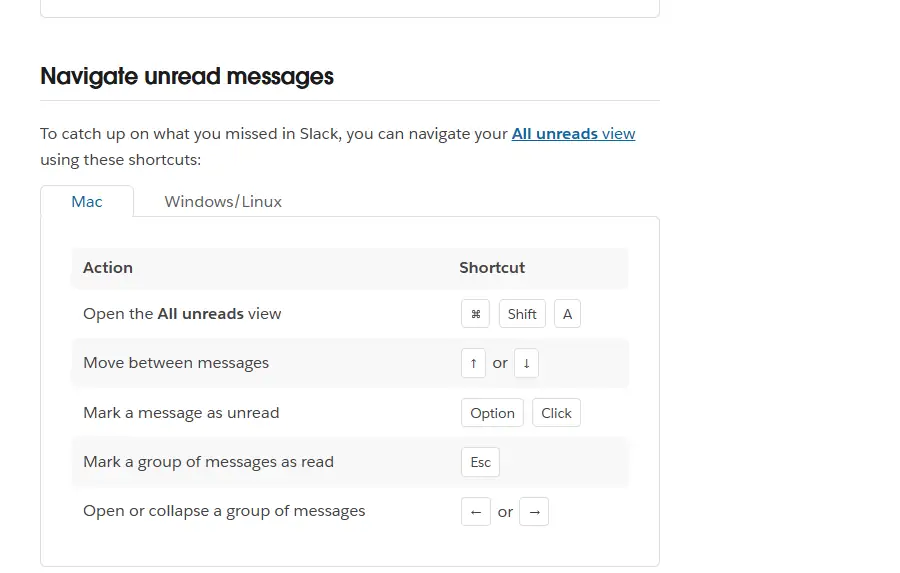
The second works inside the All unreads view, which is built for catching up after time away:
| Action | Mac shortcut |
|---|---|
| Open the All unreads view | ⌘ Shift A |
| Move between messages | ↑ or ↓ |
| Mark a group of messages as read | Esc |
| Open or collapse a group of messages | ← or → |
Switch workspaces and tabs
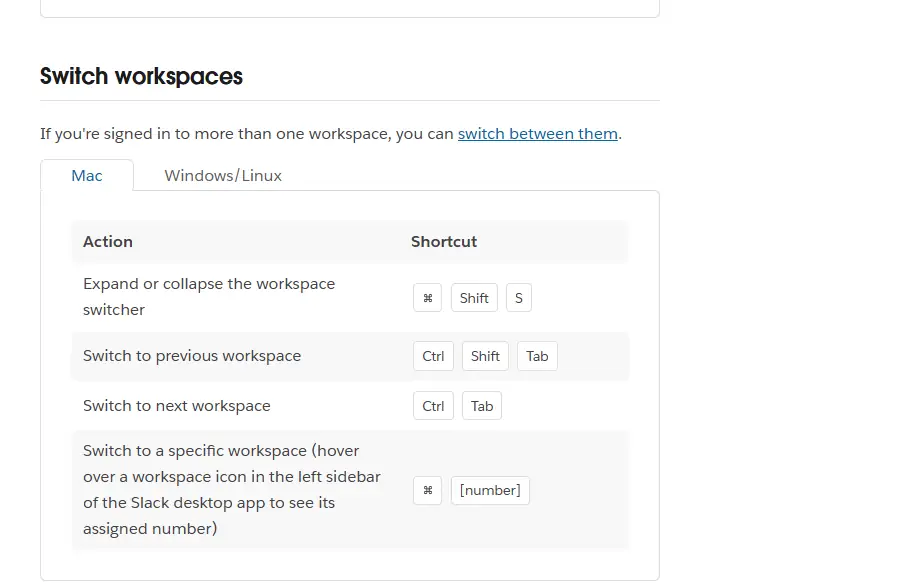
If you're signed in to more than one workspace, these save a lot of clicking:
| Action | Mac shortcut |
|---|---|
| Expand or collapse the workspace switcher | ⌘ Shift S |
| Switch to previous / next workspace | Ctrl Shift Tab / Ctrl Tab |
| Switch to a specific workspace (hover over its icon in the desktop app to see its number) | ⌘ [number] |
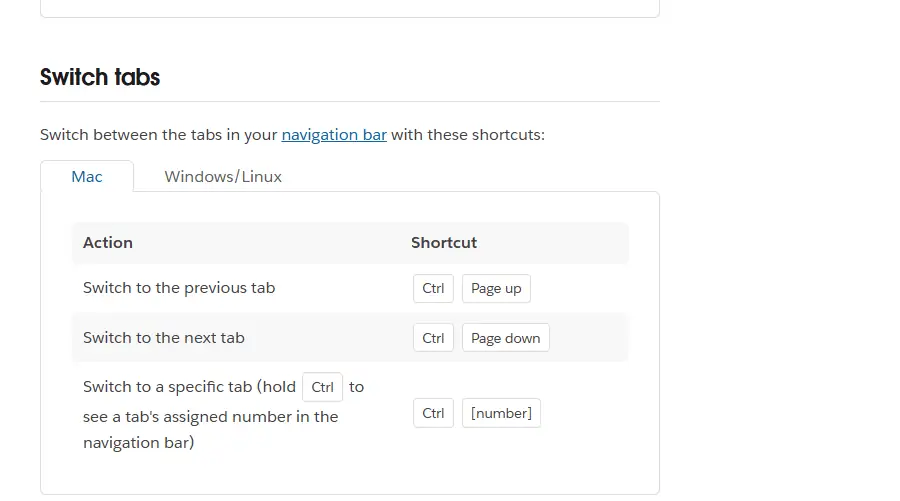
| Switch to the previous / next tab in the navigation bar | Ctrl Page up / Ctrl Page down |
| Switch to a specific tab (hold Ctrl to see each tab's number) | Ctrl [number] |
Take actions on messages with one key
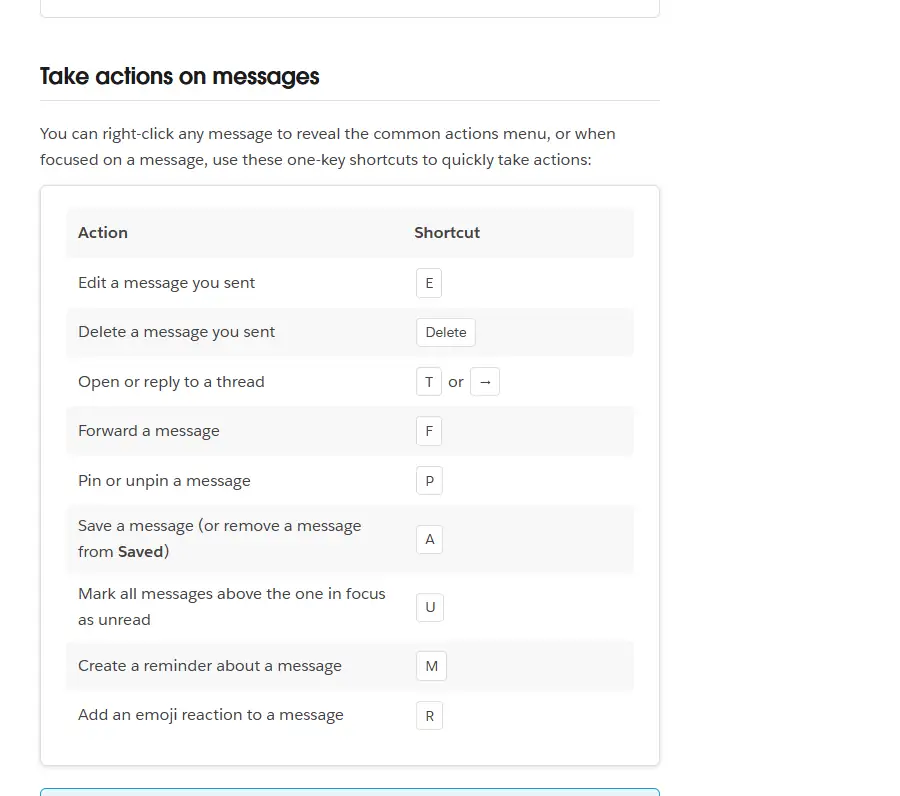
You can right-click any message for the actions menu, or focus a message and press a single key:
| Action | Key |
|---|---|
| Edit a message you sent | E |
| Delete a message you sent | Delete |
| Open or reply to a thread | T or → |
| Forward a message | F |
| Pin or unpin a message | P |
| Save a message (or remove it from Saved) | A |
| Mark all messages above the one in focus as unread | U |
| Create a reminder about a message | M |
| Add an emoji reaction | R |
By default, pressing the up arrow in the message field lets you edit the last message you sent. You can change this preference so the up arrow moves focus to the last visible message instead.
Format messages and canvases
Put your cursor in the message field first. Then:
| Action | Mac shortcut |
|---|---|
| Create a new line | Shift Enter |
| Bold / italic / underline | ⌘ B / ⌘ I / ⌘ U |
| Strikethrough | ⌘ Shift X |
| Hyperlink selected text | ⌘ Shift U |
| Quote | ⌘ Shift 9 |
| Code / codeblock | ⌘ Shift C / ⌘ Alt Shift C |
| Bulleted / numbered list | ⌘ Shift 8 / ⌘ Shift 7 |
| Apply markdown formatting | ⌘ Shift F |
| Undo formatting | ⌘ Z |
A handy trick from Slack's article: if a link is already on your clipboard, select text and press ⌘ V to turn it into a hyperlink. In a canvas, the message shortcuts also work, plus canvas-specific ones such as ⌘ Option 1, 2 and 3 for big, medium and small headings, ⌘ Option 0 for a paragraph, ⌘ Shift 0 for a checklist, Ctrl ` to toggle heading and list styles, ⌘ Option T to view a comment thread, ⌘ Option R to switch between reader and edit view, and ⌘ Shift H for find and replace.
Navigate a canvas
When you're working in a canvas, Slack lists these navigation and editing shortcuts:
| Action | Mac shortcut |
|---|---|
| Open context menu | ⌘ Shift / |
| Find text / find next / find previous | ⌘ F / ⌘ G / ⌘ Shift G |
| Copy anchor link to section | Ctrl Option Q |
| Undo / redo last action | ⌘ Z / ⌘ Shift Z |
| Move item in a formatted list up / down | ⌘ Option ↑ / ⌘ Option ↓ |
Which Slack version and devices you need
Desktop-only shortcuts need a current, supported desktop app. On November 6, 2026, slack.com showed version 4.53.280 for Windows and Mac. Slack's minimum requirements are:
| Platform | OS version | App version |
|---|---|---|
| Windows | Windows 11 version 23H2 or above; Windows Server 2016 | 4.44 or above |
| macOS | macOS 13 or above | 4.44 or above |
| Linux (beta) | Ubuntu LTS 22.04 or above; Red Hat Enterprise Linux 9.0 or above | 4.44 or above |
| Browsers | Chrome 137+, Firefox 139+, Safari 26+, Edge 136+ | Desktop-only shortcuts won't work |
Requirements last checked: (Slack revises them every May and November).
Slack's support lifecycle page lists macOS 13 and desktop app 4.46.104 and below as reaching end of support on November 9, 2026 — check the official requirements page after that date. If a shortcut from this list is missing in your app, update Slack first, since an outdated app may not include it. Download only from slack.com or the official app stores.
Tips for learning Slack shortcuts
- Learn three at a time. Start with search (
⌘ G), jump to unread (Option Shift ↓) and mark as read (Esc), then add more once they're habit. - Keep the cheat sheet one keystroke away.
⌘ /orCtrl /opens the list for your platform. - Use the desktop app. Several navigation shortcuts are desktop-only. Our Slack download guide for Windows and Mac install guide cover setup; requirements start at Windows 11 23H2 and macOS 13, and Windows 10 is not on Slack's supported list.
- Check your keyboard language. If a shortcut does nothing, a non-English layout may change it.
- Combine with notifications. Shortcuts help you move fast; our Slack notifications guide helps you decide what deserves attention.
The complete, current list lives in Slack's keyboard shortcuts article.
Frequently Asked Questions
How do I see all Slack keyboard shortcuts?
Press Command and slash on a Mac, or Ctrl and slash on Windows and Linux, to open the built-in shortcut list inside Slack. It shows the keys for your platform. Slack's help center also keeps a complete list, grouped into basics, navigation, unread messages, workspaces, tabs, message actions, formatting and canvases.
Can I create custom keyboard shortcuts in Slack?
No. Slack's keyboard shortcuts article says it is not currently possible to set custom keyboard shortcuts. You can, however, change one related preference: by default the up arrow in the message field edits your last message, and you can switch it so the up arrow moves focus to the last visible message instead.
Why doesn't a Slack shortcut work in my browser?
Some shortcuts only work in the Slack desktop app, including opening preferences, uploading a file, jumping to the most recent unread message, opening the Activity and Threads views, browsing channels and quitting Slack. Browsers can also claim some key combinations for themselves, so install the desktop app if you rely on shortcuts.
What is the Slack shortcut to start or mute a huddle?
On a Mac, Slack's list gives Command, Shift and H to start, join, leave or end a huddle, and Command, Shift and Space to toggle mute. For the Windows and Linux keys, open the shortcut list with Ctrl and slash inside the app, which shows the exact combination for your system.
How do I mark everything as read in Slack?
Press Esc to mark all messages in the current conversation as read, or Shift and Esc to mark all messages as read across Slack. Inside the All unreads view, Esc marks a group of messages as read, and the arrow keys move between messages or open and collapse groups.
Why does a Slack shortcut behave differently on my keyboard?
Slack notes that shortcuts marked with a single asterisk, such as adding an emoji reaction, may differ if your keyboard is configured for a language other than English. If a shortcut does nothing, check your keyboard layout and open the in-app list to see the keys Slack expects.