
Slack Download for Ubuntu: .deb vs Snap on 22.04 and 24.04 LTS

A Slack download on Ubuntu comes down to one decision: the official .deb package from Slack's website or the Snap from the Snap Store. Both are official, both install the same Slack desktop app, and both work on Ubuntu 22.04 LTS and 24.04 LTS. They differ in how they install, update and uninstall. This guide explains each route, using the terminal or the graphical store, then covers notifications, version checks, troubleshooting and safe sources. SlackDownload.com is a third-party guide, so every step here points back to Slack's own pages.
Slack on Ubuntu at a Glance: Versions and Support
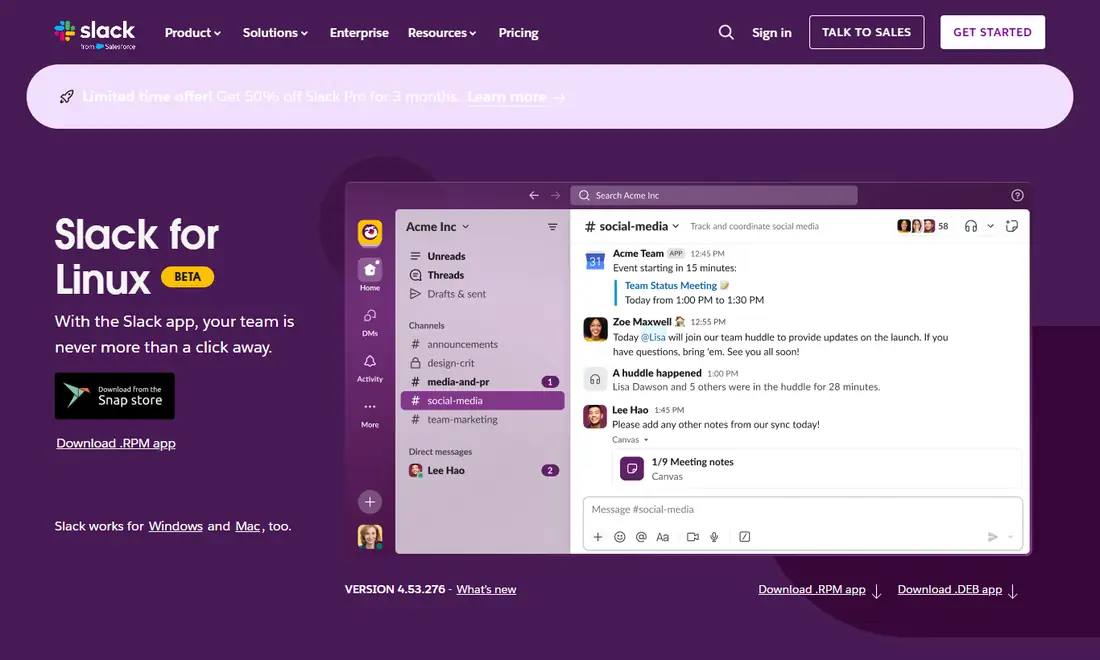
Slack labels its Linux app as beta. In practice it is usable for daily work, but Slack says it is still adding features and making adjustments, so Linux can trail Windows and Mac now and then. Here is what Slack's official pages showed when we checked.
| Item | Official value |
|---|---|
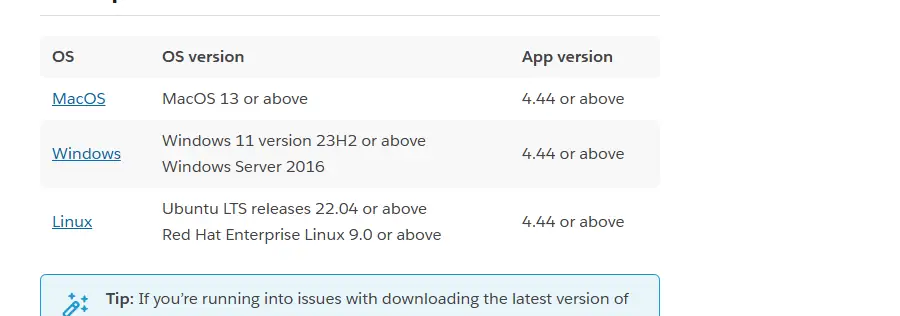
| Supported Ubuntu releases | Ubuntu LTS releases 22.04 or above |
| Minimum Slack app version | 4.44 or above |
| .deb on slack.com/downloads/linux | Version 4.53.276 (file name starts with slack-desktop, amd64 build) |
| Snap Store (latest/stable) | Version 4.53.280, publisher Slack (verified) |
| Ubuntu 20.04 | End of support for Slack on May 18, 2026 |
| Browsers for the web app | Chrome 137+, Firefox 139+ (both support huddles) |
Requirements last checked: (Slack revises them every May and November).
Interim (non-LTS) Ubuntu releases are not what Slack's requirements describe, so if your organisation cares about supported configurations, stay on an LTS release. Flavours such as Kubuntu use the same package tools, so the steps below still apply. You can confirm the list on Slack's system requirements page.
.deb vs Snap: Which Slack Download Should You Choose?
| Consideration | .deb package | Snap package |
|---|---|---|
| Source | slack.com/downloads/linux | snapcraft.io/slack (Snap Store) |
| Version seen Nov 6, 2026 | 4.53.276 | 4.53.280 |
| Install | Open the file in the store app, or apt in the terminal | Store app search, or sudo snap install slack |
| Updates | Through apt with your other packages | Automatic background refreshes by snapd |
| Remove | sudo apt remove slack-desktop | sudo snap remove slack |
| Best for | People who manage updates themselves or follow IT policy | People who want hands-off updates |
Neither choice is wrong, but pick one. Slack's own help article says it does not recommend having the Snap and other Linux packages installed at the same time. Two copies mean two launcher entries, two sets of settings and confusion over which one is updating.
How to Install the Slack .deb Package on Ubuntu
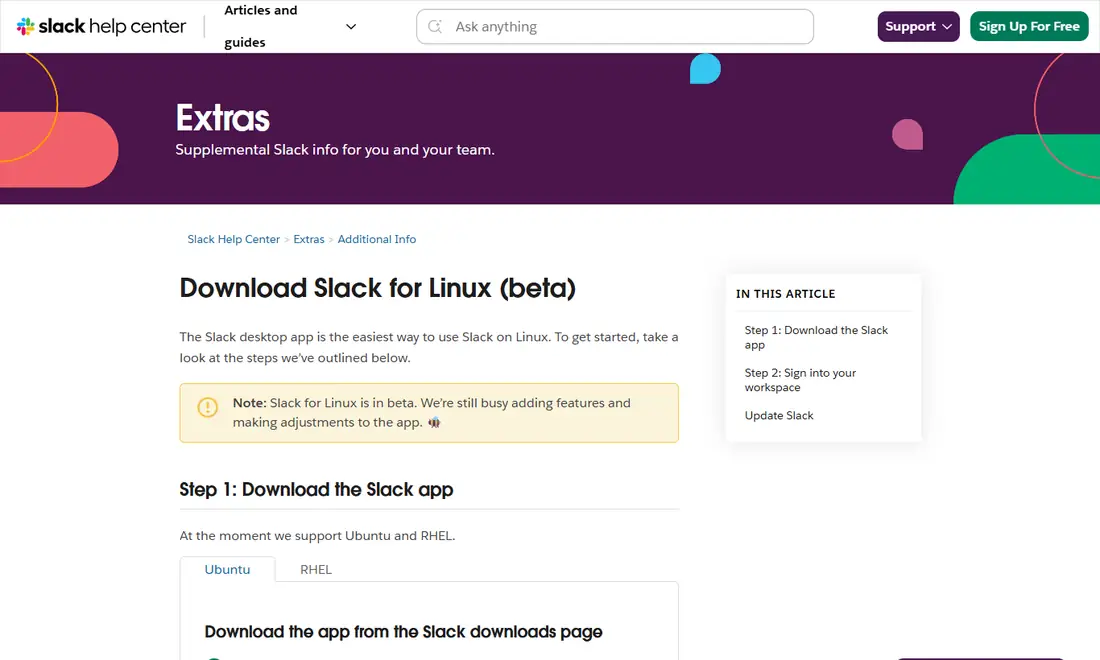
Slack's Download Slack for Linux (beta) help article describes the graphical method:
- Visit Slack's Linux download page and click Download .DEB app.
- Find the file in your Downloads folder. Its name begins with
slack-desktop; the build we saw wasslack-desktop-4.53.276-amd64.deb. - Double-click it to open it in Ubuntu's software app.
- Click Install and enter your Ubuntu password if asked.
- Search your computer for Slack and open it.
Installing the .deb from the terminal
If double-clicking opens the file in an archive viewer or nothing happens, the terminal always works. Open a terminal in your Downloads folder and run sudo apt install ./slack-desktop-*.deb. The leading ./ tells apt you mean a local file, and apt resolves any missing dependencies for you, which is why it is a better habit than calling dpkg directly.
Keeping the .deb version updated
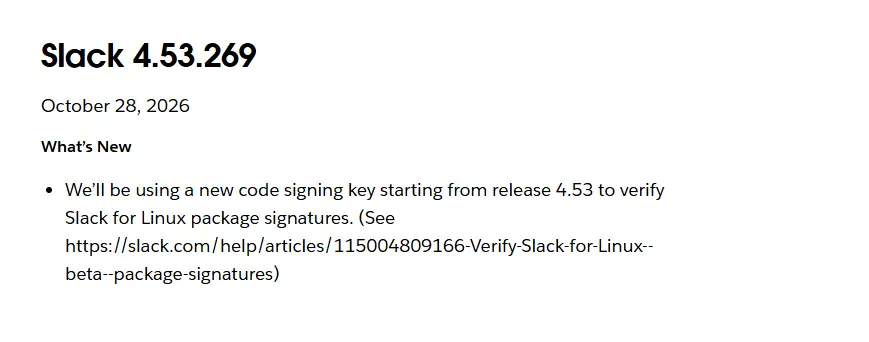
Slack's help article gives the update commands for Ubuntu: sudo apt-get update followed by sudo apt-get upgrade slack-desktop. The same article notes that the old apt-key method for repository keys is deprecated from Ubuntu 24.04 and Debian 12, and that update scripts supporting the newer method ship with Slack 4.35.121 and higher, so an older .deb install should be replaced with a current download. Slack's Linux release notes also say a new code signing key is used for Linux package signatures starting from release 4.53. If apt warns about a signature or repository problem, download the latest .deb from Slack and install it again rather than forcing anything.
How to Install the Slack Snap on Ubuntu
Snap support comes preinstalled on standard Ubuntu desktops, and the store app browses the Snap Store by default. The terminal route is one command from Slack's help article:
sudo snap install slackTo install graphically, open the store app (App Center on 24.04, Ubuntu Software on 22.04), search for Slack, and open the listing. Before clicking Install, check the publisher. The official Slack listing on the Snap Store shows the publisher Slack with a verified badge and, on November 6, 2026, version 4.53.280 in the latest/stable channel. Skip any unfamiliar Slack-themed clients or wrappers.
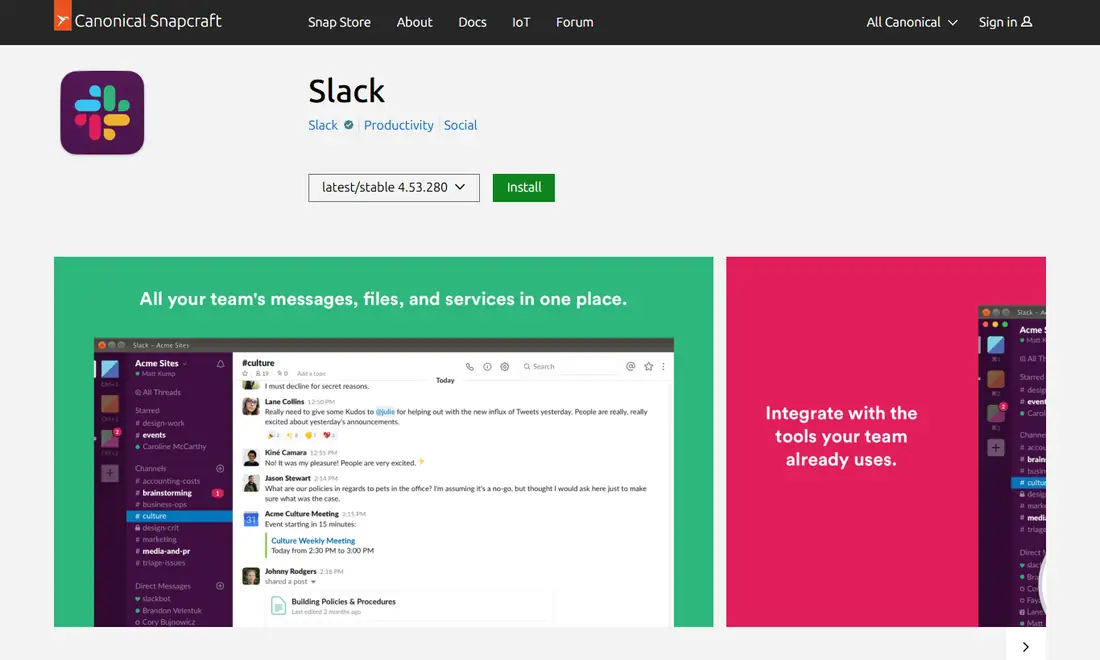
Snaps refresh automatically in the background, so you rarely need to do anything. To check what is installed, run snap list slack; snap info slack shows the publisher and channels, and sudo snap refresh slack triggers an update straight away. Avoid holding refreshes for long: if your build drops below Slack's minimum version, you will be locked out until it updates.
Signing In and Setting Up Notifications
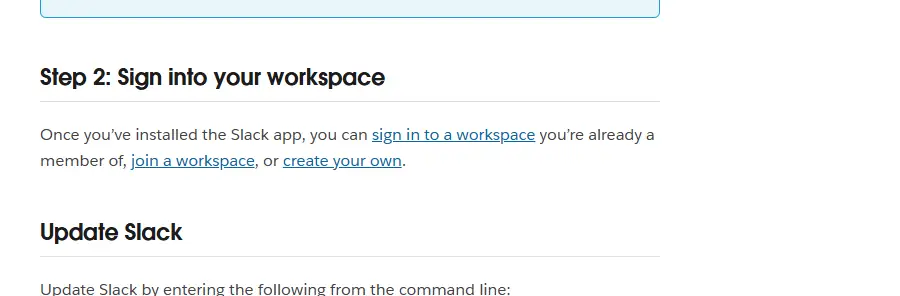
The first launch is the same for both packages. Slack lets you sign in to a workspace you already belong to, join a workspace, or create a new one. Sign-in usually opens your default browser and then hands you back to the app; if that handoff fails, quit Slack fully, reopen it and try again. New to Slack? Our Slack workspace setup guide covers the next steps.
Notifications have three layers on Ubuntu:
- Slack's preferences. Click your profile picture, select Preferences, then Notifications to choose everything or only mentions and direct messages, add keywords and set a notification schedule.
- Ubuntu's settings. In Settings, open Notifications, find Slack and make sure it is allowed to show banners.
- Do Not Disturb. If Ubuntu's Do Not Disturb or Slack's paused notifications are on, alerts are suppressed.
Slack can keep running in the background when its window is closed so it can still deliver alerts, so closing the window is not the same as quitting. Standard Ubuntu shows app indicator icons in the top bar; if you use a vanilla GNOME session with extensions turned off, the icon may not appear even though Slack is still running.
Version Checks and End-of-Support Dates
Slack updates its requirements every May and November, and its support lifecycle page explains two different situations. If your Ubuntu release reaches end of support, you can still use Slack on a supported app version, but you will not receive app updates, and Slack will not be available to download from Snap. That is now the case for Ubuntu 20.04, which reached end of support on May 18, 2026. If the app version reaches end of support, Slack prompts you to upgrade and you cannot access Slack until you do.
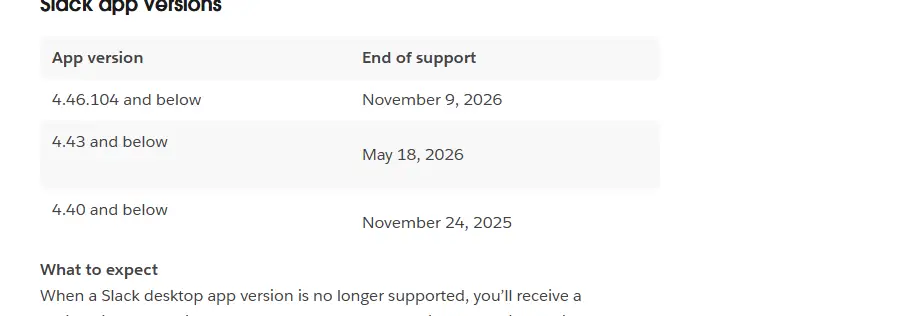
Heads-up: Slack's support lifecycle page lists desktop app versions 4.46.104 and below as reaching end of support on November 9, 2026. Both current Ubuntu builds are well above that, but any machine left unpatched for months should be updated now. Slack's Linux release notes also label each build with security guidance; 4.53.280, for example, says the release includes security improvements and updating is recommended.
Uninstalling Slack Cleanly on Ubuntu
A clean removal matters when you switch formats, fix a broken install or hand a laptop on. Quit Slack fully first.
- .deb: run
sudo apt remove slack-desktop, orsudo apt purge slack-desktopto also drop system-level configuration, thensudo apt autoremoveto clear unneeded dependencies. - Snap: run
sudo snap remove slack, or remove it from the store app's installed list.
Your personal app data in your home folder may survive removal, which is handy for a reinstall but not when handing over a machine. Your messages and files are never stored only on the laptop; they stay in your workspace.
Troubleshooting Slack on Ubuntu
- Blank or white window: often a graphics issue. Start
slackfrom a terminal to read error messages and make sure your graphics drivers are current. - Screen sharing shows black: Ubuntu uses Wayland by default on most hardware, where capture goes through the desktop portal and PipeWire. If sharing fails, update Slack, then test an Ubuntu on Xorg session from the login screen.
- Upgrade prompt blocks access: your app version is past end of support. Run the apt update commands above, or
sudo snap refresh slack. - Two Slack icons: you have both formats installed. Remove one.
- Cannot connect: check proxies, firewalls and VPNs, then see our Slack download troubleshooting guide.
If you run Fedora, RHEL, Debian or Arch rather than Ubuntu, our Slack download guide for other Linux distributions explains the .rpm, Snap and web options. And if the desktop app keeps misbehaving, the Slack web app in Chrome or Firefox is a supported fallback.
Download Slack Safely on Ubuntu
Only two sources are official for Ubuntu: slack.com/downloads/linux for the .deb and the Snap Store listing published by the verified Slack account. Do not install Slack from forum attachments, file-sharing sites or unofficial PPAs claiming to be Slack, and be wary of anything offering a "premium" or modified build. Our Slack download safety checklist explains how to spot fake installers.
Frequently Asked Questions
Should I install the Slack .deb or the Snap on Ubuntu?
Both are official. The .deb comes from slack.com/downloads/linux and is updated with apt, while the Snap comes from the Snap Store under the verified publisher Slack and refreshes automatically through snapd. Choose the Snap for hands-off updates or the .deb if you prefer apt or your IT team requires it. Do not install both.
Does Slack support Ubuntu 24.04 LTS?
Slack's system requirements list Ubuntu LTS releases 22.04 or above, which covers 24.04 LTS. Slack labels its Linux app as beta, so features can arrive later or behave slightly differently than on Windows or Mac. Ubuntu 20.04 reached end of support for Slack on May 18, 2026.
Which Slack version is current on Ubuntu?
On November 6, 2026 the Linux download page showed version 4.53.276 for the .deb and .rpm files, and the Snap Store latest/stable channel showed 4.53.280. Slack's minimum supported desktop app version is 4.44, and versions 4.46.104 and below are listed for end of support on November 9, 2026.
Can I install Slack on Ubuntu without the terminal?
Yes. Slack's help article says you can double-click the downloaded slack-desktop .deb file to open it in Ubuntu's software app and click Install, entering your password if asked. You can also search for Slack in the store app to install the Snap. The terminal is simply a reliable fallback.
Will uninstalling Slack from Ubuntu delete my messages?
No. Messages, files and channels live in your workspace on Slack's servers, not on your computer. Removing the slack-desktop package or the Snap only removes the app and, if you also clear its local data, your cached settings on that machine. Sign in again after reinstalling and everything is still there.
Can I use Slack in a browser on Ubuntu instead?
Yes. The web app works in supported browsers, including Chrome 137 or later and Firefox 139 or later. Those two browsers are also the only ones in which Slack supports huddles, so they are the best choice if you prefer not to install the desktop app or need a quick fallback.