
Slack Workspace Setup: Create It, Invite Your Team and Download Slack Everywhere
Setting up Slack for a team takes more than one Slack download. As the admin you create the workspace, decide how channels are organized, invite people, pick a plan and make sure everyone installs the official apps on supported devices. This guide walks through each stage using only steps and limits published by Slack, as checked on . SlackDownload.com is a third-party guide, not part of Slack, so where Slack's pages don't spell something out we point you to the official help center instead of guessing.
Before you create a workspace
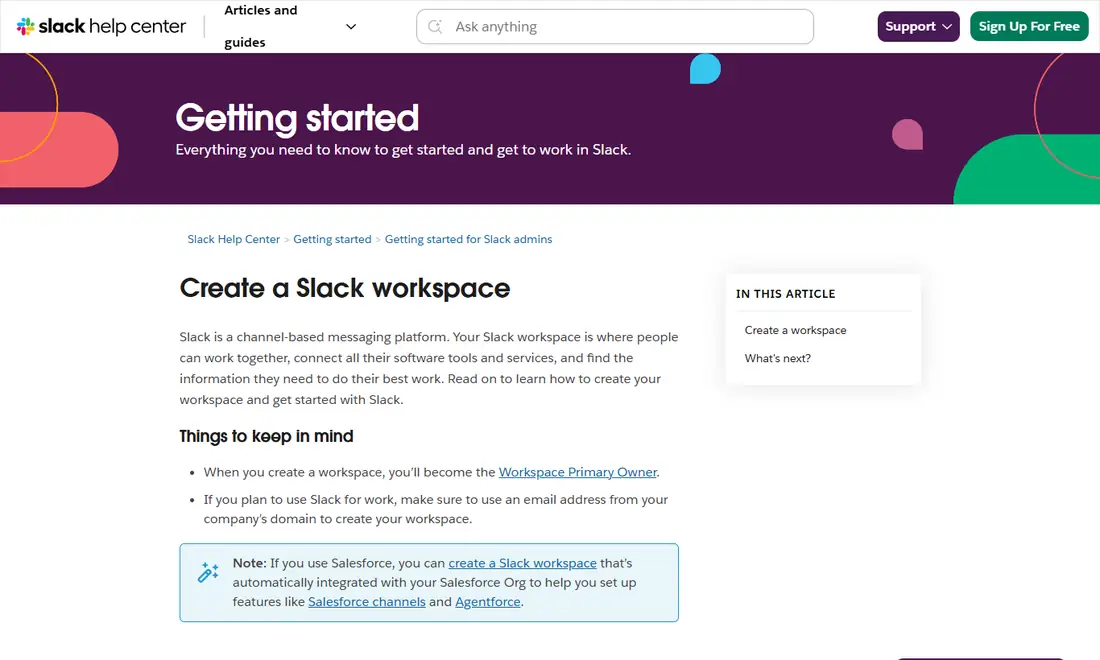
Slack's help article on creating a workspace highlights two things to settle first:
- You become the Workspace Primary Owner. Whoever creates the workspace holds the top role, so the person who will own the account long term should create it, not a temporary helper.
- Use your company email domain. If the workspace is for work, Slack recommends signing up with an address from your company's domain.
If your organization uses Salesforce, Slack also offers a workspace that is automatically integrated with your Salesforce org. It's worth deciding that before you start, because it affects how the workspace is created.
How to create a Slack workspace
Slack's desktop steps (the article has iOS and Android tabs too) are short:
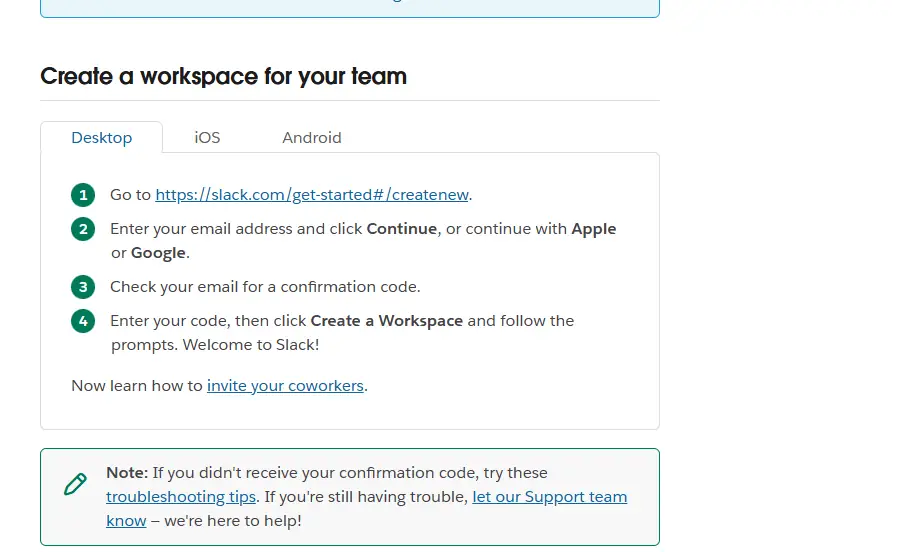
- Go to
slack.com/get-started#/createnew. - Enter your email address and click Continue, or continue with Apple or Google.
- Check your email for a confirmation code.
- Enter the code, click Create a Workspace and follow the prompts.
If the confirmation code doesn't arrive, Slack's article links to troubleshooting tips and to Slack Support. Check spam folders and any email filtering your company uses before trying again.
Choose a Slack plan that fits your team
Every new workspace can start free and upgrade later. The differences that matter most to an admin are history, app limits, call size and security controls. These figures come from Slack's pricing page (USD, per user per month):
| Admin consideration | Free | Pro | Business+ | Enterprise+ |
|---|---|---|---|---|
| Price (paid annually) | $0 | $7.25 | $15 | $45 (contact sales) |
| Message and file history | 90 days | Unlimited | Unlimited | Unlimited |
| Apps and integrations | Up to 10 | Unlimited | Unlimited | Unlimited |
| Huddles | 1:1 only | Group | Group | Group |
| Workspaces | 1 | 1 | 1 | Unlimited |
| Channel posting permissions | #general only | #general only | Any channel | Any channel |
| Single sign-on | — | OAuth with Google | SAML-based | Multi-SAML |
Monthly billing costs more ($8.75 for Pro and $18 for Business+). On the free plan, Slack's usage-limits article adds that messages and files older than one year are permanently deleted, and workspace owners can either keep everything for one year or delete it after 90 days. For a fuller comparison, read our guide to Slack pricing plans.
Set up channels before you invite people
Slack is a channel-based messaging platform, so the channel list is the first thing new members see. A little structure up front saves a lot of clean-up later. Practical guidelines:
- Start small. Create a handful of channels for real teams and projects rather than dozens of empty ones.
- Use a naming pattern. Consistent prefixes (for example, by team or project) make channels easy to scan and search.
- Write a description for each channel so people know what belongs there.
- Keep #general for announcements. On Free and Pro, posting permissions can only be managed for #general, which makes it the natural place for company-wide news.
- Plan private spaces deliberately. Use private channels only where the content needs it, and decide who manages them.
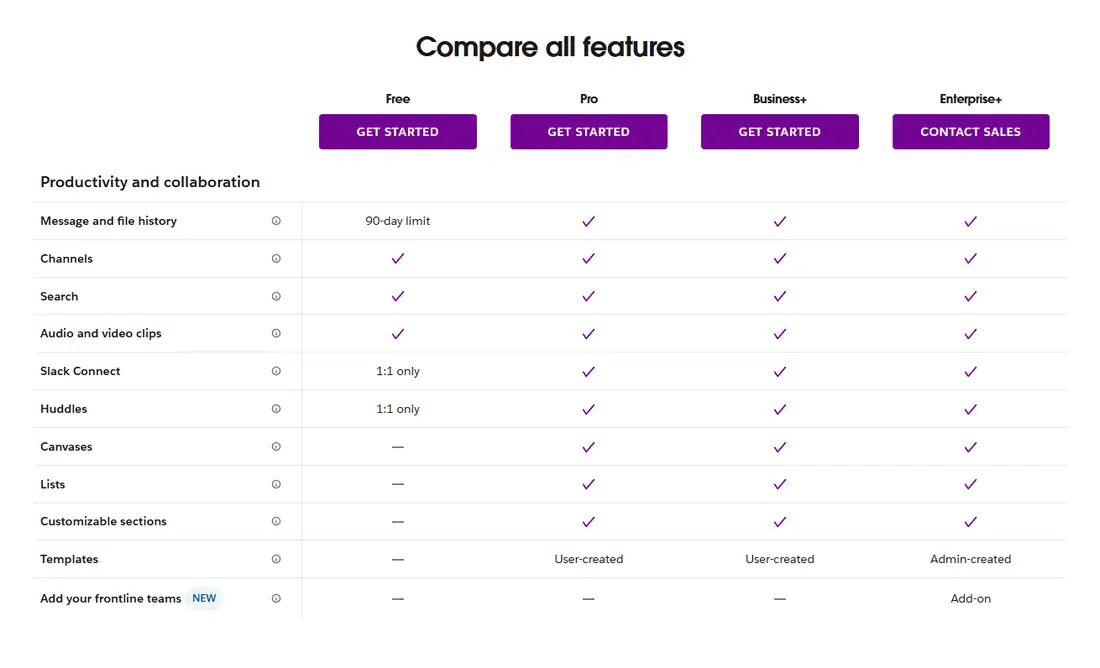
Paid plans add tools that help organize larger workspaces; Slack's compare table lists customizable sections, canvases and lists on Pro and above.
Invite people and assign roles
When the workspace is ready, Slack's article points you to its guide on inviting coworkers. The exact invitation options depend on your plan and settings, so follow the current steps in the Slack Help Center. A few principles apply whatever your plan:
- Invite with work addresses so it's clear who belongs to your organization.
- Use guests for outsiders. Slack distinguishes members from guests; where your plan supports guest accounts, contractors and partners should not get full member access by default.
- Keep the owner role tight. The Workspace Primary Owner is the person who created the workspace. Workspace Owners control settings such as data retention; give owner and admin roles to as few people as practical.
- Know the Frontline limits. Frontline Members have some limits; for example, they can join huddles but can't start them.
Larger organizations get more control on higher tiers: the pricing page lists granular roles, custom user groups, domain claiming and SCIM user management under its Administration and Security sections. Check the live page for which tier includes each.
Get everyone on the official Slack apps
A workspace only works if people can reach it on supported devices. Send new members a short message that tells them where to download Slack and what's supported. The official sources are slack.com, the Microsoft Store, the Mac App Store, the App Store for iPhone and iPad, Google Play and the Snap Store. Our Windows install guide and Mac install guide cover the desktop steps in detail.
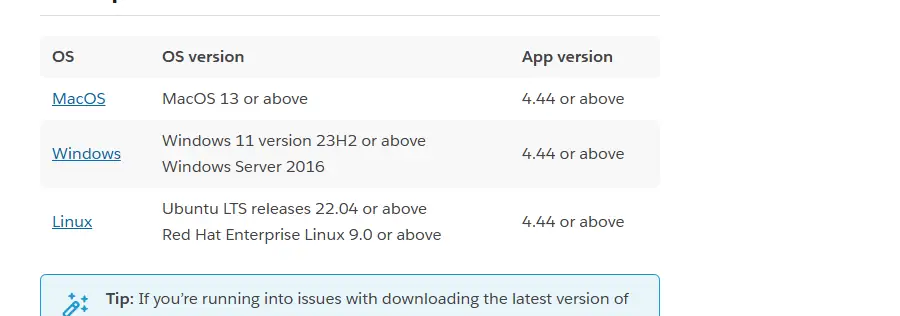
| Platform | OS version | App version |
|---|---|---|
| Windows | Windows 11 version 23H2 or above; Windows Server 2016 | 4.44 or above |
| macOS | macOS 13 or above | 4.44 or above |
| Linux (beta) | Ubuntu LTS 22.04 or above; Red Hat Enterprise Linux 9.0 or above | 4.44 or above |
| iOS | iOS 17 or above | 25.05.20 or above |
| Android | Android 11 or above (Google Play Services required) | 25.05.20 or above |
| Browsers | Chrome 137+, Firefox 139+, Safari 26+, Edge 136+ | Huddles: Chrome and Firefox only |
Requirements last checked: (Slack revises them every May and November).
On November 6, 2026, slack.com showed desktop version 4.53.280 for Windows and Mac and 4.53.276 (beta) for Linux. Windows 10 is not on Slack's current supported list, so plan upgrades for those PCs. Slack's support lifecycle page also lists macOS 13, iOS 17 and Android 11, plus desktop app 4.46.104 and below, as reaching end of support on November 9, 2026 — check the official system requirements page after that date.
Deploying to many computers
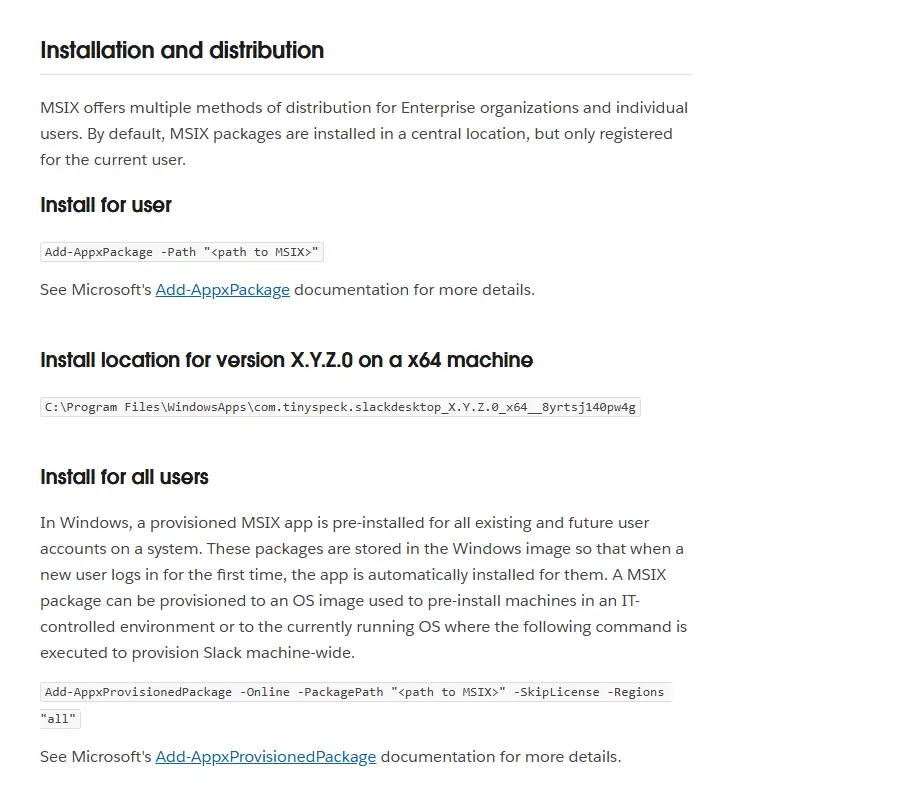
If you manage company devices, Slack offers an MSIX package for installing Slack at scale on Windows (with PowerShell or Group Policy options) and PKG installers for macOS. Our Slack deployment guide for IT teams covers both.
Security basics for a new workspace
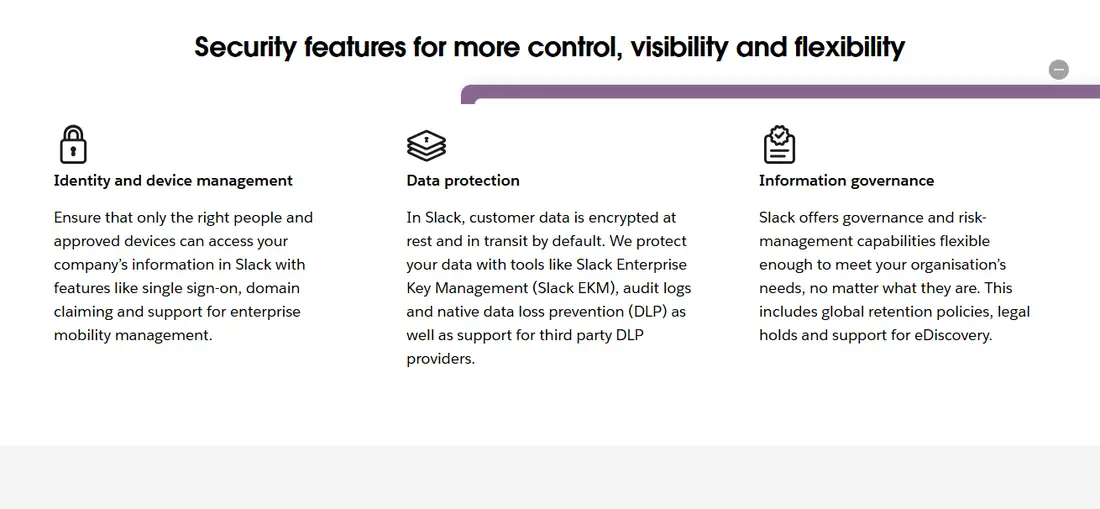
Slack's security page says customer data is encrypted at rest and in transit by default. Beyond that, your settings and plan decide how tightly you control access. Slack groups its security features into three areas:
- Identity and device management: single sign-on, domain claiming and support for enterprise mobility management.
- Data protection: Slack Enterprise Key Management, audit logs and native data loss prevention, plus support for third-party DLP providers.
- Information governance: global retention policies, legal holds and support for eDiscovery.
Slack also lists compliance certifications such as ISO/IEC 27001 and SOC 2 (Type II), says it can be configured for HIPAA compliance, and holds FedRAMP Moderate authorization. Many of these controls belong to higher plans, so compare them on the pricing page before you commit. See Slack's security overview for details.
Whatever your plan, a few habits help from day one: require work email addresses, review installed apps (Free allows up to 10), remove people promptly when they leave, and tell everyone to install Slack only from official sources. Our Slack download safety guide explains how to spot fake installers.
A first-week checklist for admins
Once people start arriving, a short routine keeps the new workspace tidy. Use this list in your first week:
- Post a welcome message in #general explaining what each channel is for, how to download Slack on desktop and mobile, and who to ask for help.
- Check who has joined. Compare the member list with the people you invited and chase anyone who hasn't signed in yet.
- Review roles. Confirm that only the people who need owner or admin rights have them.
- Audit apps. Remove integrations nobody uses; on Free, every app counts toward the limit of 10.
- Decide on retention. On Free, choose between keeping messages and files for one year or deleting them after 90 days; on paid plans, review the retention options in your settings.
- Collect feedback. Ask a few members whether channel names make sense and adjust early, before habits set in.
Troubleshooting common setup problems
- No confirmation code: check spam and quarantine folders, then use the troubleshooting tips linked from Slack's create-a-workspace article.
- Someone can't install Slack: check their OS against the requirements table; unsupported systems such as Windows 10 or older macOS releases are the usual cause.
- Old app versions: when an app version is no longer supported, Slack prompts people to upgrade and blocks access until they do.
- Hitting the free plan's limits: Free workspaces see only the last 90 days of messages and files and can add up to 10 apps; upgrading removes those limits.
Frequently Asked Questions
Who owns a new Slack workspace?
The person who creates the workspace becomes its Workspace Primary Owner, the highest role in the workspace. For a business, that should be someone who will manage the account long term, and Slack recommends creating the workspace with an email address from your company's own domain rather than a personal address.
Can I create a Slack workspace for free?
Yes. You can start on the Free plan at no cost and upgrade at any time. Free workspaces can view and search messages and files from the last 90 days, add up to 10 apps and run one-to-one huddles. Paid plans remove those message, file and app limits.
What if my Slack confirmation code doesn't arrive?
Check your spam or junk folder and any quarantine your company's email filtering uses, then confirm you typed the address correctly. Slack's create-a-workspace article links to troubleshooting tips for missing codes and to Slack Support if the problem continues. You can also continue with Apple or Google instead of email.
Which Slack plan lets admins control posting in any channel?
According to Slack's pricing comparison, Business+ and Enterprise+ allow posting permissions in any channel. On the Free and Pro plans, managing posting permissions is limited to the #general channel, which is why many teams reserve #general for company-wide announcements.
Do employees need to download Slack, or can they use a browser?
Either works. The desktop and mobile apps are the fullest experience, and supported browsers include Chrome, Firefox, Safari and Edge at the minimum versions Slack lists. Huddles in a browser work only in Chrome and Firefox, so most teams roll out the desktop app from slack.com or an official store.
Is Slack data encrypted?
Slack's security page says customer data is encrypted at rest and in transit by default. Additional controls, such as single sign-on, Enterprise Key Management, audit logs, data loss prevention and legal holds, vary by plan, so check the security section of Slack's pricing comparison before choosing a tier.