
Slack Download for Chromebook: Web, Android and Linux Routes
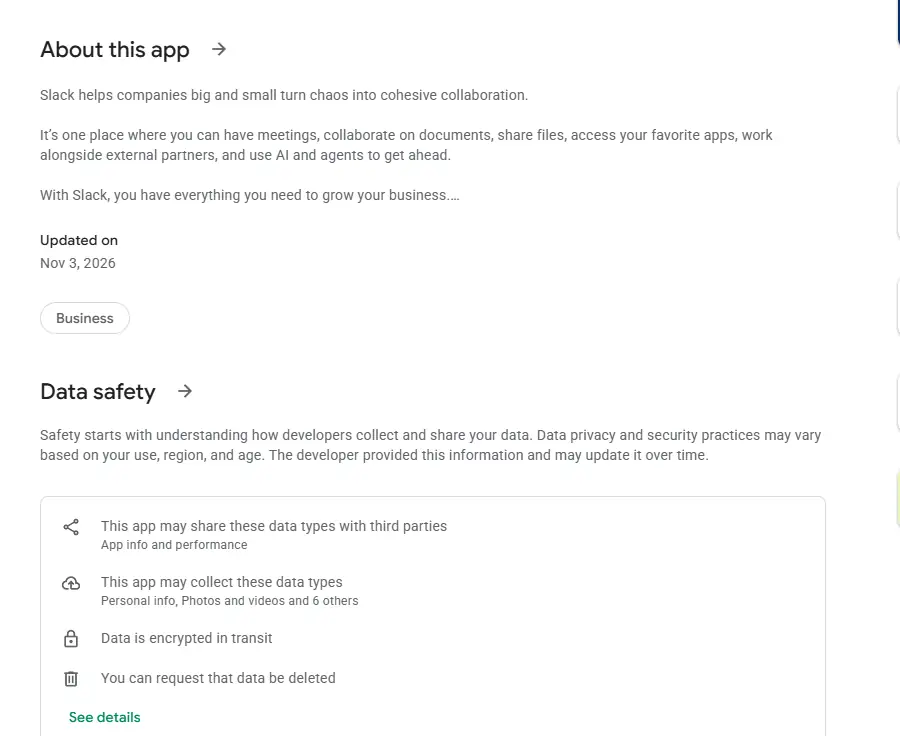
Searching for a Slack download for Chromebook leads to a surprise: Slack doesn't make a ChromeOS app, and ChromeOS isn't on Slack's list of supported operating systems. That doesn't mean you can't use Slack on a Chromebook. It means you choose between three routes, each with different trade-offs: Slack in the Chrome browser, the Android app from Google Play, or the Linux desktop app inside ChromeOS's Linux development environment. This guide explains all three honestly, using Slack's and Google's own help pages.
SlackDownload.com is a third-party guide and isn't affiliated with Slack, Salesforce or Google.
Does Slack Support Chromebooks?
Not officially. Slack's system requirements for using Slack page lists desktop support for macOS, Windows and Linux (Ubuntu and Red Hat Enterprise Linux), mobile support for iOS and Android, and a set of web browsers. ChromeOS isn't named anywhere. What Slack does support is the browser your Chromebook already runs: Chrome is on the supported browser list. That makes the web app the only route that sits fully inside Slack's published requirements.
| Slack requirement | Current official value | Relevance on a Chromebook |
|---|---|---|
| Web browsers | Chrome 137+, Firefox 139+, Safari 26+, Microsoft Edge 136+ | Chrome is built in, so this is the supported route |
| Huddles in a browser | Chrome and Firefox only | Huddles work in Chrome |
| Android | Android 11 or above, only devices with Google Play Services installed by default | Applies to the Android app; Chromebooks aren't listed |
| Linux (beta) | Ubuntu LTS 22.04+ or Red Hat Enterprise Linux 9.0+ | ChromeOS's Linux environment is Debian, which isn't listed |
| ChromeOS | Not listed | No native app and no official support |
Requirements last checked: (Slack revises them every May and November).
One more date to know: Slack's support lifecycle page lists Chrome 142 and below as reaching end of support on November 9, 2026, and browsers past support are blocked. Keep your Chromebook updated so its Chrome stays current.
The Three Ways to Get Slack on a Chromebook
| Route | Official status | Huddles | Who it suits | Main caveat |
|---|---|---|---|---|
| Slack in Chrome (web app) | Supported browser | Yes, in Chrome | Almost everyone | Lives in a browser tab or window |
| Android app from Google Play | Android app is supported; ChromeOS isn't listed | Depends on the app on your device | Chromebooks with the Play Store | Play Store is available on only some Chromebooks; phone-style app |
| Linux .deb in the Linux development environment | Unofficial workaround | Limited: Linux on ChromeOS doesn't support cameras yet | Advanced users | Debian isn't a supported distro; the package is x86-64 only |
For most people the answer is simple: use Slack in Chrome. Pick one of the other routes only if you have a specific reason.
Route 1: Use Slack in Chrome (Recommended)
Because Chrome is a supported browser, Slack's web app gives you channels, direct messages, file sharing and huddles without installing anything. Slack's help center notes that Google Chrome and Firefox are the only browsers that support huddles, and Chrome is the one already on your Chromebook.
- Open Chrome and go to Slack's sign-in page.
- Enter your work email and select Sign In With Email, or sign in with Google, Microsoft or Apple. If you know your workspace address, the "Try entering a workspace URL" link takes you straight there.
- Complete any code or single sign-on step your organisation uses.
- Allow Chrome to show notifications and use your microphone and camera when Slack asks, so alerts and huddles work.
- Pin the tab or bookmark app.slack.com so Slack is one click away.
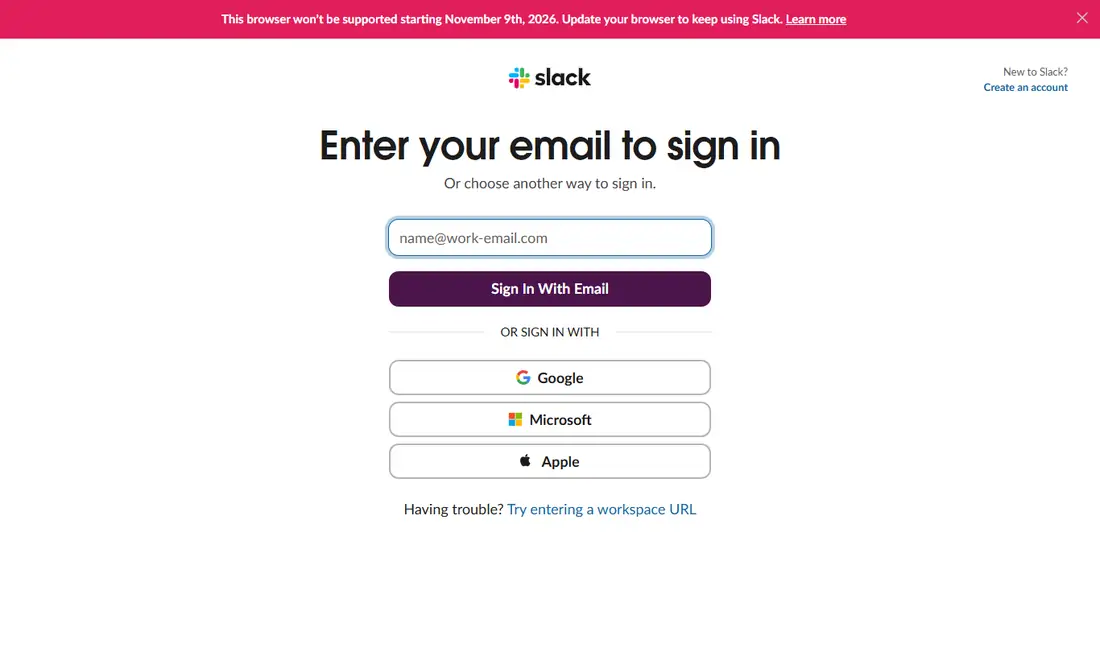
Note the red banner in the screenshot above: Slack warns visitors when their browser is about to lose support. If you see it on your Chromebook, update ChromeOS. Our Slack web app guide covers browser tips in more depth, and the guide to Slack huddles and calls explains how to start and join huddles.
Route 2: Install the Slack Android App From Google Play
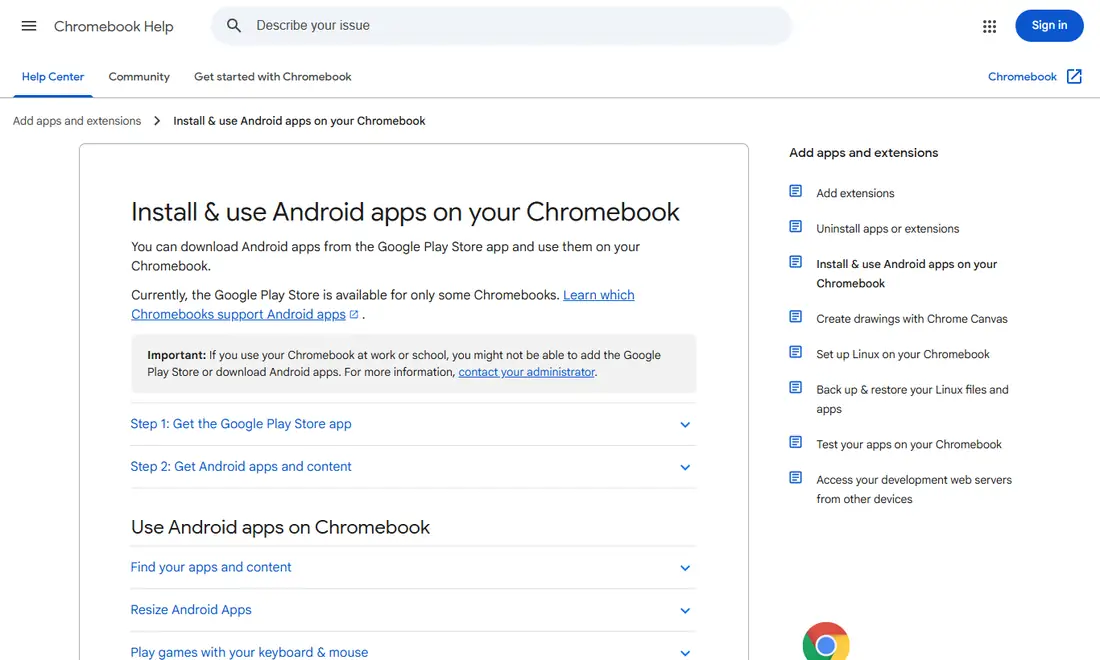
Google's help article "Install & use Android apps on your Chromebook" says you can download Android apps from the Google Play Store app and use them on your Chromebook, but also that "the Google Play Store is available for only some Chromebooks". It adds that on a work or school Chromebook you might not be able to add the Play Store or download Android apps.
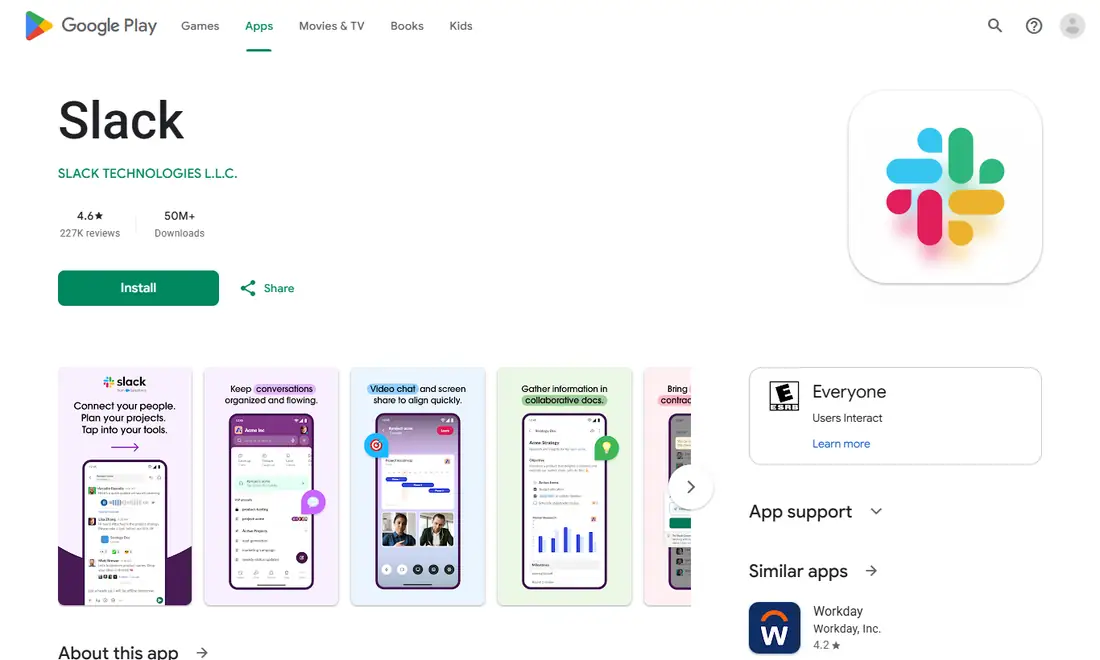
If your Chromebook has the Play Store, the official listing is the Slack app on Google Play, with developer SLACK TECHNOLOGIES L.L.C. and 50M+ downloads.
- Follow Google's steps to get the Google Play Store app on your Chromebook, if it isn't already there.
- Open the Play Store, search for Slack and confirm the developer is SLACK TECHNOLOGIES L.L.C.
- Select Install, then open Slack from your launcher and sign in.
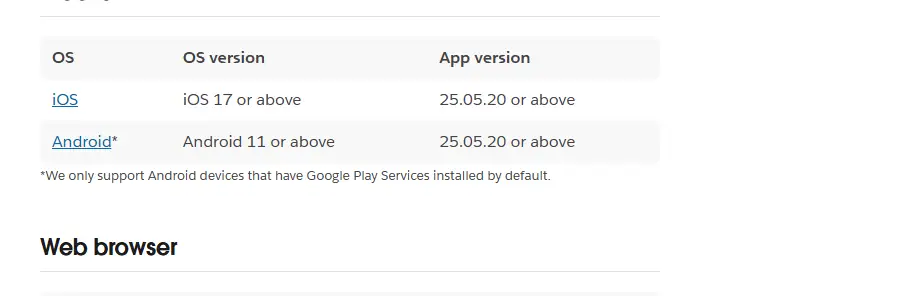
Be realistic about support. Slack's requirements say it supports Android 11 or above and only Android devices that have Google Play Services installed by default. A Chromebook running Android apps isn't the same as an Android phone, and Slack doesn't list Chromebooks, so whether the app installs, and how well it behaves, isn't guaranteed on a given model. If the Play Store won't open or load, Google suggests restarting the Chromebook, checking your internet connection and updating ChromeOS. Our Slack download guide for Android covers the app itself.
Route 3: Linux Development Environment and the Official .deb (Advanced)
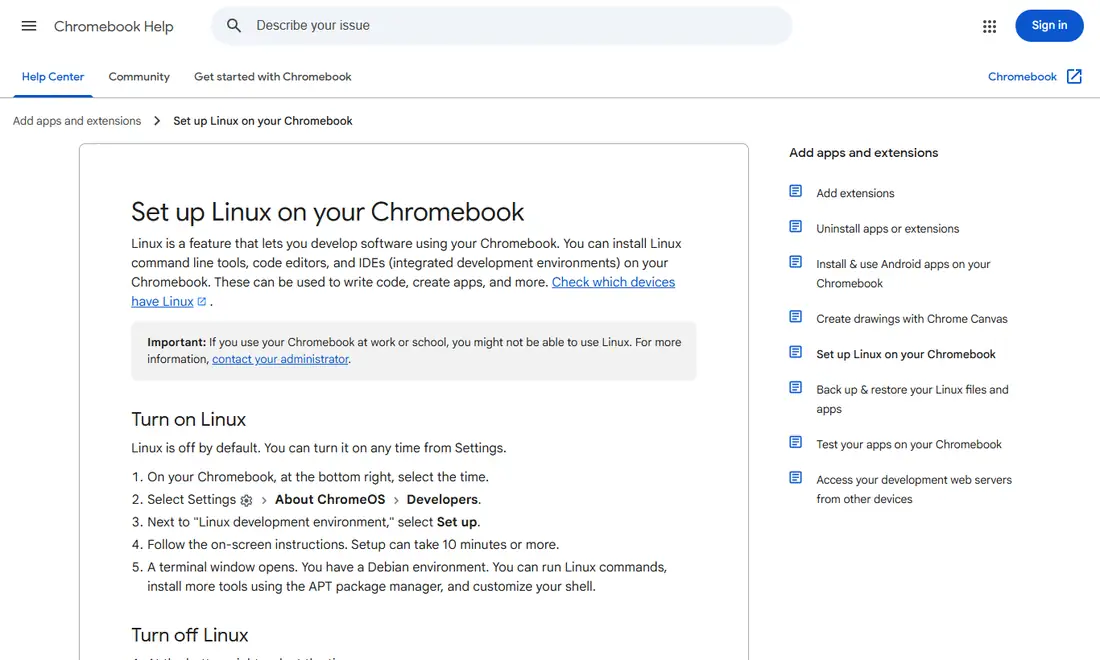
ChromeOS includes an optional Linux development environment. Google describes it as a feature that "lets you develop software using your Chromebook", and it is off by default. Running Slack's Linux desktop app inside it is an unofficial workaround, not a supported setup, so treat it as an experiment for advanced users.
Turn on Linux
According to Google's Set up Linux on your Chromebook article:
- At the bottom right, select the time.
- Select Settings, then About ChromeOS, then Developers.
- Next to "Linux development environment", select Set up.
- Follow the on-screen instructions. Setup can take 10 minutes or more.
- A terminal window opens with a Debian environment, where you can install tools using the APT package manager.
Install Slack's .deb package
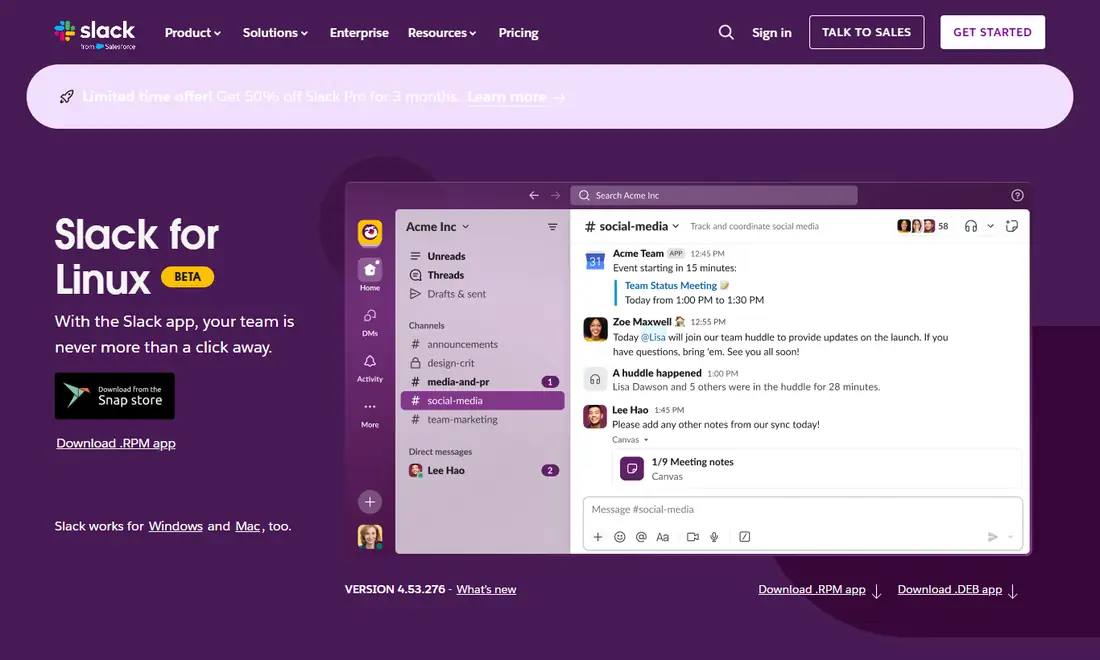
Slack's Slack for Linux download page is labelled BETA and showed VERSION 4.53.276 on November 6, 2026, with "Download .DEB app" and "Download .RPM app" buttons. The .deb file served was slack-desktop-4.53.276-amd64.deb. Download the .deb, make it available to Linux, and install it with APT from the Terminal. Because the package is built for 64-bit x86 (amd64), it won't run on Chromebooks with ARM processors.
Know the limits
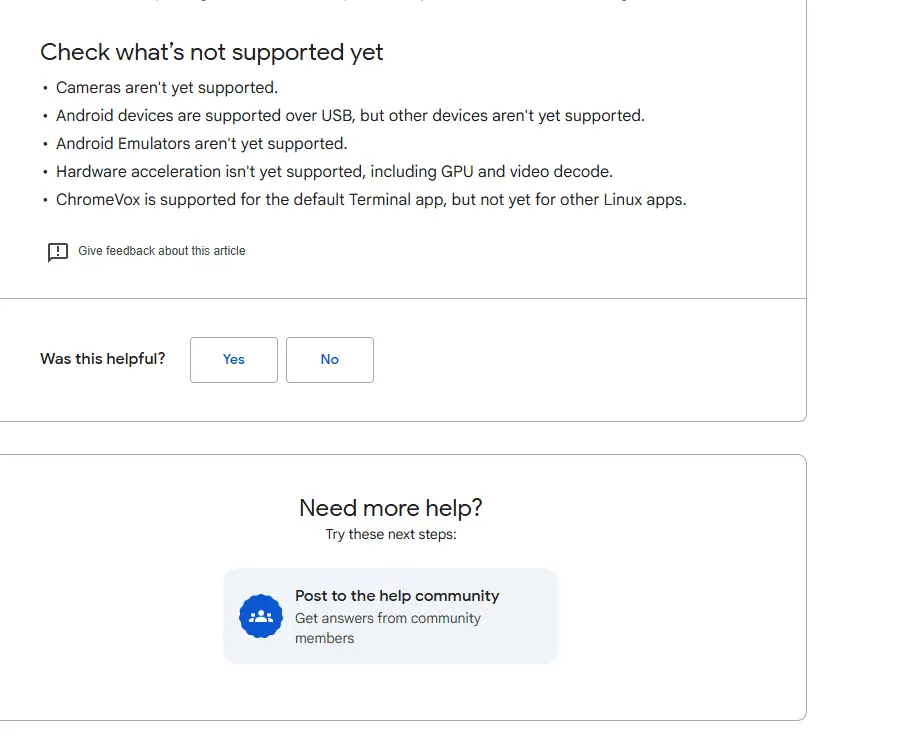
Google lists features that Linux on ChromeOS doesn't support yet: cameras, hardware acceleration (including GPU and video decode), Android emulators, and most devices other than Android devices over USB. That makes video huddles in the Linux app a poor bet. Microphone access must be switched on separately in Settings. Google also notes that all Linux apps share one sandbox, so a harmful Linux app can affect other Linux apps, though not the rest of your Chromebook. To undo everything, Google's article explains how to remove the Linux development environment. Our Slack download guide for Linux explains the packages in more detail.
School and Work Chromebooks
Managed Chromebooks are common in schools and companies, and both of Google's articles carry the same warning: on a work or school Chromebook you might not be able to add the Play Store, download Android apps or use Linux. If those options are missing, don't hunt for a workaround. Use Slack in Chrome, which needs no installation, and ask your administrator if your organisation expects you to use a different route.
Troubleshooting Slack on a Chromebook
| Problem | Likely cause | What to try |
|---|---|---|
| Banner says your browser won't be supported | Chrome version near or past end of support | Update ChromeOS, then reload Slack |
| Huddle has no audio or video | Chrome microphone or camera permission blocked | Allow microphone and camera for Slack in Chrome |
| Play Store missing | Chromebook doesn't support Android apps, or admin blocked it | Use Slack in Chrome; ask your administrator |
| Play Store won't open | Connection or outdated ChromeOS | Restart, check your connection, update ChromeOS |
| Linux .deb won't install | ARM Chromebook or unsupported setup | Use Slack in Chrome instead |
Safety: Avoid Unofficial "Slack for ChromeOS" Downloads
Because Slack doesn't publish a ChromeOS app, anything claiming to be one, whether an extension, an APK from a mirror site or a repackaged installer, didn't come from Slack. Stick to slack.com in Chrome, the Google Play listing from SLACK TECHNOLOGIES L.L.C., or the .deb from slack.com/downloads/linux. Sideloading APKs is a particular risk on a device that holds your work accounts. Our Slack download safety guide explains how to spot fakes.
Frequently Asked Questions
Is there an official Slack app for Chromebook?
No. Slack's system requirements page lists macOS, Windows, Linux, iOS, Android and a set of web browsers, but not ChromeOS. The supported way to use Slack on a Chromebook is the web app in Chrome, which is on Slack's supported browser list. The Android and Linux routes are possible but not officially supported.
Do Slack huddles work on a Chromebook?
Yes, in Chrome. Slack's requirements note that Google Chrome and Firefox are the only browsers that support huddles. Allow Chrome to use your microphone and camera when Slack asks. Huddles in the Linux app are a poor bet because Google says Linux on ChromeOS does not support cameras yet.
Can I install the Slack Android app on my Chromebook?
Possibly. Google says the Play Store is available for only some Chromebooks, and work or school devices may block it. If yours has it, install Slack from the listing by SLACK TECHNOLOGIES L.L.C. Slack supports Android devices with Google Play Services installed by default but does not list Chromebooks, so results vary.
Can I run the Slack Linux app on a Chromebook?
Advanced users can turn on ChromeOS's Linux development environment and install Slack's official .deb with APT. It is unofficial: the environment is Debian, which Slack doesn't list, the package is amd64 only so ARM Chromebooks can't use it, and Google says cameras and hardware acceleration aren't supported yet.
Why does Slack say my browser won't be supported?
Slack shows a banner when your browser is close to or past end of support. Its lifecycle page lists Chrome 142 and below as reaching end of support on November 9, 2026, and browsers past support are blocked. Update ChromeOS so its built-in Chrome stays on a current version, then reload Slack.
Is it safe to download a Slack for ChromeOS app from other sites?
No. Slack does not publish a ChromeOS app, so any download claiming to be one did not come from Slack. Use slack.com in Chrome, the Google Play listing from SLACK TECHNOLOGIES L.L.C., or the .deb from slack.com/downloads/linux. Avoid APK mirror sites and repackaged installers on a device holding work accounts.