
Slack Download for Laptop: Desktop App, Browser or Android?

A Slack download for a laptop involves slightly different choices than one for a desk-bound PC. A laptop runs on battery, often has less memory to spare, moves between home, office and café networks, and sometimes goes hours without a connection. The right way to run Slack depends on which laptop you own, how many workspaces you belong to and how often you join huddles. This guide compares the three main options (the desktop app, the web app in a browser, and the Android app on Chromebooks) and then walks through Windows, Mac, Linux and Chromebook laptops. SlackDownload.com is a third-party guide, and every link points to official sources.
Three Ways to Run Slack on a Laptop
The desktop app
The desktop app is a dedicated program from an official source: slack.com or the Microsoft Store on Windows, slack.com (a DMG) or the Mac App Store on a Mac, and .deb, .rpm or Snap packages on Linux. It gives you its own window, a taskbar or Dock icon, system notifications and the fullest feature set, including huddles and screen sharing.
The web app in a browser
The web app runs Slack in a browser tab with nothing to install. Slack supports Chrome 137 or later, Firefox 139 or later, Safari 26 or later and Microsoft Edge 136 or later, but only Chrome and Firefox support huddles. It is ideal for borrowed, shared or locked-down laptops.
The Android app on a Chromebook
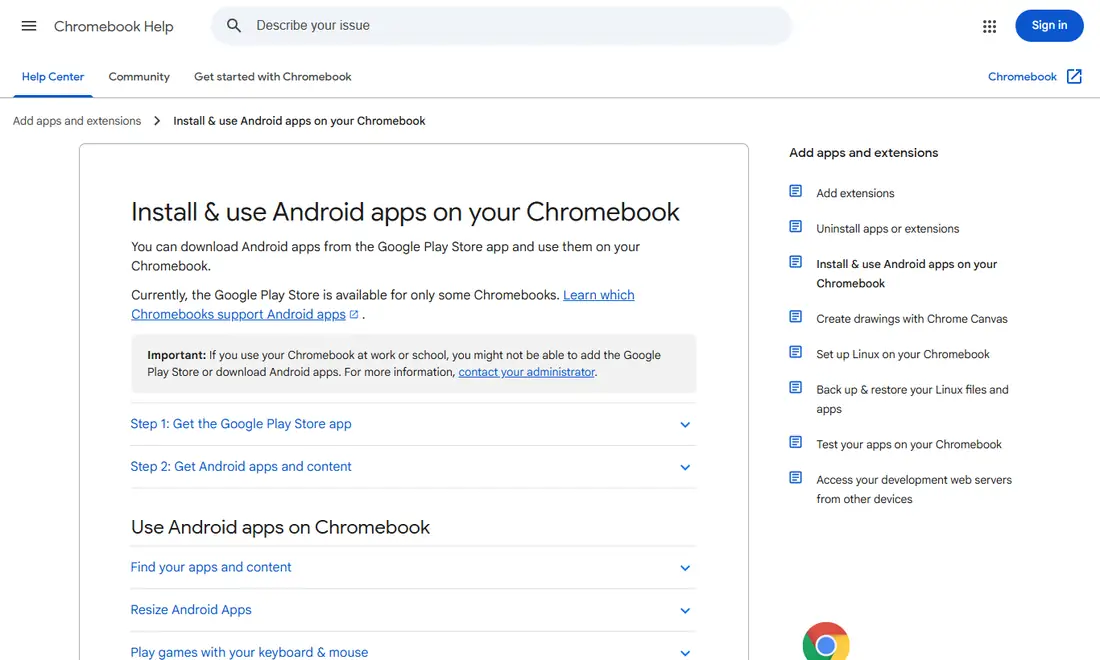
Many Chromebooks can run Android apps from the Google Play Store, and Slack's Android app can be installed that way. Google notes the Play Store is available for only some Chromebooks, and work or school devices may block it. Slack does not list ChromeOS on its system requirements page, so treat this route as convenient rather than officially supported.
Desktop App vs Browser vs Android: Quick Comparison
| Factor | Desktop app | Web app in browser | Android app on Chromebook |
|---|---|---|---|
| Installation | Required | None | From Google Play, if your Chromebook has it |
| Official support | Windows 11 23H2+, macOS 13+, Ubuntu 22.04+ / RHEL 9.0+ | Supported browser versions | ChromeOS not listed by Slack |
| Huddles | Yes | Chrome and Firefox only | Mobile-style app experience |
| Notifications | System notifications | Browser notifications, if allowed | ChromeOS notifications |
| Best for | Daily, heavy use | Light use, shared or managed laptops | Touch and tablet-mode use |
Laptop Requirements for the Slack Desktop App
Before you download Slack, compare your laptop with Slack's current official list.
| Laptop type | OS version Slack supports | App version |
|---|---|---|
| Windows laptop | Windows 11 version 23H2 or above (Windows 10 is not on the list) | 4.44 or above |
| MacBook | macOS 13 or above | 4.44 or above |
| Linux laptop (beta) | Ubuntu LTS 22.04 or above; Red Hat Enterprise Linux 9.0 or above | 4.44 or above |
| Chromebook | Not listed; use a supported browser | Browser: Chrome 137 or above |
Requirements last checked: (Slack revises them every May and November).
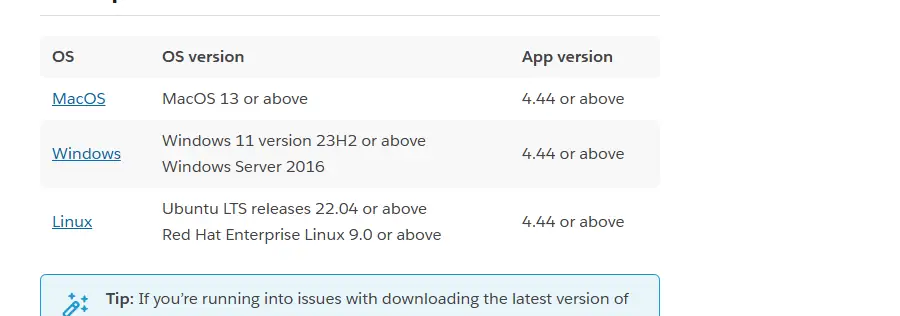
Heads-up: Slack's support lifecycle page lists macOS 13 and desktop app 4.46.104 and below as reaching end of support on November 9, 2026, so check the official system requirements page after that date.
Choosing by Laptop Type
Windows laptops
On a Windows laptop the desktop app is usually the best everyday choice. Slack's Windows download page showed version 4.53.280 with Download (64-bit), Download (ARM 64-bit), a Legacy download and a Microsoft Store link. Pick ARM 64-bit if your laptop uses an ARM processor. If your employer manages the laptop, IT may deploy Slack with Slack's MSIX package; use their version rather than installing your own. Our Windows installer guide covers each option.
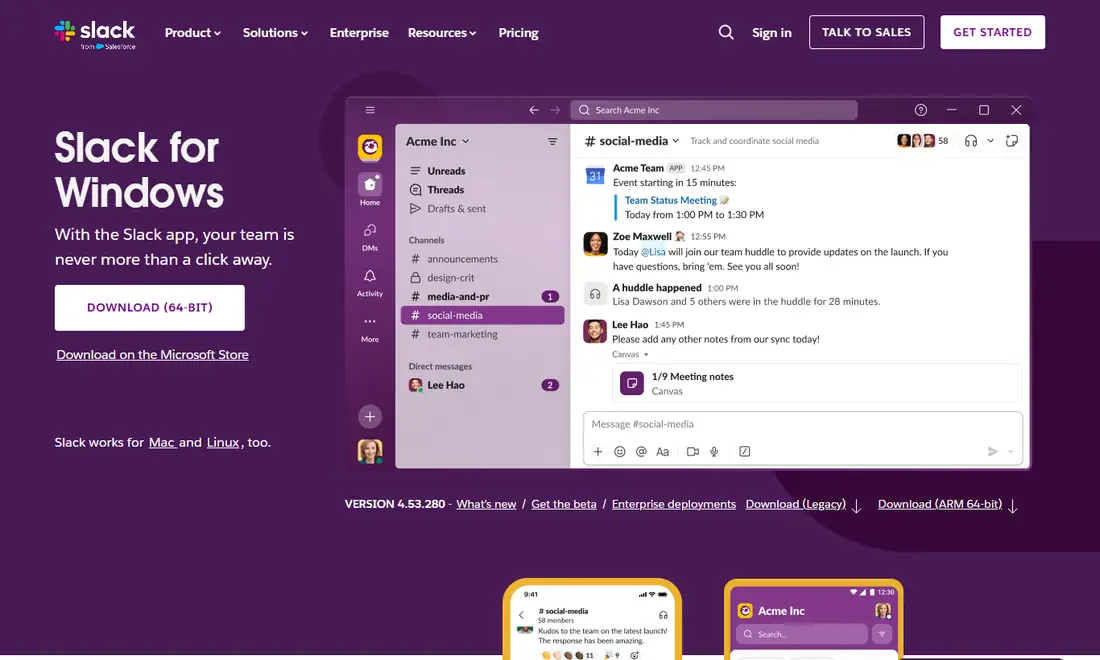
Windows 10 is not on Slack's supported list; the lifecycle page shows Windows 10 version 21H2 reached end of support on March 15, 2025. Slack's policy says that on an unsupported OS you can keep using a supported app version but won't receive app updates. On a Windows 10 laptop, upgrade to Windows 11 version 23H2 or later if the hardware allows, or use the web app in a supported browser.
MacBooks
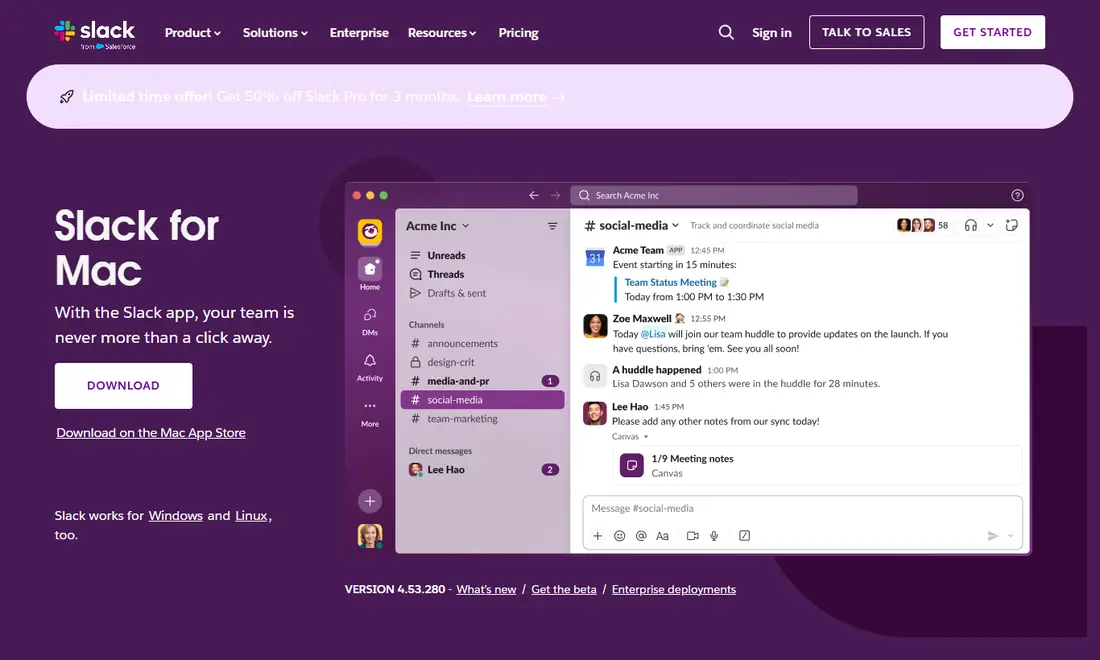
On a MacBook, get the desktop app from the Mac App Store, which handles updates, or from Slack's Mac download page, which also showed version 4.53.280. Slack requires macOS 13 or above. Slack's enterprise packages come in Apple Silicon, Intel and Universal builds, so both MacBook generations are covered. If you join huddles from a browser, remember Safari does not support them; use Chrome or Firefox. Details are in our Slack for Mac guide.
Linux laptops
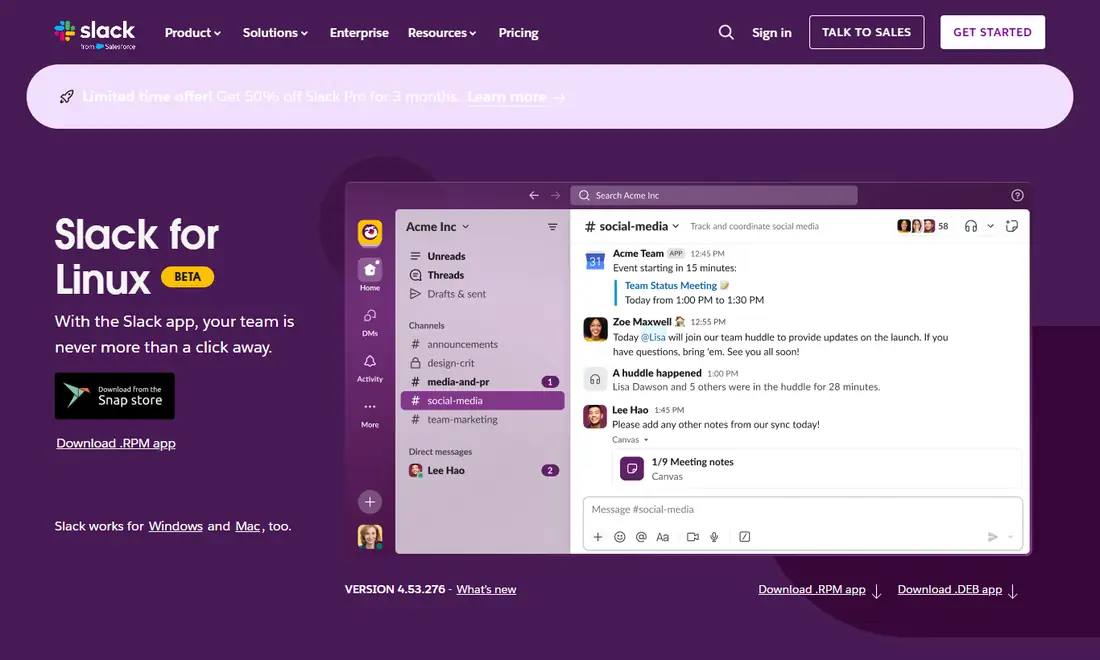
Slack's Linux app is labelled beta. The Linux download page showed version 4.53.276 with .DEB and .RPM downloads (64-bit x64) and a Snap Store link, where the publisher is Slack (Verified account) and the install command is sudo snap install slack. Supported systems are Ubuntu LTS 22.04 or above and Red Hat Enterprise Linux 9.0 or above. On other distributions, or if screen sharing is unreliable, the web app in Chrome or Firefox is a dependable fallback.
Chromebooks
There is no Slack desktop app for ChromeOS, so you choose between the browser and Android. For keyboard work, the web app in Chrome is the most complete option: Chrome is a supported browser and handles huddles. On convertible Chromebooks used as tablets, the Android app from Google Play offers a touch-friendly layout. Install it only through Google Play on the Chromebook itself, never from an APK site. Google's guide to Android apps on Chromebook explains how to enable the Play Store. Linux on Chromebook is possible but unofficial for Slack. Our Slack on Chromebook guide compares all three routes.
Battery, Memory and Performance
There is no single figure for how much battery or memory Slack uses; it depends on your workspaces, channels and activity. The biggest factors are predictable:
- Huddles and screen sharing keep the processor, camera and network busy.
- Animated GIFs and emoji keep the screen and graphics chip working.
- Many signed-in workspaces each keep a real-time connection open.
- Frequent notifications wake the screen and network.
The desktop app runs as its own process next to your browser, while the web app shares your browser's resources. Try each option for a normal day and compare with your laptop's own tools: Task Manager on Windows, Activity Monitor on a Mac, or the task manager on ChromeOS or Linux. To reduce the load, sign out of workspaces you no longer use, mute busy channels, quit Slack when you need maximum battery, and keep the app updated.
Multiple Workspaces and Notifications
All three options support several workspaces. The desktop app shows them in a switcher so you can move between them quickly, and you can set notification preferences per workspace. The web app keeps everything in one tab. On a laptop you present from, turn on Do Not Disturb so pop-ups don't appear on a shared screen, and give each workspace a recognisable icon so you never post in the wrong one. If you use the Android app and the web app on the same Chromebook, adjust notifications in one of them to avoid duplicates. Our Slack web app guide covers browser notifications in detail.
Offline Use and Connection Problems
Slack is a cloud service, so set realistic expectations on flights and trains. Recently loaded content may still be visible, but new messages, search, huddles and uploads need a connection, and you should confirm messages actually sent once you reconnect. Download documents you need beforehand. When Slack cannot reach its servers, it shows specific messages, which Slack's connection help article explains:
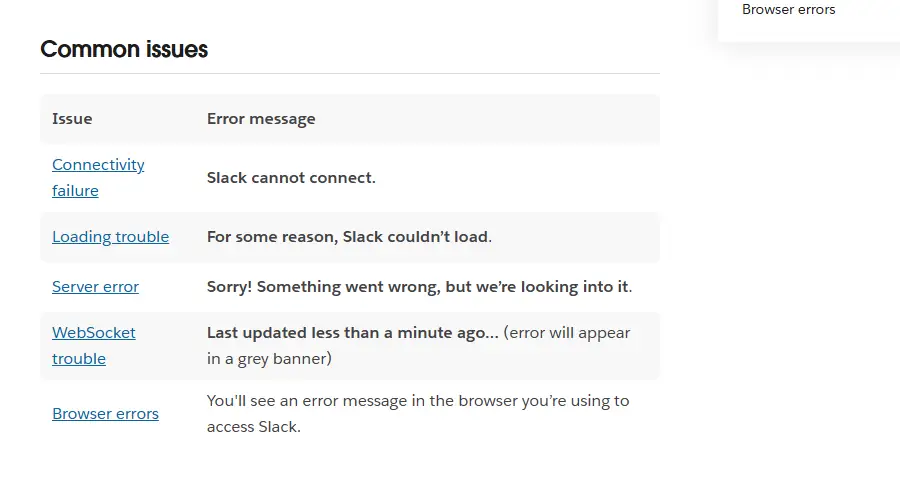
"Slack cannot connect" and the grey "Last updated less than a minute ago" banner usually point to Wi-Fi, VPN, proxy or firewall issues, which are common when a laptop changes networks. Reconnect, toggle the VPN, or try a different network before reinstalling.
Download Slack Safely on Any Laptop
Stick to official sources: slack.com or the Microsoft Store on Windows (publisher Slack Technologies Inc.), slack.com or the Mac App Store on a Mac, slack.com or the Snap Store on Linux, and Google Play for the Android app on a Chromebook, where the developer is shown as SLACK TECHNOLOGIES L.L.C. Avoid installers and APK files from third-party sites, which may be outdated or tampered with. Slack is free to download, and nobody legitimately sells a "Slack Premium" installer.
If you want a fast answer: use whatever IT provides on a managed laptop; install the desktop app on a supported Windows, Mac or Linux laptop if you use Slack all day; use the web app on Windows 10, unsupported systems and occasional use; and on a Chromebook use Chrome for keyboard work and Android for tablet mode.
Frequently Asked Questions
Should I use the Slack desktop app or the browser on my laptop?
For daily, heavy use on a supported laptop, the desktop app gives the best notifications and the full feature set. For occasional use, shared or managed laptops, Chromebooks or unsupported systems such as Windows 10, the web app in a supported browser is simpler. Use Chrome or Firefox if you need huddles in the browser.
Can I install Slack on a Chromebook?
Slack does not list ChromeOS on its system requirements page, so there is no official Chromebook desktop app. You can use the web app in Chrome, which is a supported browser with huddles, or install the Android app from Google Play if your Chromebook offers the Play Store. Work or school devices may block it.
Does Slack work on a Windows 10 laptop?
Windows 10 is not on Slack's supported list, and the lifecycle page shows Windows 10 version 21H2 reached end of support on March 15, 2025. On an unsupported OS you may keep using a supported app version but won't get app updates. Upgrade to Windows 11 version 23H2 or later, or use the web app.
Which Slack option uses the least battery on a laptop?
There is no fixed answer, because usage depends on your workspaces, channels and activity. Huddles, screen sharing, animations and many signed-in workspaces have the biggest impact. Compare the desktop app and web app using your laptop's own task manager, and reduce load by muting busy channels and signing out of unused workspaces.
Can I use several Slack workspaces on one laptop?
Yes. The desktop app, the web app and the Android app all support multiple workspaces, with a switcher to move between them. Notification preferences can be set separately for each workspace, which helps keep community workspaces quiet during work hours.
Does Slack work offline on a laptop?
Only partly. Recently loaded content may still be visible, but new messages, search, huddles and file uploads need a connection. Check that messages you wrote offline actually sent once you reconnect, and download any documents you need before a flight rather than relying on the copy inside Slack.