
Slack AI Features: What You Get After You Download Slack, Plan by Plan
AI in Slack is not a separate app or plug-in: once you download Slack and sign in, the AI features your workspace's plan includes appear inside the normal desktop and mobile apps. Slack's AI can summarize channels and threads, answer questions from your workspace's messages, send you a daily recap, summarize shared files, translate messages and help build workflows, and Slackbot now acts as a personal AI agent.
What you actually see depends on three things, according to Slack: your plan, your role (member or guest) and whether your admins have restricted access. This guide walks through each feature, which plan includes it, and the exact steps from Slack's guide to AI features in Slack. SlackDownload.com is a third-party guide; everything here is taken from Slack's official pages as of November 6, 2026.
Slack AI features at a glance
- Conversation summaries: summarize a channel, DM or thread.
- Huddle notes: AI takes notes during a huddle, with key takeaways and action items.
- AI search: automatic search filters and search answers with citations.
- Recaps: a daily summary of channels you choose.
- File summaries: automatic summaries of shared .pdf, .docx, .pptx and .xlsx files.
- Translations: translate messages into your chosen language.
- Workflow automation: AI help building workflows.
- Slackbot: a personal AI agent that knows your workspace.
- Enterprise search: search across connected tools such as Google Drive and GitHub.
Which Slack plan includes which AI feature?
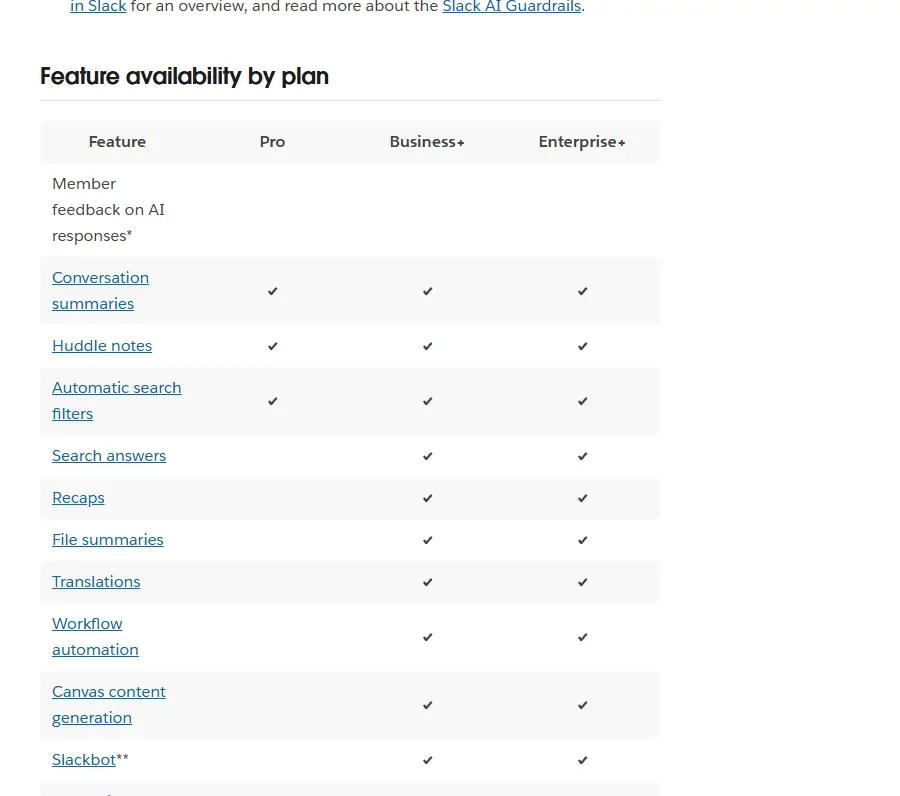
This table reproduces the "Feature availability by plan" table in Slack's AI guide. The guide's table does not include a column for the Free plan.
| Feature | Pro | Business+ | Enterprise+ |
|---|---|---|---|
| Conversation summaries | Yes | Yes | Yes |
| Huddle notes | Yes | Yes | Yes |
| Automatic search filters | Yes | Yes | Yes |
| Search answers | No | Yes | Yes |
| Recaps | No | Yes | Yes |
| File summaries | No | Yes | Yes |
| Translations | No | Yes | Yes |
| Workflow automation | No | Yes | Yes |
| Canvas content generation | No | Yes | Yes |
| Slackbot | Limited preview | Yes | Yes |
| Enterprise search | No | No | Yes |
According to Slack's AI guide, Slackbot may be available to preview in a limited capacity on the Free and Pro plans. If your workspace is on the legacy version of Business+, or on Enterprise Grid without the Slack AI add-on, you only get the Pro features above.
The Slack pricing page presents this differently. It labels Free and Pro "Basic AI", Business+ "Advanced AI" and Enterprise+ "Enterprise-Grade AI", and each plan card lists items such as AI search, daily recaps and file summaries. Because the help center table is more specific, we rely on it, and we recommend checking with your workspace admin or the pricing page before you buy for a particular feature. Prices are covered in our Slack pricing plans guide.
Summarize channels, DMs and threads
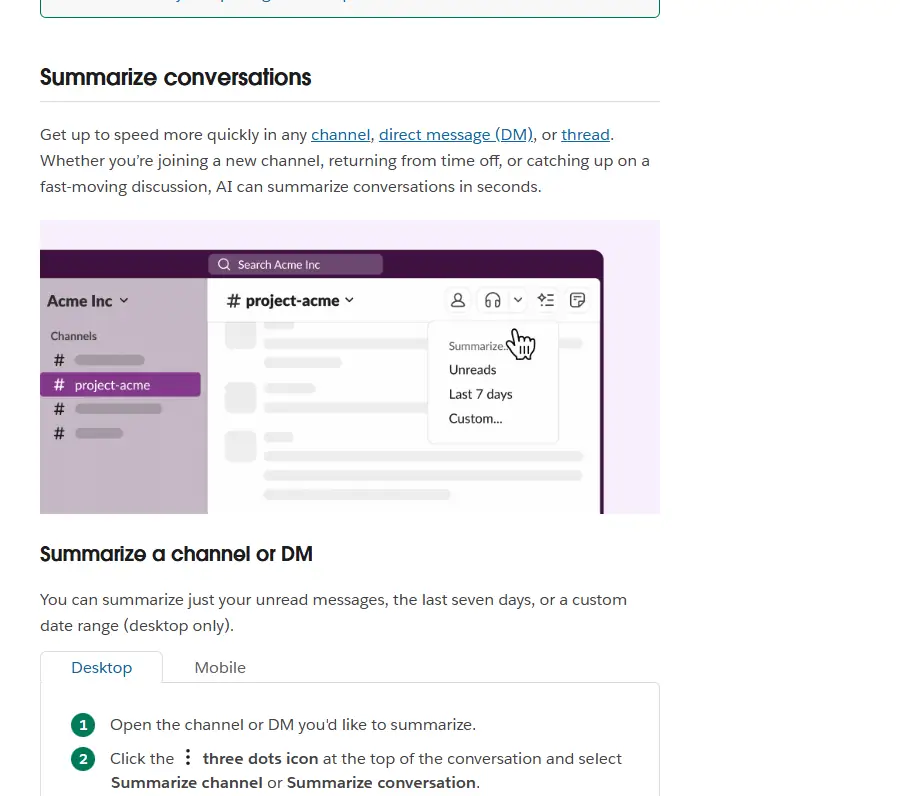
Summaries help when you join a new channel, come back from time off or need to catch up on a fast-moving discussion. You can summarize just your unread messages, the last seven days, or a custom date range; the custom range is desktop only.
Summarize a channel or DM (desktop)
- Open the channel or DM you would like to summarize.
- Click the three dots icon at the top of the conversation and select Summarize channel or Summarize conversation.
- Choose an option to generate your summary, which appears when it is ready.
- If you like, click the More details icon to view the summary's sources.
Summarize a thread
Open the thread and click the Summarize button at the top of it. Larger time frames take longer, and Slack notifies you when the summary is ready. On mobile, pinch a channel or thread in the Catch Up view to generate a summary.
Search answers and automatic filters
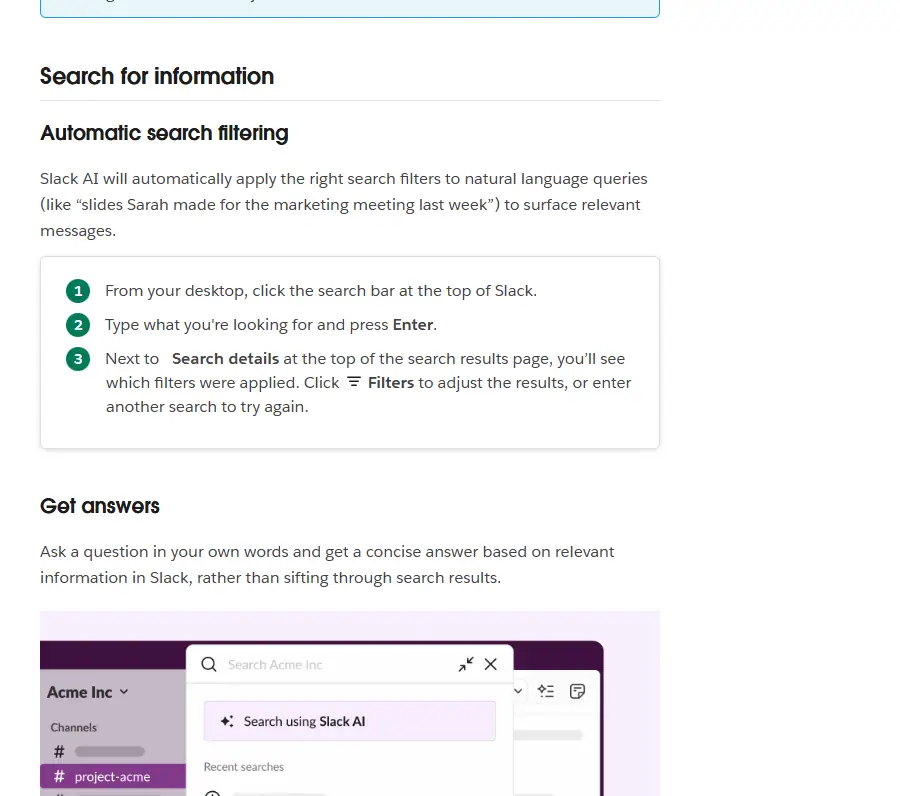
Slack AI applies search filters automatically when you type a natural-language query, such as "slides Sarah made for the marketing meeting last week". From the desktop app, click the search bar at the top of Slack, type what you are looking for and press Enter. Next to Search details at the top of the results you will see which filters were applied; click Filters to adjust them.
Search answers go a step further. Type a question in the search bar and press Enter, and an AI answer appears at the top of the results with citations pointing to the source messages or files. Hover over a citation to preview it, or click to open it. To share a useful answer, click Share, review it, then click Share anyway to send it to a channel or DM.
AI responses only include information you can already access, such as public channels plus the private channels and DMs you belong to. On Enterprise+, an Org Owner or Admin can enable enterprise search to include content from other sources like Google Drive and GitHub.
Daily recaps
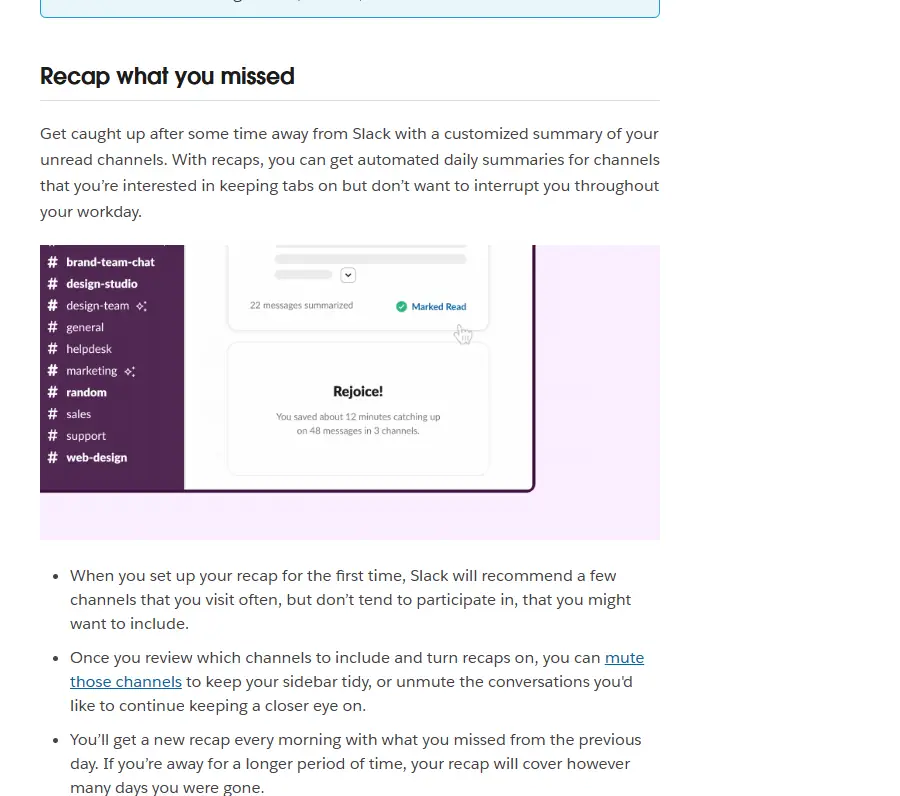
Recaps are automated daily summaries of channels you want to keep an eye on without being interrupted. When you set one up, Slack recommends channels you visit often but rarely post in. You get a new recap every morning covering the previous day, or the whole period if you were away longer.
- Read your recap: click Recap in the sidebar. Click More details to see sources, or the three dots icon next to a channel to remove it from future recaps.
- Manage your recap (desktop): click Recap, then Manage Recap in the top right. Search for channels to add, uncheck channels to remove, use the toggle to mute or unmute, then click Save.
File summaries
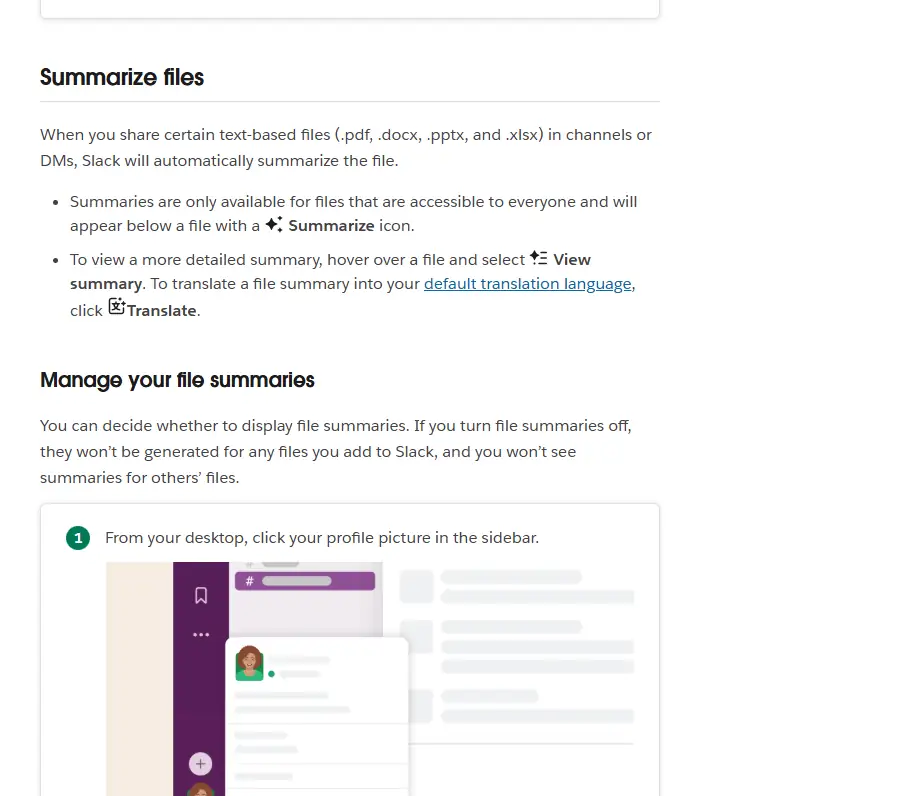
When someone shares a .pdf, .docx, .pptx or .xlsx file in a channel or DM, Slack summarizes it automatically. Summaries only appear for files accessible to everyone and show below the file with a Summarize icon. Hover over a file and select View summary for more detail, or click Translate to see it in your translation language.
To turn file summaries on or off, click your profile picture in the sidebar on desktop, click Preferences, select AI, and choose your options below File summaries. Turning them off stops summaries for files you upload and hides summaries of other people's files.
Translate messages
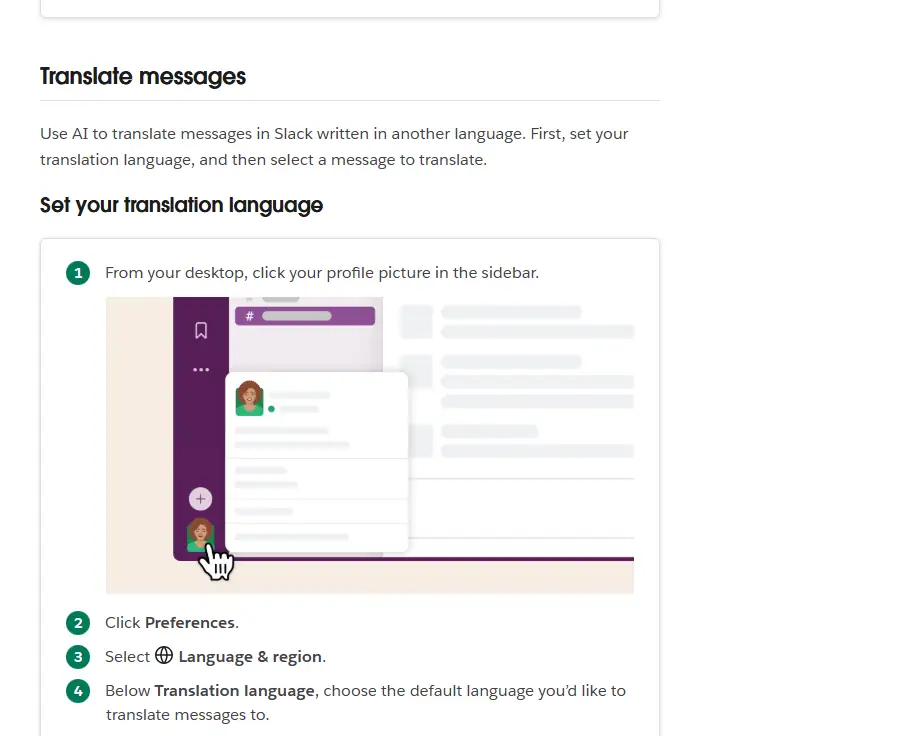
Translations are visible only to you; everyone else still sees the original message. First set your language: click your profile picture in the sidebar, click Preferences, select Language & region, and choose a language below Translation language. Then hover over any message, click the three dots icon in its top-right corner and select Translate message. Click See original to switch back.
Slackbot, huddle notes and workflows
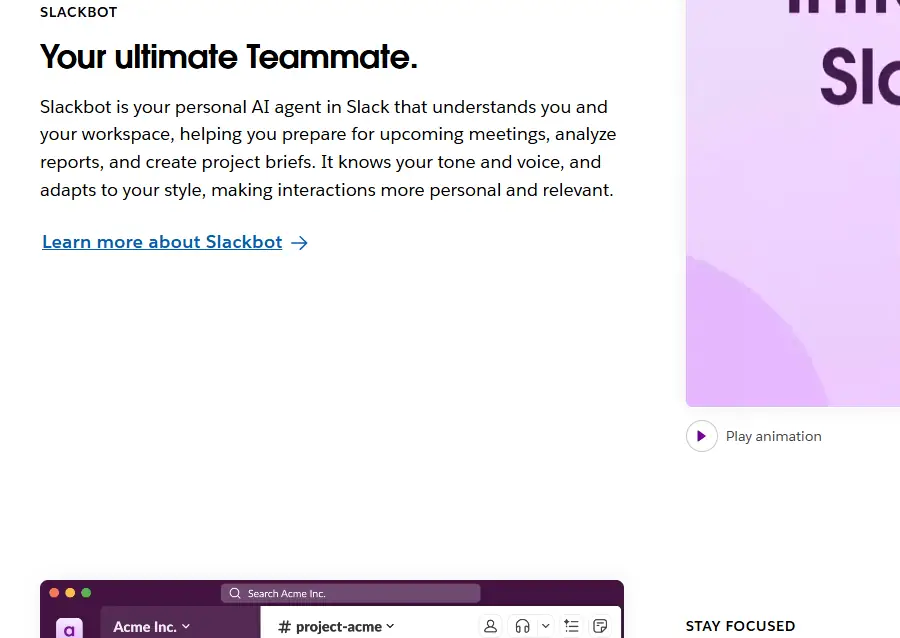
Slack describes Slackbot as "your personal AI agent in Slack" that helps you prepare for meetings, analyze reports and create project briefs, and adapts to your tone and style. Slack's AI page also previews an early-access feature called Today, a daily briefing of what needs your attention. During huddles, AI can take notes so key takeaways and action items are organized when the call ends; see our Slack huddles and calls guide. Slack also says you can create automations in a few clicks with AI in Workflow Builder. Slack's AI guide does not give step-by-step instructions for these three, so check the in-app prompts or Slack's help center.
Practical tips for using Slack AI well
- Check the sources. Summaries, recaps and search answers all link back to the messages or files they used. Open them before acting on anything important, because AI output can miss context.
- Use the desktop app for setup. Custom summary date ranges, recap management, file summary settings and the translation language are all set from the desktop app in Slack's instructions.
- Keep your sidebar tidy. Once a channel is in your recap, you can mute it so it stops competing for attention, and unmute it later.
- Review before sharing. Slack asks you to review a search answer before sharing it; make sure it does not reveal anything from a private conversation the recipients should not see.
Privacy, requirements and troubleshooting
Slack states that customer data never leaves Slack, that it does not train large language models on customer data, and that AI runs on Slack's own infrastructure. Because admins can restrict AI access, ask them first if a feature listed for your plan is missing; guests may also see fewer features than members.
AI features need a current Slack app. On November 6, 2026 Slack's Windows and Mac download pages showed version 4.53.280; Slack requires Windows 11 version 23H2 or above (Windows 10 is not on the supported list), macOS 13 or above, iOS 17 or above and Android 11 or above. Slack's support lifecycle page lists macOS 13, iOS 17 and Android 11 as reaching end of support on November 9, 2026, so check the official requirements page after that date. If you are setting up from scratch, follow our Slack download for Windows or Slack download for Mac guides, and only install Slack from slack.com or an official app store.
Frequently Asked Questions
Is Slack AI included in the free Slack download?
The Slack app is free to download, but AI features depend on your workspace's plan. According to Slack's AI guide, Pro includes conversation summaries, huddle notes and automatic search filters, Business+ adds search answers, recaps, file summaries, translations and Slackbot, and Slackbot may be available to preview in a limited capacity on Free and Pro.
Why can't I see AI features in Slack?
Slack says the AI features you see depend on your plan, your role as a member or guest, and whether admins have restricted access. Check your plan against Slack's availability table, ask a workspace admin whether AI is enabled, and make sure your Slack app is up to date on a supported operating system.
Does Slack use my messages to train AI models?
Slack states that it does not train large language models on customer data, that customer data never leaves Slack, and that AI features run on Slack's own infrastructure. AI responses only use information you already have access to, such as public channels and the private channels and DMs you belong to.
Which files can Slack summarize?
Slack automatically summarizes text-based .pdf, .docx, .pptx and .xlsx files shared in channels or DMs, as long as the file is accessible to everyone. Hover over the file and select View summary for more detail. You can switch file summaries off under Preferences, then AI, in the desktop app.
Can other people see my Slack translations?
No. Translations are only visible to you, and everyone else continues to see the original message. Set your translation language under Preferences, Language and region, then use the three dots menu on a message and choose Translate message. Click See original to switch back.
What is enterprise search in Slack?
Enterprise search is an Enterprise+ feature that lets an Org Owner or Admin include content from other connected sources, such as Google Drive and GitHub, in Slack search results. According to Slack's AI guide it is not available on Pro or Business+, which search only content inside Slack.